

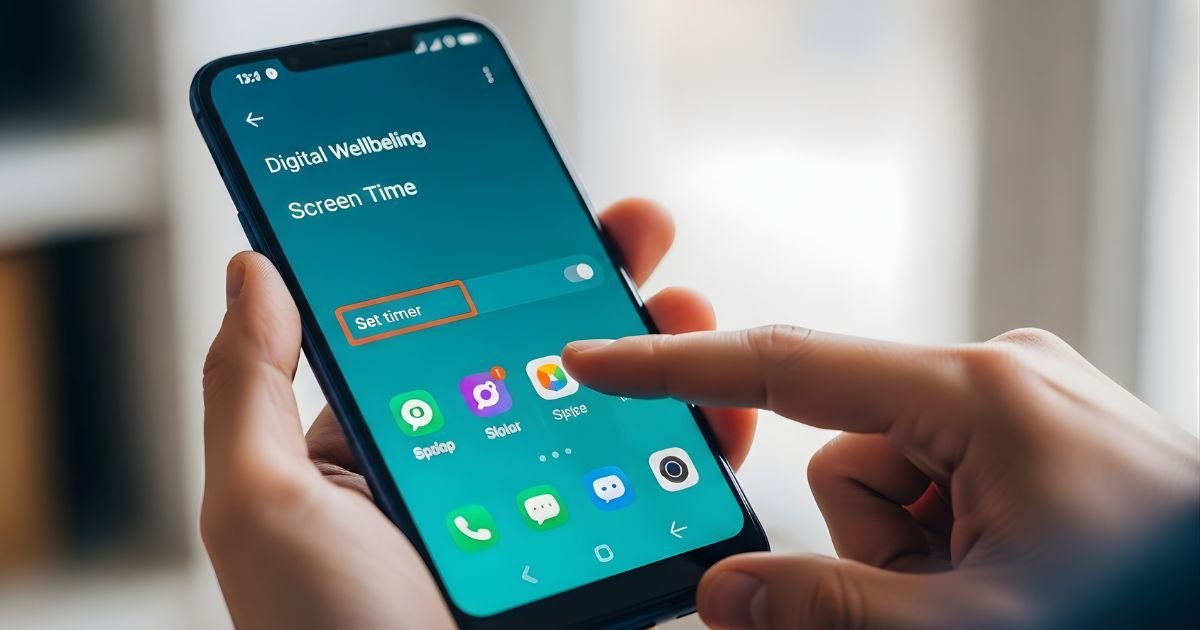
It is important that we all learn to manage our screen time in this digital age and find the middle ground between being online 24/7 and staying disconnected altogether. If you’ve found yourself or your family glued to Android devices, know that you are not alone.
The good news? Android has a wealth of built-in functionality that can help you manage and control device usage. Setting screen Time on Android is more than just a restriction it’s about developing healthier digital habits, increasing efficiency, and making sure that kids are only using their devices responsibly.
Whether you are a parent worried about how much time your child is spending on their smartphone, or an adult who wants to develop some self-discipline around his/her own tech and mobile use, this is the step-by-step, structured guide that highlights everything you need to know in order to use screen time effectively.
 What Is Android’s Built-In Digital Wellbeing Tools
Before diving into the setup process, it’s worth understanding what Android offers natively. Google introduced Digital Wellbeing & Parental Controls as a comprehensive solution for monitoring and managing device usage. This feature comes pre-installed on most Android devices running Android 9.0 (Pie) or later, making it accessible to millions of users worldwide without requiring third-party applications.
Digital Wellbeing provides insightful analytics about how you interact with your device throughout the day. It tracks which apps consume most of your attention, how many times you unlock your phone, and how many notifications you receive.
These metrics create a detailed picture of your digital habits, often revealing surprising patterns you might not have noticed otherwise. The dashboard presents this information through intuitive charts and graphs, making it easy to identify problem areas where you’re spending excessive time.
Beyond simple tracking, the feature includes practical tools like app timers, focus mode, and bedtime schedules. App timers allow you to set daily limits for specific applications, automatically pausing them when you’ve reached your allocated time.
Focus mode helps you minimize distractions by temporarily pausing selected apps during important tasks or quality time with family. Bedtime mode reduces interruptions during sleep hours by turning your screen grayscale and silencing notifications, promoting better sleep hygiene and healthier nighttime routines.
How to Set Screen Time on Android Using Digital Wellbeing
Step 1: Access Digital Wellbeing Settings
Open your device’s Settings app by tapping the gear icon in your app drawer or notification shade. Scroll down until you find “Digital Wellbeing & parental controls” (the exact name may vary slightly depending on your device manufacturer). Tap this option to enter the Digital Wellbeing dashboard.
Step 2: Review Your Current Usage
Before setting limits, take a moment to examine your current usage statistics. You’ll see a circular chart displaying today’s screen time, number of unlocks, and notifications received. Tap the chart to view detailed breakdowns by app and usage patterns throughout the day.
Step 3: Set App Timers
To limit time spent on specific apps, tap “Dashboard” and locate the app you want to restrict. Tap the hourglass icon next to the app name. Use the slider or input field to set your desired daily limit (you can set limits in increments of 5 minutes). Once confirmed, the timer will automatically pause the app when your limit expires, though you can override this if necessary.
Step 4: Configure Focus Mode
Navigate back to the main Digital Wellbeing menu and select “Focus mode.” Choose which apps you want to pause during focus sessions—typically social media, games, or other distracting applications. Toggle Focus mode on manually, or schedule it to activate automatically during specific times, such as work hours or family dinner time.
Step 5: Establish Bedtime Schedules
Return to the Digital Wellbeing menu and tap “Bedtime mode.” Set your desired sleep schedule by selecting start and end times. Customize options like grayscale display, Do Not Disturb mode, and whether to keep alarms active. This creates a consistent wind-down routine that signals your brain it’s time to disconnect.
Setting Up Parental Controls for Children’s Devices
When it comes to managing your child’s Android device usage, Google Family Link provides comprehensive parental control features that go beyond basic screen time management. This powerful tool allows parents to set restrictions remotely, approve app downloads, and monitor activity from their own devices, creating a safe digital environment for children.
Setting up Family Link requires downloading the Family Link app on both the parent’s device and the child’s device. During setup, you’ll create a supervised Google Account for your child if they’re under 13, or link their existing account to your family group.
The process is straightforward, with step-by-step instructions guiding you through each stage. Once connected, you gain access to a centralized dashboard showing all your children’s devices and their respective usage patterns.
The real advantage of Family Link lies in its granular control options. You can set daily screen time limits for the entire device, ensuring your child doesn’t exceed healthy usage levels. Additionally, you can establish specific bedtime and downtime schedules, automatically locking the device during homework hours, mealtimes, or nighttime.
Managing Content and App Permissions:
- Block or allow specific apps and games based on age-appropriateness
- Approve or deny app download and purchase requests in real-time
- Filter websites and content in Chrome browser using Safe Search
- View your child’s location when their device is powered on
- Receive weekly or monthly activity reports via email

Third-Party Screen Time Management Apps
Although Android comes with its own set of features, there are people who enjoy third-party apps because they have more advanced tools. Apps such as Action Dash, Your Hour and Stay Free offer advanced analytics, greater customization and unique motivational tools. These products all often come with streak tracking, game fication elements, and detailed historical data that goes back months or years.
Action Dash copies Digital Wellbeing’s UI but piles on premium features including usage goals, detailed notification tracking and export options for data analysis. Your Hour is a little more aggressive about it, with an overlay that accurately conveys to you how long you’ve been on your device at any given time.
Stay Free is strong on comparative analytics, displaying how your habits have changed over time and enabling you to set incremental goals toward reduction.
But before you start downloading third-party apps, evaluate whether they are selling features that you really need above what’s already offered natively. And other Android apps use up processing power, demand access to data that may compromise privacy and sometimes come with ads or subscriptions.
For many Android users, Digital Wellbeing has you covered! Without the side-effects mentioned. Save 3rd party tools for when you have specific requirements that integrated tooling doesn’t meet (eg: cross-device sync or more advanced reporting needs of researchers or therapists).
Common Challenges and Troubleshooting Tips
Digital Wellbeing Not Available
Some Android manufacturers customize their operating systems heavily, potentially removing or renaming Digital Wellbeing features. Samsung devices use “Digital Balance,” while other brands may have proprietary alternatives. Check your manufacturer’s support documentation or search your settings for terms like “screen time,” “wellbeing,” or “usage.”
App Timers Not Working Consistently
If app timers fail to pause applications as expected, ensure your Android system is fully updated. Navigate to Settings > System > System update and install any available patches. Additionally, some apps can bypass timers through background activity—review individual app permissions to restrict background usage.
Children Bypassing Parental Controls
Tech-savvy children sometimes find workarounds for restrictions. Ensure you’ve set a secure PIN or password for Family Link that differs from your device unlock code. Regularly review your child’s app list for newly installed applications, and consider disabling “Install unknown apps” permissions that allow sideloading applications outside the Play Store.
Syncing Issues with Multiple Devices
Digital Wellbeing settings are Android device-specific rather than account-based, meaning limits set on one device don’t transfer to others. For families managing multiple devices, this requires setting up restrictions individually on each tablet or phone, which can be time-consuming but ensures appropriate limits for each device’s typical usage patterns.
Building Healthy Digital Habits Beyond Screen Time Limits
Technology restrictions alone won’t create lasting behavioral change without addressing underlying habits and motivations. Screen time limits work best when combined with intentional practices that promote mindful device usage and genuine engagement with the physical world around you.
Start by identifying your triggers—the situations, emotions, or times of day when you automatically reach for your phone. Are you checking social media out of boredom during commutes?
Do you scroll through news feeds when feeling anxious? Understanding these patterns helps you develop alternative responses, like carrying a book for commutes or practicing breathing exercises during stressful moments instead of seeking digital distraction.
Create Android phone-free zones and times in your daily routine. Establish rules like no devices during meals, keeping phones out of bedrooms at night, or designating the first hour after waking up as screen-free time for morning routines.
These boundaries transform screen time management from restrictive limits into positive lifestyle choices that everyone in your household can practice together, modeling healthy behavior for children.
Monitoring Progress and Adjusting Your Approach
Learn how to set limits on screen time for Android, but keep in mind that the Netflix police are not going to mediate your household. Digital Wellbeing’s week-in-review summaries are insights that can help a person understand patterns – whether they’re using their device more or less, and where potential attention might be needed.
Look over those reports each Sunday to judge your progress in an objective light. Patterns are key: Do you have the same-day issues over and over again? Are certain applications really starting to take their toll on your time despite your best intentions?
Has your overall screen time Android gone down since you put in place the limits? Use this information to adjust your restrictions, strengthening limits on apps that still rule your attention or lightening the restrictions on instruments that legitimately aid productivity.
For parents, those daily check-ins with kids about how they’re managing their screen time are an opportunity to have conversations around these new topics of digital citizenship, online safety, and developing self-regulation skills. Explain why limits are necessary and have kids set their own goals rather than complying with rules.
This partnership helps them recognize the unhealthy usage patterns on their own, building from within an internal motivation for balance, and not just from without through boundaries that will no longer be there when they become adults.
Final Thought
Learning how to set screen time on Android empowers you to reclaim control over your digital life, transforming your smartphone from a constant distraction into a useful tool that serves your goals rather than undermining them.
Whether you’re relying on Digital Wellbeing’s app timers to forgo using your phone at certain times of day or are setting up more rigorous parental controls like those available in Family Link or investigating a third-party solution, for that matter the secret is sticking to it and being willing to change your strategy as needed over time.
Keep in mind that screen time management is not about being perfect or removing all screens from your life. Instead, it’s about setting deliberate boundaries that are congruent with your values, support your mental health, and ensure technology is used to amplify — not replace or detract from meaningful real-world experiences.
Begin with one or two modest changes, gain confidence as new habits take hold, and focus on progress instead of the infrequent slip-up.
