

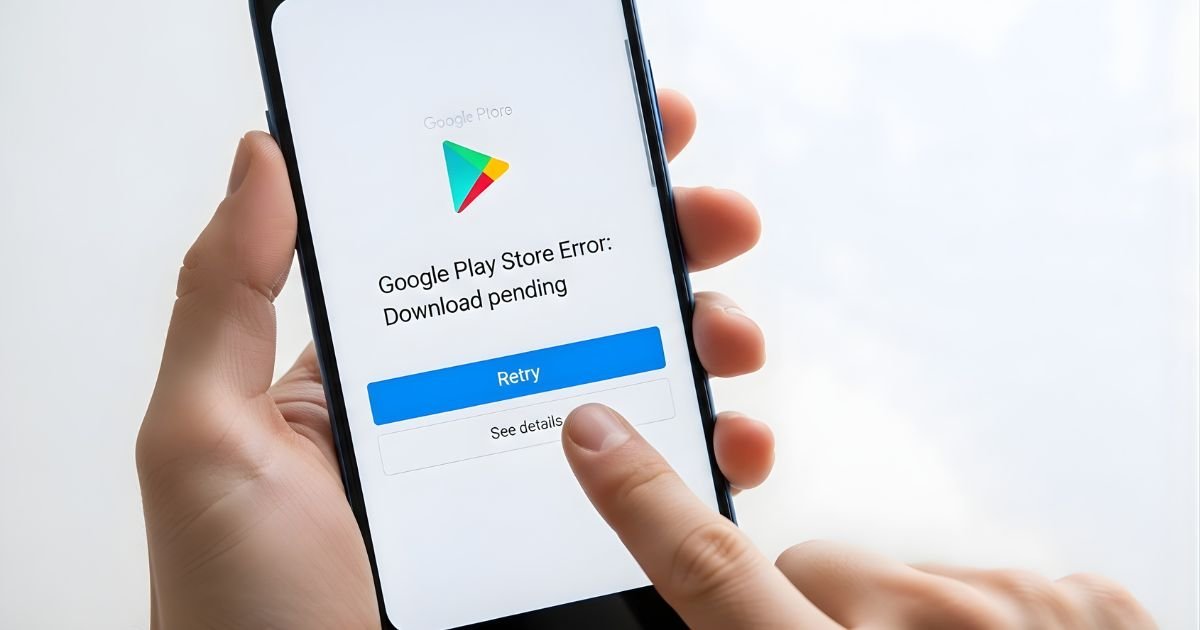
Are you tired of seeing that frustrating Google Play Store error every time you try to download an app? You’re not alone.
When your Play Store stops working, it feels like your phone is stuck, and you can’t get things done. But don’t worry—fixing this problem is easier than you think. You’ll discover simple, effective steps to get your Play Store back up and running quickly.
Common Google Play Store Errors

Google Play Store errors can stop you from downloading or updating apps. They cause frustration and confusion. Knowing the common errors helps you fix them fast. Understanding error codes and causes gives you control over the problem.
Let’s explore the frequent errors you might face. Learn what the codes mean and why they happen. This knowledge makes solving issues easier.
Error Codes Explained
Error codes are short messages showing what went wrong. For example, error 403 means you tried to download the same app from two accounts. Error 491 shows a problem with downloading or updating apps. Error 504 points to a timeout while connecting to the server. Each code gives a clue to the problem’s source. Knowing these codes helps you take the right action.
Frequent Causes
Many errors come from simple problems. Poor internet connection is a top cause. Low storage space can stop downloads. Outdated Play Store app or Android system may not work well. Corrupted cache files often block app updates. Problems with Google account sync also cause errors. Fixing these common causes clears most issues.
Basic Troubleshooting Steps
Fixing Google Play Store errors often starts with basic troubleshooting steps. These simple actions solve many common problems quickly. Follow these steps first before trying advanced fixes.
Restart Your Device
Restarting your device refreshes its system and clears temporary glitches. Press and hold the power button. Tap “Restart” or “Reboot.” Wait for the device to turn off and on again. This process often fixes Play Store errors.
Check Internet Connection
A stable internet connection is necessary for Google Play Store to work. Check if your Wi-Fi or mobile data is active. Try opening a website or another app. Switch between Wi-Fi and mobile data to test. Poor connection can cause download failures or errors.
Clear Cache And Data
Clearing cache and data helps fix many Google Play Store errors. Cached files store temporary data. Sometimes, these files cause app problems. Deleting them forces the app to refresh. This often solves loading or download issues. It does not delete your personal data or apps.
Clearing Play Store Cache
Open your device’s Settings menu. Find and tap on Apps or Application Manager. Scroll and select Google Play Store. Tap Storage, then Clear Cache. This removes temporary files. Restart the Play Store app. Check if the error still appears.
Resetting Google Play Services
Google Play Services is vital for Play Store functions. Clearing its cache can fix many errors. Go to Settings and open Apps. Find Google Play Services in the list. Tap Storage, then Clear Cache. If problems continue, tap Clear Data or Manage Storage, then Clear All Data. Restart your device and try again.
Update Google Play Store
Updating the Google Play Store can fix many errors. The app needs the latest version to work smoothly. Older versions may cause problems while downloading or updating apps. Keeping Google Play Store updated ensures better security and new features.
There are two main ways to update the Google Play Store. You can check for updates manually or enable automatic updates. Both methods are simple and take little time.
Manually Checking For Updates
Open the Google Play Store app on your device. Tap the profile icon at the top right corner. Select “Settings” from the menu that appears. Scroll down to find “About” and tap it. Look for the “Play Store version” option. Tap on it to check for updates.
If an update is available, the app will start updating automatically. If not, it will show a message saying the Play Store is up to date. Manually checking helps when you face errors and want to fix them fast.
Enable Automatic Updates
Automatic updates keep the Play Store fresh without your effort. Open the Google Play Store and tap your profile icon. Go to “Settings” and then “Network preferences.” Tap on “Auto-update apps.” Choose the option “Over any network” or “Over Wi-Fi only.”
Automatic updates ensure the Play Store and apps stay current. This reduces errors caused by outdated software. This setting is helpful for users who don’t want to check updates manually.
Manage Google Account
Managing your Google Account can solve many Google Play Store errors. Sometimes, account settings cause syncing or login issues. Fixing these problems often requires simple steps. These steps include removing and re-adding your account or adjusting sync settings.
Remove And Re-add Account
Start by removing your Google Account from your device. This clears any corrupted data. Go to Settings and find Accounts. Select your Google Account and tap Remove. Restart your device afterward.
Next, add your account back. Open Settings and choose Accounts again. Tap Add Account and select Google. Enter your login details. This refreshes your connection with Google Play Store.
Sync Account Settings
Sync issues can block app downloads or updates. Fix this by checking your sync settings. Go to Settings and open Accounts. Tap your Google Account and find Sync options.
Make sure all sync options are turned on. Tap Sync now to update data. This ensures your device and Google servers are in sync. It helps Google Play Store work smoothly.
Check Device Storage And Date Settings
Google Play Store errors often stem from simple issues with your device. Two common causes are low storage space and incorrect date or time settings. Fixing these can help the Play Store work smoothly again.
Check your device’s storage and date settings first. These settings affect app downloads and updates. Keeping them correct ensures the Play Store functions properly.
Free Up Storage Space
Low storage can stop the Play Store from downloading apps. Check your device storage by opening Settings and tapping Storage. See how much space is left.
Delete unused apps, old photos, or large files to free space. Clearing cache data from apps also helps. More free space means better Play Store performance.
Correct Date And Time
Incorrect date or time can cause Play Store errors. Your device and Google servers must match time settings. Open Settings, then find Date & Time.
Turn on “Automatic date & time” to set time from the network. If off, set the correct date and time manually. This simple step can fix many Play Store issues.
Reset App Preferences
Resetting app preferences can help fix many Google Play Store errors. It restores all app settings to their default state. This action does not delete any app data or personal files. It simply resets disabled apps, notification restrictions, and default apps. This step is useful if the Play Store or related apps behave strangely.
What Does Reset App Preferences Do?
Resetting app preferences turns on all disabled apps and services. It clears default apps for actions like opening links. It also removes any app permission restrictions. This helps apps work smoothly again. Problems caused by misconfigured settings often disappear after reset.
How To Reset App Preferences On Android
Open your device’s Settings app. Scroll down and tap on “Apps” or “Apps & notifications.” Tap the three dots icon at the top right corner. Choose “Reset app preferences” from the menu. Confirm by tapping “Reset apps” on the pop-up.
What Happens After Resetting App Preferences?
All disabled apps will be enabled again. Notifications blocked for apps will start appearing. Default app choices will be cleared. Permissions will return to their original state. You may need to set default apps again. The Play Store should work better after this reset.
Advanced Fixes
Advanced fixes can resolve persistent Google Play Store errors. These steps involve deeper changes to your device settings. They help when basic solutions do not work. Follow these methods carefully to avoid data loss.
Uninstall Play Store Updates
Uninstalling Play Store updates can fix corrupted files. It restores the app to its original version. Open your device settings and go to Apps or Applications. Find Google Play Store in the list. Tap on it and select Uninstall Updates. Restart your device and check if the error is gone. The Play Store will update itself automatically later.
Factory Reset Device
Factory reset erases all data and settings on your device. It restores your phone or tablet to its original state. This method fixes deep software issues causing Play Store errors. Backup important data before proceeding. Go to Settings, then System or General Management. Tap Reset or Factory Data Reset. Follow the on-screen instructions to complete the reset. After the reset, set up your device and try the Play Store again.
When To Seek Professional Help
Sometimes, fixing Google Play Store errors needs more than basic steps. Some issues require expert help to avoid damage or data loss. Knowing when to ask for professional support saves time and stress.
Minor errors can be fixed by you. Complex problems may need a technician’s tools and knowledge. Here are signs you should seek professional help.
Persistent Errors After Basic Troubleshooting
If the error stays after clearing cache and restarting, get help. Repeated failures suggest deeper software or hardware problems. Professionals can diagnose these issues accurately.
App Installation Or Update Fails Continuously
When apps won’t install or update despite many tries, it is a red flag. This may mean corrupted system files or account problems. Experts can fix these safely.
Device Performance Drops With Store Issues
Slow speed, freezing, or battery drain linked to Play Store errors need attention. Such signs often indicate serious device problems. Professionals can check hardware and software health.
Errors Involving Google Account Or Permissions
Problems with Google account sign-in or permission settings can block Play Store access. If you cannot fix account sync or permission errors, seek expert help. They know how to secure your data.
Risk Of Data Loss Or Warranty Concerns
Trying risky fixes without skills can cause data loss or void warranty. Professionals have safe methods to protect your device and information.
Frequently Asked Questions
Why Is Google Play Store Not Working On My Device?
Google Play Store may fail due to cache issues, outdated app, or poor internet connection. Clearing cache and updating often fix the problem.
How Can I Clear Cache To Fix Play Store Errors?
Go to Settings > Apps > Google Play Store > Storage > Clear Cache. This removes temporary files causing app glitches.
What Should I Do If Google Play Store Keeps Crashing?
Restart your device, check for app updates, and clear cache. These steps usually resolve crashing issues quickly.
How To Fix Google Play Store Error 504?
Error 504 often relates to network timeouts. Switch Wi-Fi off and on, or use mobile data to retry downloading.
Conclusion
Fixing Google Play Store errors can be simple with the right steps. Restart your device, clear cache, or update the app. Check your internet connection and storage space. These fixes solve most common issues fast. Keep your apps and system updated regularly.
Stay patient; sometimes, it takes a moment to work. Use these tips to enjoy smooth app downloads again. No need to stress over errors anymore. Your Play Store should work properly now.
