

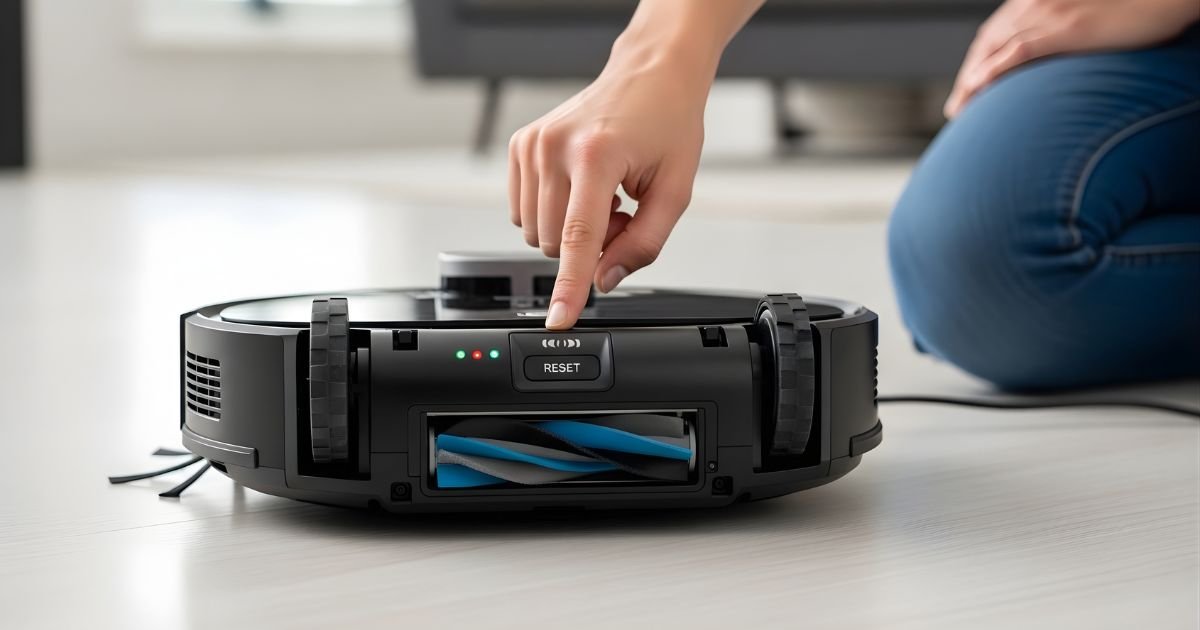
Is your Shark robot vacuum acting up? Maybe it’s forgetting your home’s layout, refusing to connect to Wi-Fi, or just not performing like it used to. Before you call customer support or consider buying a replacement, there’s a simple solution that fixes most issues: a factory reset.
Learning how to factory reset Shark robot vacuum models can save you time, money, and frustration. This process wipes the device’s memory clean, removing saved maps, Wi-Fi credentials, and custom settings, essentially giving you a fresh start.
Whether you’re troubleshooting persistent problems, preparing to sell your vacuum, or moving to a new home, understanding the reset process is essential. In this guide, we’ll walk you through everything you need to know to restore your Shark robot vacuum to its original factory settings quickly and safely.
Why You Might Need to Reset Your Shark Robot Vacuum
Before diving into the technical steps, it’s important to understand when a factory reset is actually necessary. Not every glitch requires a complete wipe of your device’s memory, but certain situations definitely call for it.
Common scenarios include persistent Wi-Fi connectivity issues where your vacuum simply won’t stay connected to your home network, even after multiple attempts. You might also need to reset if the robot is navigating poorly, constantly getting stuck in the same spots, or if the mapping feature has become corrupted.
Perhaps you’re selling or gifting your vacuum and want to remove all your personal data and home information. Moving to a completely new home with a different floor plan is another valid reason—starting fresh often works better than trying to modify an existing map.
Additionally, if your Shark robot vacuum is experiencing software glitches, freezing during cleaning cycles, or not responding to app commands, a factory reset can often resolve these issues by clearing out corrupted data or conflicting settings.
Preparing for the Factory Reset Process
Before you begin the reset process, there are several important steps to take to ensure everything goes smoothly and you don’t lose important information unnecessarily.
First, make sure your Shark robot vacuum is adequately charged. You’ll want at least 50% battery life to complete the reset process without interruption. Place the vacuum on its charging dock for about 30 minutes if you’re unsure of the current battery level.
Next, take note of your current Wi-Fi network name and password. After the factory reset, you’ll need to reconnect the vacuum to your network, and having this information readily available will make the setup process much smoother.
If you’ve created custom cleaning schedules, no-go zones, or room-specific settings in the Shark Clean app, consider taking screenshots. These will be erased during the reset, and having visual references will help you recreate them faster.
It’s also wise to check for any firmware updates before resetting. Sometimes, updating the software can resolve issues without requiring a full factory reset. Open the Shark Clean app, navigate to your device settings, and check for updates. If an update is available, install it first and test whether your problems persist.
Finally, remove the vacuum from its dock and clear the area around it. You’ll need physical access to the buttons on the device itself, and having a clear workspace makes the process easier and safer.
How to Factory Reset Shark Robot Vacuum: Step-by-Step Instructions
The exact method for performing a factory reset varies slightly depending on your specific Shark robot vacuum model. Here are the most common methods:
Method 1: Using the Physical Buttons (Most Models)
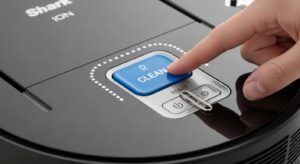
- Locate the buttons: Find the “Dock” and “Clean” buttons on your Shark robot vacuum. These are typically located on the top panel of the device.
- Press and hold: Simultaneously press and hold both the “Dock” and “Clean” buttons for about 10-15 seconds.
- Watch for indicators: The vacuum’s LED lights will flash or change color, and you may hear a voice prompt confirming the reset has begun.
- Release the buttons: Once you see the confirmation (usually all lights flashing or a specific sound), release both buttons.
- Wait for completion: The vacuum will shut down and restart automatically. This process takes about 2-3 minutes.
Method 2: Shark IQ Robot Models
- Power on the vacuum: Make sure your Shark IQ is turned on and not docked.
- Access the reset button: Some Shark IQ models have a small reset button near the power switch or under a small panel on the side.
- Use a paperclip: Gently press and hold the reset button using a paperclip or similar thin object for 10 seconds.
- Confirm the reset: The vacuum will announce it’s resetting or the lights will flash in a specific pattern.
Method 3: Through the Shark Clean App
- Open the app: Launch the Shark Clean app on your smartphone or tablet.
- Navigate to settings: Tap on your robot vacuum, then select “Settings” or the gear icon.
- Find reset option: Scroll down to “Factory Reset” or “Restore Default Settings.”
- Confirm your choice: The app will warn you that this action cannot be undone. Confirm to proceed.
- Follow prompts: The app will guide you through the remaining steps.
Understanding What Happens During a Factory Reset
When you initiate a factory reset on your Shark robot vacuum, you’re essentially giving it a complete digital makeover. Think of it like reinstalling the operating system on a computer—everything gets wiped clean and restored to its original state.
During this process, the vacuum’s internal memory is completely cleared of all user-generated data. This includes the detailed maps it has created of your home, which room is which, where furniture is located, and any no-go zones you’ve established.
All Wi-Fi network information is deleted, meaning the vacuum forgets your network name and password entirely. Any custom cleaning schedules you’ve programmed disappear, as do preferences like suction power settings for specific rooms or cleaning modes you’ve favored.
The reset process also clears any error codes or temporary glitches that may have accumulated in the system’s cache. It’s important to understand that this isn’t just a simple reboot or power cycle—those actions merely restart the device while preserving all your data.
A factory reset is far more comprehensive and permanent. The vacuum’s firmware remains intact, but all the personalized configurations and learned behaviors are erased. This is why the process takes a few minutes; the device isn’t just turning off and on, it’s actively rewriting its configuration files to match the original factory specifications.
During this time, the vacuum may make unusual sounds, flash lights in patterns you haven’t seen before, or seem unresponsive. This is completely normal and indicates the reset is progressing as intended.
Post-Reset Setup and Reconfiguration
After successfully completing a factory reset, your Shark robot vacuum will be in a pristine, out-of-the-box state. This means you’ll need to go through the initial setup process again, just like when you first purchased the device.
The vacuum will no longer remember your home’s layout, so it will need to remap your entire space from scratch. When you first power it on after the reset, place it on its charging dock and allow it to fully charge before attempting any setup.
Once charged, you’ll need to reconnect it to your Wi-Fi network through the SharkClean app. This involves putting the vacuum into pairing mode, which typically happens automatically after a reset, then following the app’s prompts to select your network and enter your password.
The remapping process is crucial and requires some patience. For the best results, run a complete mapping run before scheduling regular cleanings.
During this initial mapping cycle, make sure all doors to rooms you want mapped are open, pick up any loose cables or small objects that could confuse the sensors, and ensure good lighting throughout your home. The vacuum will methodically explore your space, creating a new digital map that it will use for future cleaning sessions.
Troubleshooting Common Reset Issues
Even though factory resets are generally straightforward, you might encounter some hiccups along the way. Here are solutions to common problems:
The vacuum won’t reset: If holding the buttons doesn’t work, ensure the vacuum has sufficient battery charge. Try plugging it directly into the dock and waiting 5 minutes before attempting the reset again.
Reset seems stuck: If the vacuum appears frozen during the reset process, wait at least 10 minutes before intervening. If it’s still unresponsive, remove the battery (if accessible) for 30 seconds, then reinstall and try again.
Can’t reconnect to Wi-Fi after reset: Make sure you’re using a 2.4GHz network, not 5GHz. Shark robot vacuums typically don’t support 5GHz networks. Move the vacuum closer to your router during setup.
Map isn’t saving: After remapping, allow the vacuum to complete a full cleaning cycle and return to the dock on its own. Interrupting this process can prevent the map from saving properly.
App won’t recognize the vacuum: Delete the vacuum from your Shark Clean app entirely, then re-add it as a new device after the reset is complete.
When to Contact Shark Customer Support
While most factory reset issues can be resolved using the methods outlined above, there are situations where professional assistance is necessary. If your Shark robot vacuum still exhibits problems after a successful factory reset and complete reconfiguration, it may indicate a hardware issue rather than a software glitch.
Contact Shark customer support if the vacuum won’t hold a charge even after reset, makes unusual grinding or squealing noises, has physical damage to sensors or wheels, or repeatedly displays the same error codes after multiple reset attempts. Additionally, if your model is still under warranty, it’s always wise to consult with Shark support before attempting any resets that might affect warranty coverage.
Conclusion
Learning how to factory reset Shark robot vacuum devices is an essential skill for any owner. Whether you’re troubleshooting connectivity issues, clearing corrupted maps, or preparing your vacuum for a new home, the reset process provides a fresh start that resolves most software-related problems.
Remember to back up important settings, ensure adequate battery charge, and be patient during the remapping process afterward. While the steps may vary slightly between models, the fundamental process remains consistent across the Shark robot vacuum lineup.
Don’t let technical issues sideline your cleaning routine. With this guide, you’re now equipped to handle most problems independently and get your Shark robot vacuum back to peak performance.
If you found this guide helpful, share it with other Shark vacuum owners, and don’t hesitate to explore our other maintenance guides to keep your device running smoothly for years to come.
