

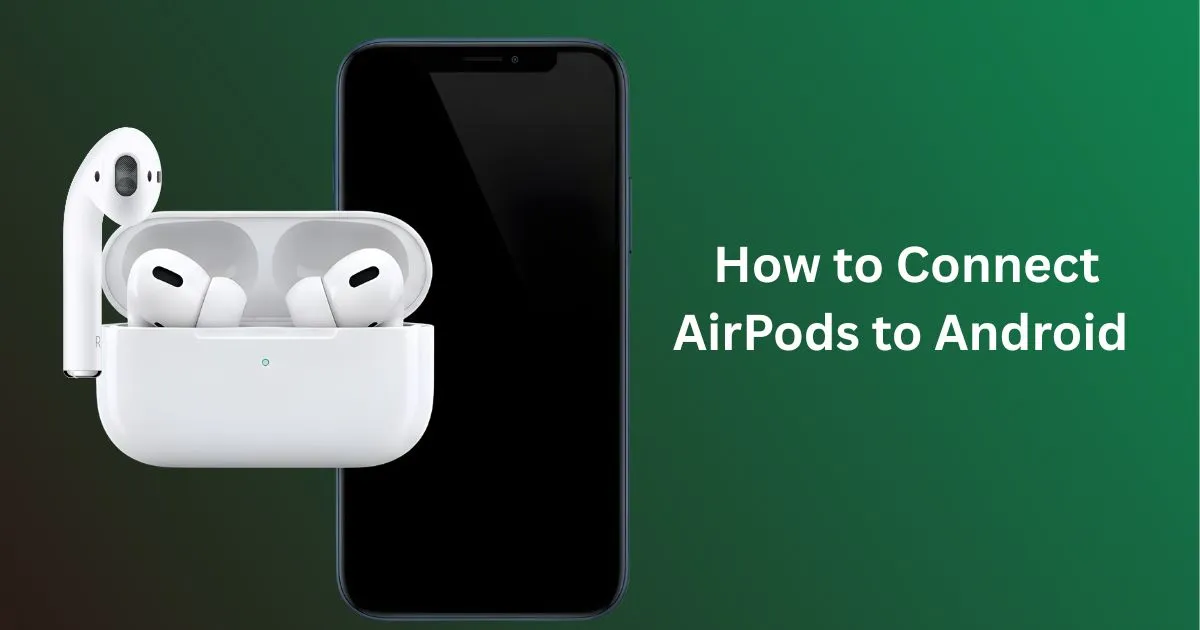
AirPods are incredibly popular, not just among iPhone users but also for anyone who wants premium audio quality. But if you use an Android phone and how to connect AirPods to Android, you might wonder whether AirPods still work smoothly.
You’re not alone, thousands of Android users search daily for ways to pair their AirPods. The good news is that the process is surprisingly simple.
To connect AirPods to Android, turn on Bluetooth, open the AirPods case, press the setup button until the light flashes white, then select “AirPods” from your phone’s Bluetooth list. This fast explanation helps anyone get started instantly.
If you want more detailed steps, troubleshooting tips, and model-specific instructions, this guide will walk you through everything. Let’s dig into this article.
Can You Use AirPods with Android?
Yes, you can absolutely use AirPods with Android devices. Since AirPods run on standard Bluetooth technology, they connect to Android phones just like any other wireless earbuds.
To connect AirPods to Android, just turn on Bluetooth, put AirPods in pairing mode, and select them under available devices. This makes AirPods fully usable even without the Apple ecosystem.
While you won’t get Apple-exclusive features like Siri commands or automatic device switching, the core experience listening to music, making calls, and using touch controls—works perfectly.
The best part is that almost every AirPods model is compatible with Android, including AirPods 1, 2, 3, AirPods Pro, and AirPods Max.
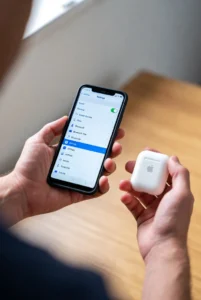
What are the Benefits of Using AirPods with an Android Phone
AirPods still offer excellent value for Android users because of their premium build quality, stable connectivity, and advanced audio features.
- 1. High-Quality Sound Performance: AirPods deliver crisp vocals, deep bass, and balanced sound—even on Android phones. Their Bluetooth stability ensures smooth audio streaming during songs, movies, or calls.
- 2. Comfort for Long-Term Use: AirPods are lightweight and ergonomically designed, making them comfortable for workouts, travel, or long work sessions.
- 3. Easy Gesture Controls: You can double-tap or squeeze (AirPods Pro) to play, pause, skip tracks, or answer calls without touching your phone.
- Active Noise Cancellation (for AirPods Pro & Max): ANC works on Android too, helping you block unwanted noise during commutes or study sessions.
- Great Call Quality: Built-in high-quality microphones ensure clear call performance even in noisy environments.
- Strong Battery Life: Most AirPods models offer 4–6 hours of listening time and 20–30 hours with the charging case.
How to Connect AirPods to Android – Step-by-Step Guideline
Connecting AirPods to Android is simple. This guideline shows exactly how to connect AirPods to Android in a few quick steps.
Step 1: Turn On Bluetooth
Go to Settings > Bluetooth on your Android device. Toggle Bluetooth on so your phone can search for nearby devices.
Step 2: Put AirPods in Pairing Mode
Place the AirPods in the charging case and open the lid. Press and hold the button on the back until the LED light flashes white, indicating pairing mode.
Step 3: Select AirPods on Your Android
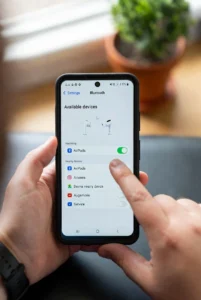
Your phone will show a list of available devices. Tap “AirPods” or “AirPods Pro” to start the connection.
Wait a few seconds for the pairing to complete.
Step 4: Test the Audio
Play a video or song to ensure audio is working. You can also test call quality by making a quick call.
How to Reconnect AirPods Automatically
Most AirPods reconnect instantly after the first pairing. Here’s how the auto-reconnection works and what to do if it doesn’t.
Once paired, AirPods automatically connect to Android when you open the case near your device. Ensure your Bluetooth is switched on for this to work smoothly.
If They Don’t Reconnect Automatically
- Turn Bluetooth off and on again
- Put AirPods in the case, close it for 5 seconds, then reopen
- Tap AirPods from the Bluetooth list
- “Forget Device” and re-pair if needed
These steps fix 90% of reconnection issues.
How to Connect AirPods Pro to Android: how to connect AirPods to Android
AirPods Pro works great with Android devices. If you want to connect AirPods Pro to Android then follow the same Bluetooth pairing process. Follow these steps to connect AirPods Pro to Android.
Steps to Connect AirPods Pro
- Open the AirPods Pro charging case.
- Hold the back button until the light flashes white.
- On your Android phone, go to Settings > Bluetooth.
- Find AirPods Pro in the list and tap to pair.
- Test Noise Cancellation (squeezing the stem).
ANC, Transparency Mode, and touch gestures all function perfectly.
How to Connect AirPods Max to Android
AirPods Max also connects easily to Android via Bluetooth. Here is the guideline to connect AirPods Max to Android.
Steps to Connect AirPods Max
- Press and hold the Noise Control button until the status light flashes white.
- On your Android device, enable Bluetooth.
- Select AirPods Max from the available device list.
- Wait for the connection message to appear.
- Test ANC and sound quality.
Most features work normally except for Apple-exclusive settings.
How to Fix AirPods Not Connecting to Android
Sometimes AirPods may fail to pair due to Bluetooth issues or interference. In that case, don’t need to panic. Just follow these quick fixes.
- Reset Your AirPods: Put them in the charging case. Hold the setup button until the LED turns amber, then white. This wipes previous connections.
- Restart Your Android Device: A restart refreshes your Bluetooth system and fixes minor glitches.
- Forget and Re-pair: Go to Bluetooth settings, select your AirPods, and tap Forget. Pair again as a new device.
- Turn Off Other Bluetooth Devices: Your AirPods may connect to another device nearby. Switch off Bluetooth on other phones or laptops.
- Charge the AirPods: Low battery can prevent pairing.
- Update Your Android System: Software updates improve Bluetooth compatibility.
Frequently Asked Questions
1. Do AirPods work well with Android?
Yes, AirPods work smoothly with all Android phones using Bluetooth. You can enjoy music, calls, ANC, and gestures.
2. Why won’t my AirPods show in the Bluetooth list?
Your AirPods may not be in pairing mode. Reset them and hold the back button until the light flashes white.
3. Can I check AirPods battery level on Android?
Yes, using third-party apps like AirBattery, PodAir, or MaterialPods.
4. Do AirPods lose quality on Android?
No, the sound quality remains high. You only lose Apple-exclusive features like Siri and spatial audio toggles.
5. Can I use one AirPods at a time on Android?
Yes, you can use a single AirPods while the other charges in the case.
Final Thought
Connecting AirPods to an Android phone is easy and takes only a few seconds. Whether you use AirPods, AirPods Pro, or AirPods Max, the pairing steps are nearly identical.
Follow the steps in this guide to enjoy smooth connectivity and premium sound. This is the simplest way to learn how to connect AirPods to Android effortlessly. Thank you all for reading this article.
