

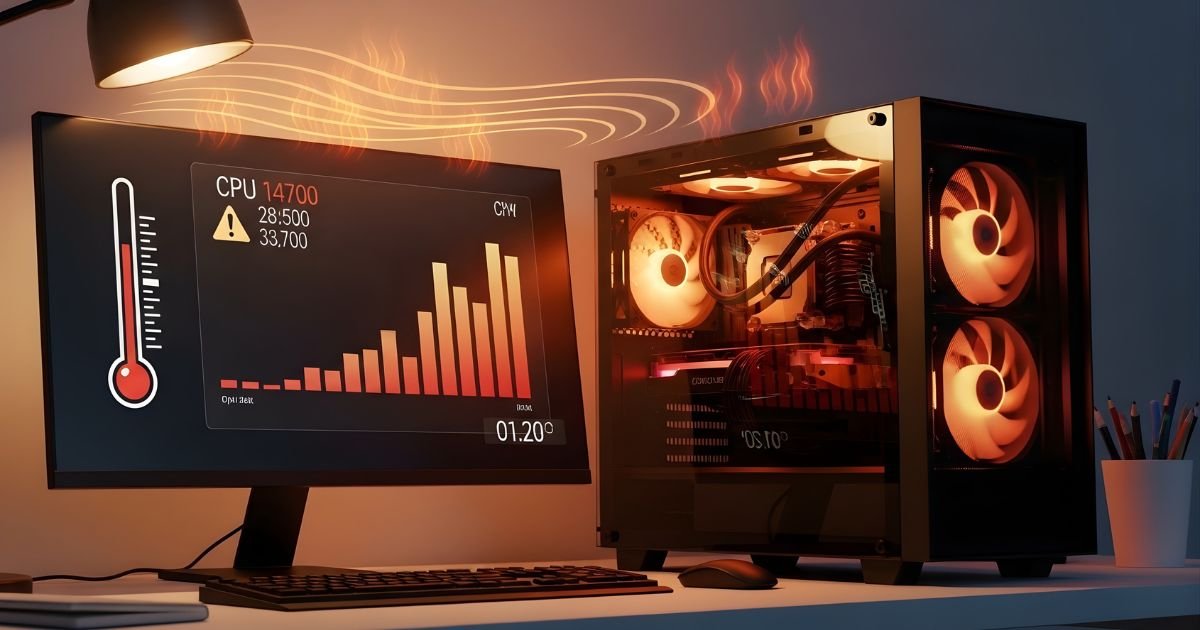
Computers are at the heart of our daily lives, powering everything from work projects to gaming marathons. But what happens when they start to overheat? Just like humans need a cool breeze on a hot day, your computer also has its limits when it comes to temperature.
An overheated machine can lead to frustrating slowdowns or even catastrophic failures. Understanding how hot is too hot for a computer is crucial for keeping your technology running smoothly and efficiently.
Let’s dive into this sizzling topic and uncover the secrets behind maintaining optimal temperatures for your trusty device!
The science behind computer heat tolerance
Computers generate heat as a byproduct of their operations. This happens especially in components like the CPU and GPU, which handle intensive tasks.
The small transistors within these chips switch on and off rapidly, creating friction that translates into heat. How well a computer can manage this heat is critical for maintaining performance.
Heat tolerance varies across different components. Manufacturers specify maximum temperature limits to prevent damage. For instance, CPUs typically tolerate temperatures up to 90 degrees Celsius before thermal throttling occurs.
Cooling solutions play an essential role in managing this heat buildup. Air cooling systems use fans to dissipate warmth, while liquid cooling offers higher efficiency through fluid circulation.
Understanding the science behind how computers handle heat gives insight into why regular maintenance is vital for longevity and performance stability.
Factors that can contribute to excessive heat in computers
Several factors can lead to excessive heat in computers. One major contributor is dust buildup. Dust and debris can clog vents and fans, disrupting airflow.
Another factor is inadequate cooling solutions. Stock coolers may not provide sufficient heat dissipation for high-performance components, especially during intensive tasks.
Ambient temperature plays a role too. If your workspace is warm or lacks ventilation, it creates an environment where computers struggle to maintain optimal temperatures.
Heavy workloads also increase internal temperatures. Running resource-intensive applications pushes the CPU and GPU harder, generating more heat than usual.
Aging hardware can be a problem. Older components may have degraded thermal paste or failing fans that hinder efficient cooling systems from functioning properly. Regular maintenance checks are essential for preventing overheating issues related to these common causes.
Potential damage caused by overheating
Overheating can lead to serious issues for your computer. When temperatures soar, components like the CPU and GPU struggle to perform efficiently. This stress often results in throttling, causing slowdowns during tasks.
Prolonged exposure to high heat can also cause physical damage. Internal parts may warp or degrade over time. This wear and tear shortens their lifespan significantly.
Data loss is another risk associated with overheating. Hard drives are particularly vulnerable; excessive heat can lead to failure, resulting in lost files that might never be recovered.
In extreme cases, a computer could shut down unexpectedly or even suffer permanent hardware failure. These incidents not only disrupt work but could also incur costly repairs or replacements, making it essential to monitor temperature levels consistently.
Tips for preventing and managing computer overheating
To keep your computer cool, start with regular cleaning. Dust and debris can accumulate in vents and fans, obstructing airflow. A simple dusting session can make a significant difference.
Next, ensure that your computer has adequate ventilation. Keep it on a hard surface rather than soft fabrics like beds or couches. This allows for better air circulation.
Consider using cooling pads if you’re working on a laptop. These devices help dissipate heat efficiently, providing extra support during intensive tasks.
Monitor system temperatures using software tools designed to track performance metrics. This helps identify potential overheating issues before they escalate.
Manage the workload by closing unnecessary applications while multitasking. Reducing strain on the CPU can prevent excessive heating during heavy usage periods.
How to tell if your computer is experiencing heat-related issues
Recognizing heat-related issues in your computer is crucial to maintaining its performance. One clear sign is unexpected shutdowns or restarts. If your device turns off without warning, it might be trying to protect itself from overheating.
Another indicator is unusually loud fans. When components overheat, the cooling system kicks into high gear, producing more noise than usual.
You may also notice sluggish performance during demanding tasks—like gaming or video editing—as the CPU throttles down to cool off.
Keep an eye on temperatures by using monitoring software that checks CPU and GPU stats. If readings exceed 85 degrees Celsius consistently, it’s time to investigate further.
Watch for physical signs like hot surfaces or burnt smells coming from your machine. These symptoms indicate a serious problem lurking beneath the surface.
The ideal temperature range for a computer’s internal components
Every computer has its sweet spot when it comes to temperature. Generally, the ideal range for internal components falls between 20°C and 75°C (68°F – 167°F).
Most CPUs operate best around 60°C to 70°C under load. Staying within this range ensures optimal performance without straining the hardware.
GPUs also have their preferences. They usually thrive below 85°C during demanding tasks like gaming or video rendering.
Motherboards and Power Supply Units (PSUs) should ideally remain cooler than their other counterparts, preferably not exceeding 70°C.
Maintaining these temperatures helps prolong your computer’s lifespan. Monitoring software can assist in tracking these metrics effectively, giving you peace of mind about your system’s health. Well-ventilated cases and regular dusting can make a significant difference too, ensuring that air flows freely throughout the chassis.
Factors that can affect a computer’s internal temperature
Several factors can influence a computer’s internal temperature. One of the most significant is airflow. Good ventilation allows heat to dissipate, while blocked vents or inadequate space can lead to overheating.
The ambient temperature also plays a crucial role. A hot room means your computer has to work harder to stay cool, putting extra strain on its components.
Dust accumulation is another culprit. Dust clogs fans and heatsinks, preventing them from functioning properly and leading to higher temperatures over time.
Hardware performance impacts heat levels as well. High-performance CPUs and GPUs generate more heat when running demanding applications or games.
The quality of thermal paste between the CPU and its cooler matters too. Old or improperly applied thermal paste can hinder effective cooling, causing increased operating temperatures for your device.
Dangers of high temperatures for a computer
High temperatures can spell disaster for a computer. When components overheat, performance suffers. You may notice sluggishness or unresponsiveness during critical tasks.
Heat affects the CPU and GPU first. Prolonged exposure to elevated temperatures leads to thermal throttling. This process intentionally slows down the system to cool it off, which can hinder productivity.
Hard drives are also at risk. Excessive heat can cause data corruption or complete failures, resulting in potential data loss you might not recover easily.
Another concern is shortened lifespan for internal parts. Regular overheating puts stress on circuits and solder joints, leading to premature wear and tear.
Cooling systems bear the brunt of high temps as well. Fans work harder but may eventually fail due to constant strain, exacerbating overheating issues even further.
Ignoring these dangers could mean costly repairs or replacement down the line. Keeping an eye on temperature is essential for your computer’s health.
Conclusion
Computers are remarkable machines that power our daily lives, but they do have their limits. Understanding how hot is too hot for your computer can save you from potential headaches and costly repairs.
Keeping an eye on temperatures and knowing the warning signs of overheating can help ensure your device runs smoothly. Maintaining optimal conditions for your computer will not only enhance performance but also extend its lifespan.
Take proactive steps to manage heat, such as ensuring proper ventilation, dusting off components regularly, and utilizing software to monitor temperatures. Remember, a little attention goes a long way in keeping your computer healthy. By staying informed about temperature ranges and recognizing the risks associated with excessive heat, you empower yourself to take better care of your technology.
Prioritize cooling solutions tailored to your specific setup; whether it’s upgrading fans or adjusting room temperature settings, every bit counts. With these insights at hand, you’re now equipped to keep your trusty machine running efficiently for years to come. Your computer deserves it!
