

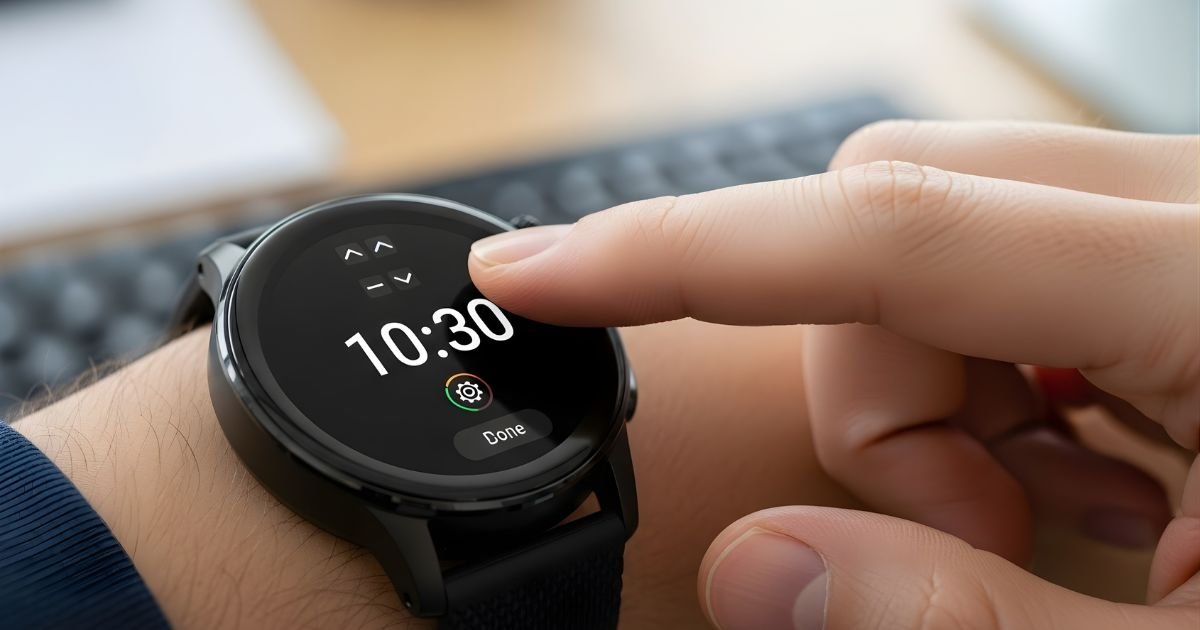
Setting the time on your smartwatch might seem simple, but if it’s off even by a minute, it can throw off your entire day. You rely on your watch for more than just telling time—it keeps your schedule, tracks your fitness, and keeps you connected.
Imagine missing an important meeting or workout because your watch shows the wrong time. Don’t let that happen to you. In this guide, you’ll learn exactly how to set the time on your smartwatch quickly and easily, so you can stay on track and make the most of your device every day.
Prepare Your Smartwatch

Preparing your smartwatch is the first step to setting the correct time. A smartwatch needs power and must be turned on before you adjust its settings.
Ensuring the device is ready helps avoid errors while setting the time. Follow simple steps to get your watch ready for use.
Charge Your Device
Start by placing your smartwatch on its charger. Make sure the charger is plugged into a power source. Charging fully ensures your watch does not turn off during setup. Check the battery level on the screen. A low battery can interrupt the time-setting process. It is best to have the battery above 50% before you continue.
Power On The Smartwatch
Press and hold the power button until the screen lights up. The power button is usually on the side of the watch. Wait for the watch to complete its startup. You may see a logo or welcome message. Once on, your watch is ready for time adjustment.
Sync With Smartphone
Syncing your smartwatch with your smartphone is the easiest way to set the correct time. The phone’s time updates your watch automatically. This keeps your watch accurate without manual changes.
Follow simple steps to connect both devices. After syncing, your watch will show the exact time from your phone.
Enable Bluetooth Connection
First, turn on Bluetooth on your smartphone. Go to settings and find Bluetooth options. Switch it on to allow connections.
Next, activate Bluetooth on your smartwatch. Usually, you find this in the watch’s settings menu. Make sure both devices are visible to each other.
Open Companion App
Open the smartwatch companion app on your phone. This app manages your watch settings and syncs data. It also updates the time automatically.
Inside the app, find the option to connect or pair your watch. Follow the instructions to complete pairing. Once connected, your watch time will match your phone’s time.
Set Time Automatically

Setting your smartwatch time automatically keeps it accurate without extra work. The watch syncs with your phone or the internet. This way, the time updates by itself whenever needed. No manual setting is required.
Allow Auto-sync
First, enable auto-sync on your smartwatch. This lets the watch connect with your phone or network. Usually, you find this option in settings under “Date & Time.” Turn on “Automatic date & time” or “Sync with phone.”
Auto-sync keeps the time updated after traveling or daylight changes. Your watch will adjust by itself. You do not have to open the settings every time.
Check Time Zone Settings
Next, check the time zone settings on your watch. The watch uses this to show the correct local time. Make sure the time zone matches your current location.
Some watches update the time zone automatically. Others need manual input. Look for “Time Zone” or “Set time zone” in the settings. Pick the correct zone to avoid wrong time display.
Set Time Manually
Setting the time manually on your smartwatch can be helpful when automatic syncing does not work. This method gives you full control over the hours and minutes. It is simple and fast to do.
Access Time Settings
First, wake up your smartwatch by tapping the screen or pressing a button. Next, open the main menu. Look for the settings icon, usually shaped like a gear. Tap on it to enter the settings. Scroll down and find the option labeled “Date & Time” or just “Time.”
Adjust Hours And Minutes
Inside the time settings, choose the option to set time manually. You will see controls for hours and minutes. Tap on the hour section and use the up or down arrows to change the number. Do the same for the minutes. Make sure you select AM or PM if your watch uses 12-hour format.
Save The Changes
After adjusting the time, look for a save or confirm button. Tap it to apply your new time settings. Your smartwatch will update immediately. Check the display to ensure the time is correct.
Troubleshoot Time Issues
Time issues on a smartwatch can cause confusion and disrupt your daily routine. These problems may occur due to software glitches or incorrect settings. Troubleshooting these issues is simple with a few basic steps.
Restart The Device
Restarting the smartwatch can fix minor software bugs. Turn off the device completely. Wait for about 10 seconds. Turn it on again. This simple step can refresh the system and often correct time errors.
Update Software
Outdated software can cause time display problems. Check for the latest updates in the smartwatch app or settings. Download and install any available updates. New software versions often include fixes for time-related bugs.
Reset To Factory Settings
If restarting and updating don’t work, try a factory reset. This will erase all data and restore original settings. Back up your important information first. Then, find the reset option in the settings menu. Confirm the reset and wait for the watch to restart.
Tips For Accurate Timekeeping
Accurate time on your smartwatch matters. It helps you stay on schedule and trust your device. Simple steps can keep your watch showing the right time. These tips improve your watch’s timekeeping and avoid mistakes.
Keep Software Updated
Smartwatch makers fix bugs and improve features with updates. These updates often include better timekeeping functions. Installing updates keeps your watch running smoothly. Check for updates regularly and install them fast. This helps your watch keep time more accurately.
Regularly Sync With Phone
Smartwatches often get time from your phone. Syncing ensures your watch matches your phone’s time. Sync daily or whenever your watch shows wrong time. This keeps your watch in sync with your phone’s clock. Regular syncing prevents time drift and errors.
Frequently Asked Questions
How Do I Manually Set Time On My Smartwatch?
To manually set time, access your smartwatch settings. Find the “Date & Time” option. Disable automatic time sync and adjust the time manually. Save changes to update your watch time instantly.
Can I Sync Smartwatch Time With My Phone?
Yes, syncing your smartwatch time with your phone is common. Enable Bluetooth and pair devices. Your watch automatically updates to match your phone’s time, ensuring accuracy and convenience.
What If My Smartwatch Shows Wrong Time After Update?
If your smartwatch shows wrong time, restart it first. Check time zone settings and automatic sync options. If issues persist, unpair and re-pair with your phone to refresh the connection.
How To Set Time Zone On A Smartwatch?
Open your smartwatch settings and select “Date & Time. ” Choose “Time Zone” and pick the correct zone. This ensures your watch displays accurate local time wherever you are.
Conclusion
Setting the time on your smartwatch is easy and quick. Follow the steps carefully, and you will get it right. Make sure your watch is charged and connected if needed. Adjust the time to match your local zone. Check the settings again to avoid mistakes.
Now, your watch will show the correct time all day. Enjoy using your smartwatch with confidence and ease. Simple steps lead to smooth use every day. Keep your watch updated to stay on track.
