

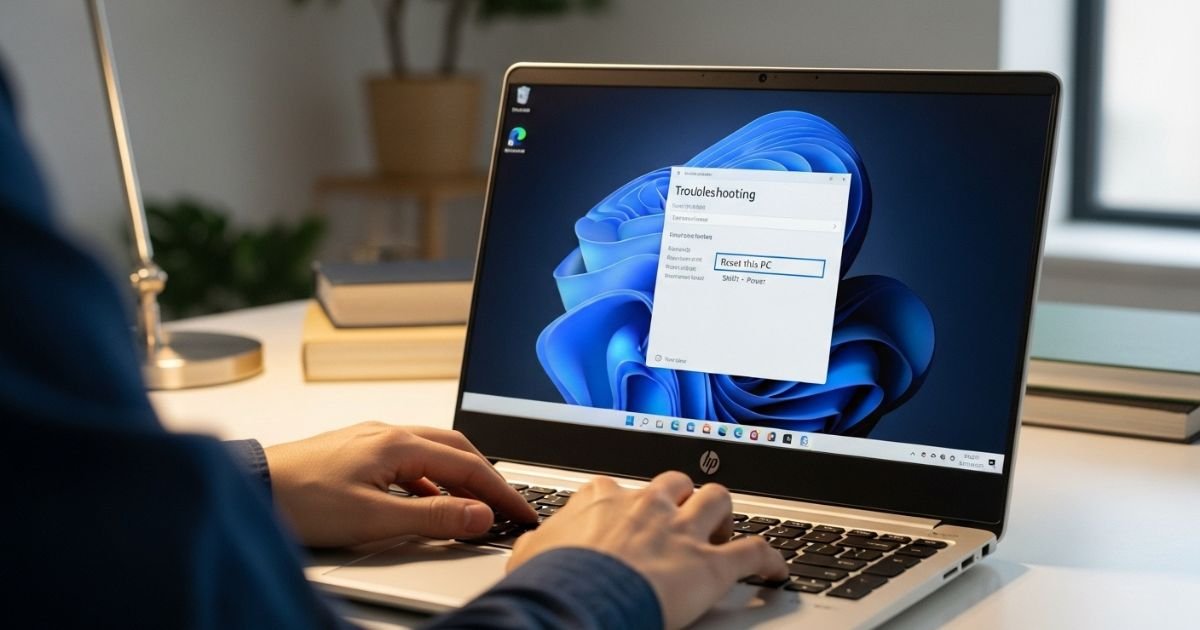
Being locked out of your HP laptop can be just about as annoying as being locked out of your own house. Whether you forgot your password, bought a used laptop, or inherited one from its previous owner, we understand that calling tech support isn’t for everyone.
The good news? You don’t have to be a tech whiz to get your gadget back in hand. In this detailed post, I’ll cover several proven ways to reset your HP laptop password without a recovery disk or any other credentials, so you can get back on the horse, whether it’s work, gaming, or whatever you use your PC for.
From Windows built-in options to boots disks and complete factory resets, we will cover some of the ways you can reset your HP laptop that may or may not work for your specific situation (depending on factors like model and version of Windows).
Why You Might Need to Reset Your HP Laptop
Before getting to the technical solutions, let’s take a look at why this is even happening and what some common reasons are that people need to reset their HP laptops without a password. Maybe you picked out a used HP laptop Pavilion or Envy, which still has another person’s login and password.
Maybe you entered a password long ago and have forgotten it, or perhaps you’re dealing with an old laptop that was handed down from a family member who isn’t around to give you the login data.
No matter your circumstances, it’s reassuring to know that there are proper, manufacturer-approved ways to get back in. There are a couple of different HP recovery options built into the laptops for such situations.
The techniques I’m going to show you are entirely safe and no harm will be caused to your hardware; they’re all designed to assist legitimate owners in getting their devices back.
Using Windows Password Reset Disk (If You Created One)
This is the simplest solution, but it only works if you had the foresight to create a password reset disk before getting locked out. A password reset disk is essentially a backup key stored on a USB drive that Windows can use to verify your identity without requiring the actual password.
How to use your password reset disk:
- On the login screen, click on your username
- Enter any incorrect password to trigger the “Reset password” link
- Click on “Reset password” below the password field
- Insert your password reset disk (USB drive) when prompted
- Follow the Password Reset Wizard instructions
- Create a new password and password hint
- Log in with your newly created password
Unfortunately, if you never created this disk, you’ll need to move on to other methods. Think of this as a lesson learned—once you regain access, creating a password reset disk should be your first priority.
How to Reset HP Laptop Without Password Using Safe Mode
Safe Mode provides a clever workaround by accessing Windows with minimal drivers and services. This method works particularly well on older Windows versions and some Windows 10 installations where the built-in Administrator account hasn’t been disabled.
Step-by-step process:
- Access Safe Mode: Turn off your HP laptop completely, then turn it on and immediately press F8 repeatedly until you see the Advanced Boot Options menu
- Select Safe Mode: Use arrow keys to highlight “Safe Mode” and press Enter
- Access Administrator Account: Windows should boot into Safe Mode, where you might see an Administrator account that doesn’t require a password
- Remove the Password: Once logged in, press Windows key + R, type “control userpasswords2” and press Enter
- Select Your Account: In the User Accounts window, select your locked account
- Reset Password: Click “Reset Password” and follow the prompts to create a new password
- Restart Normally: Restart your laptop and log in with your new password
This method doesn’t always work on newer Windows 10 and Windows 11 systems because Microsoft has tightened security around the Administrator account. If you find that Safe Mode still requires a password or the Administrator account isn’t accessible, you’ll need to try a different approach.
Factory Reset from the Login Screen (Windows 10/11)
One of the most trusted ways to reset an HP laptop without a password is factory resetting via the control panel on Windows. This approach is baked into Windows and will work on most HP Windows 10 laptops, including Envy, Spectre, and Pavilion series, and there are more quirky approaches that exist.
Modern Windows systems know we sometimes get There Only to Find Ourselves Here, so Microsoft has built a recovery option into the login interface. These usability option enables you to fully create the laptop again as new and access the desktop without even entering Windows. This process will delete all your personal files, applications, and settings from the computer.
Sure, that results in losing your data, but it’s better to lose a little bit of data than completely lose access to your device. At this time, it takes around thirty to an hour on most laptops, depending on your laptop specs and the amount of data.
Here’s how to perform the reset:
- Access Recovery Options: From the login screen, hold down the Shift key and click the Power icon, then select “Restart”
- Navigate to Troubleshoot: After restart, select “Troubleshoot” from the blue screen options
- Choose Reset Option: Click “Reset this PC”
- Select Reset Type: Choose “Remove everything” to completely wipe the laptop
- Confirm Settings: Select whether to clean the drive (recommended for selling) or just remove files (faster)
- Start the Reset: Click “Reset” and wait for the process to complete
- Set Up Fresh: Once finished, set up Windows as if it’s a new laptop
Your laptop will restart several times during this process. Don’t interrupt it—just let it complete all stages automatically.
HP Recovery Manager for Complete System Restoration
HP laptops come with a dedicated recovery partition that stores the original factory image. Using HP Recovery Manager is essentially like returning your HP laptop to the exact state it was in when it left the factory.
Steps to use HP Recovery Manager:
- Turn Off Laptop: Ensure your HP laptop is completely powered down
- Access Recovery: Turn it on and immediately press F11 repeatedly until you see the Choose an option screen
- Select Troubleshoot: Click on “Troubleshoot” when the option appears
- Choose Recovery Manager: Select “Recovery Manager” from the available options
- System Recovery: Click on “System Recovery” option
- Backup Warning: Read the warning about data loss carefully—back up if possible
- Proceed with Recovery: Click “Next” and then “Yes” to confirm
- Wait for Completion: The recovery process will take 30-60 minutes
- Restart and Setup: Once complete, your laptop will restart to the Windows setup screen
This method works exceptionally well because it uses HP’s proprietary recovery tools rather than relying solely on Windows features. The recovery partition contains everything needed to restore your specific HP model.
Using Installation Media to Reset Your Laptop
If the recovery partition has been damaged or removed, you can still reset your HP laptop using a Windows installation USB drive or DVD. This method requires access to another computer to create the installation media.
Creating and using installation media:
- On Another Computer: Visit Microsoft’s website and download the Media Creation Tool
- Create USB Drive: Run the tool and create a bootable USB drive (minimum 8GB)
- Insert into HP Laptop: Plug the USB drive into your locked HP laptop
- Boot from USB: Turn on the laptop and press F9 to access the boot menu
- Select USB Drive: Choose your USB drive from the boot device list
- Choose Language: Select your language and preferences
- Click Repair: Instead of “Install now,” click “Repair your computer”
- Navigate to Reset: Go to Troubleshoot > Reset this PC
- Complete Reset: Follow the on-screen instructions to reset
This method essentially rebuilds Windows from scratch, giving you a completely clean installation without needing the original password.
Additional Options: Third-Party Password Reset Tools
While the methods above are official and recommended, there are third-party tools available that can bypass Windows passwords. Tools like Ophcrack, Offline NT Password & Registry Editor, and PC Unlocker have helped many users regain access.
However, I generally recommend sticking with official Microsoft and HP laptop methods for several reasons. Third-party tools can sometimes flag antivirus software, may not work with all Windows versions, and could potentially introduce security vulnerabilities. Additionally, using such tools on a laptop you don’t own could raise legal concerns.
The official methods outlined earlier are safer, more reliable, and supported by both HP and Microsoft. That said, if you’re technically inclined and have exhausted other options, these tools do exist as a last resort. Always download from official sources and scan any software before running it on your system.
What Happens to Your Data During a Reset?
Understanding the data implications of resetting your HP laptop without password is crucial before proceeding. When you perform a factory reset or system recovery, you’re essentially wiping the main drive partition where Windows and all your files are stored.
Here’s what you’ll lose:
- All personal files (documents, photos, videos, music)
- Installed applications and programs
- Windows settings and customizations
- Browser bookmarks and saved passwords
- Email accounts and messages stored locally
What remains intact:
- The Windows operating system (reinstalled fresh)
- Pre-installed HP software and drivers
- The recovery partition (unless you specifically remove it)
If you have important files on the laptop, consider removing the hard drive and connecting it to another computer using a USB adapter to recover data before resetting. Professional data recovery services can also help if the data is critical.
Tips for Preventing Future Lockouts
Now that you know how to reset HP laptop without password, let’s talk about preventing this situation from happening again. Prevention is always better than cure, especially when it comes to password management.
Create multiple recovery options:
- Set up a password reset disk immediately after regaining access
- Link your Windows account to a Microsoft account for cloud-based recovery
- Create a secondary administrator account as a backup
- Write down your password and store it securely (not on your laptop)
Use modern authentication methods:
- Enable Windows Hello fingerprint or facial recognition
- Set up a PIN that’s easier to remember than complex passwords
- Use a reputable password manager to store credentials securely
Choosing the Right Method for Your Situation
But since there is more than one way to bring your HP laptop back to factory settings, I don’t know which method to use. Which you choose depends on your situation, the version of Windows you’re using, and how comfortable you are with technical work.
If you made a password reset disk once, that obviously would be your best way to get in the door. And for anyone on Windows 10 or 11 who hasn’t disabled recovery options, the login screen factory reset technique provides a good balance between ease and effectiveness.
It’s right there in Windows, so it doesn’t require any extra tools or software,and it is very consistent on most laptop models. If you’ve got an older laptop or want the manual way out, a recovery manager called Recovery Manager can be launched with F11 and has all drivers and software that came installed by the manufacturer.
The installation media option is your safety net when recovery partitions are damaged or deleted. It does require access to a separate computer and some technical knowledge, but it’s very reliable and delivers you an absolutely clean copy of Windows.
Think about your comfort with technology, how old your laptop is, and whether you have another computer to use when deciding. There is no one “best” method; it’s what works for your individual circumstances.
Conclusion
If you are locked out of your HP computer without a password, don’t fret. As we have seen, there are several legitimate methods of how to reset an HP laptop without a password, from making use of the built-in Windows recovery tool to relying on HP’s own Recovery Manager.
The trick is finding the right method for your circumstances, which may or may not include a quick-and-easy factory reset from the login screen, a more extensive full recovery with HP laptop Recovery Manager program, or just restarting from fresh installation media.
Keep in mind that all of these methods will wipe your personal data, so this really is the last step you should take when troubleshooting a forgotten password. Court having regained access, it may be wise to take steps to prevent a repeat: Make a password reset disk, associate your account with Microsoft for cloud recovery, and try Windows Hello for a more convenient log-in.
Ready to take back your laptop? Begin with the easiest approach that applies to your situation and progress through the choices if it doesn’t work out. Did any of them work for you to reset the HP laptop? Let us know how it goes in the comments below be sure to save this guide too, so you can always refer back to it or share with someone who may need it!
