

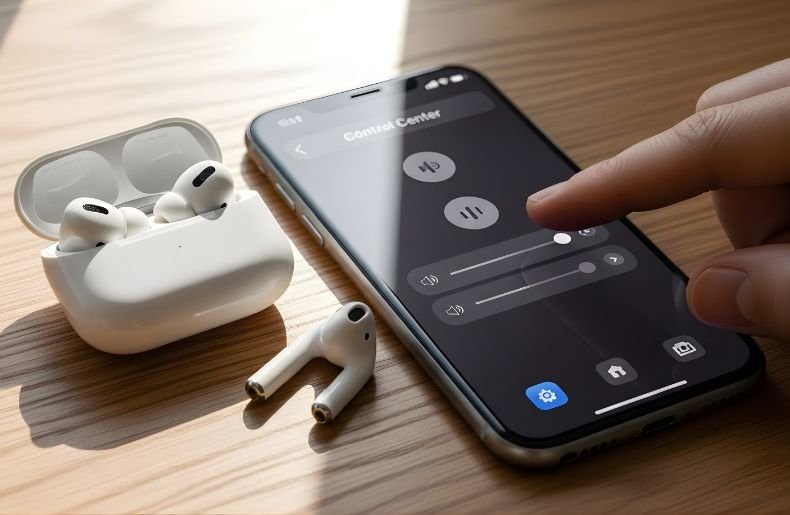
Getting a handle on your AirPods 2nd generation volume controls can feel surprisingly confusing at first. Unlike their Pro counterparts, the second-generation AirPods don’t have built-in touch controls for volume adjustment, which leaves many users scratching their heads.
But don’t worry—there are actually several intuitive ways to manage your listening experience. Whether you’re commuting, working out, or just relaxing at home, knowing how to control volume on AirPods 2nd generation will transform how you interact with your favorite audio content.
In this guide, we’ll walk through every method available, from using Siri voice commands to adjusting settings on your connected devices, ensuring you’ll never struggle with volume control again. Let’s dive into the practical solutions that’ll make your AirPods experience smoother and more enjoyable.
Understanding AirPods 2nd Generation Volume Limitations

Before exploring the solutions, it’s important to understand what makes the second-generation AirPods different from newer models. These earbuds were designed with simplicity in mind, featuring a sleek, minimalist design that prioritized wireless connectivity and seamless integration with Apple devices.
However, this simplicity came with a trade-off—there are no physical buttons or touch-sensitive surfaces specifically dedicated to volume adjustment on the earbuds themselves. The AirPods 2nd generation uses a double-tap gesture system, but this is primarily configured for playback control, activating Siri, or skipping tracks.
Unlike the AirPods Pro or AirPods 3rd generation with their pressure-sensitive stems, you won’t find swipe gestures for quick volume changes. This doesn’t mean you’re out of options, though. Apple designed these earbuds to work harmoniously with your iPhone, iPad, Apple Watch, or Mac, giving you multiple pathways to adjust your audio levels effectively.
How to Control Volume on AirPods 2nd Generation Using Siri
One of the most convenient methods for adjusting volume is through Siri voice commands. This hands-free approach is perfect when you’re busy with other tasks or when reaching for your device isn’t practical. Here’s how to set it up and use it:
Setting Up Siri for Volume Control
Step 1: Open the Settings app on your iPhone or iPad.
Step 2: Navigate to Bluetooth and find your AirPods 2nd generation in the device list.
Step 3: Tap the “i” information icon next to your AirPods name.
Step 4: Under “Press and Hold AirPods,” select either Left or Right (or both).
Step 5: Choose “Siri” from the options presented.
Step 6: Test your setup by double-tapping the designated AirPod and saying a voice command.
Using Siri Commands for Volume
Once configured, controlling your volume becomes effortless. Simply double-tap your designated AirPods 2nd generation to activate Siri, then use commands like “Turn up the volume,” “Increase volume by 50%,” “Lower the volume,” or “Set volume to maximum.” Siri responds immediately, adjusting your audio to your specifications. You can even be specific with percentages, such as “Set volume to 75 percent,” giving you precise control over your listening experience.
The beauty of Siri integration lies in its versatility. You don’t need to memorize complex gestures or button combinations. Natural language works perfectly fine—whether you say “louder,” “quieter,” or “volume up,” Siri understands your intent. This voice-activated approach is particularly useful during workouts, while cooking, or any situation where your hands are occupied.
Adjusting Volume Through Your Connected Device
The most straightforward method to control volume on AirPods 2nd generation is using your connected device’s physical controls. Every Apple device offers intuitive volume buttons that work seamlessly with your AirPods.
iPhone and iPad Volume Control
Your iPhone features physical volume buttons on the left side of the device. When your AirPods 2nd generation are connected and actively playing audio, these buttons directly control the volume output to your earbuds. Press the upper button to increase volume and the lower button to decrease it.
You’ll see a visual volume indicator on your screen confirming each adjustment. The Control Center provides another option—swipe down from the top-right corner (or up from the bottom on older iPhones) and use the volume slider for more granular control. This method gives you a visual reference, making it easier to set your preferred listening level precisely.
Apple Watch Volume Management
If you’re wearing an Apple Watch alongside your AirPods, you have volume control right on your wrist. While audio is playing, raise your watch to wake the display, then use the Digital Crown by rotating it clockwise to increase volume or counterclockwise to decrease it. Alternatively, access the Now Playing screen by tapping the music icon, where you’ll find an on-screen volume slider. This wrist-based control is incredibly convenient during runs, gym sessions, or any activity where pulling out your phone isn’t practical.
Mac Computer Volume Adjustment
Step 1: Ensure your AirPods are connected to your Mac via Bluetooth settings.
Step 2: Locate the volume keys on your Mac keyboard (typically F11 for decrease and F12 for increase).
Step 3: Press these keys to adjust volume while your AirPods are the active output device.
Step 4: Alternatively, click the volume icon in the menu bar at the top of your screen.
Step 5: Drag the slider to your desired volume level or use the arrow keys for incremental changes.
Using the Volume Slider in Music and Media Apps

Most media applications provide built-in volume controls that work independently of your system volume. Apps like Spotify, Apple Music, YouTube, and podcast players feature volume sliders within their interfaces. While this method requires you to open the app and navigate to the player screen, it offers precise control and allows you to balance app-specific volume with your system settings. This layered approach means you can keep your system volume at a moderate level while adjusting individual app volumes based on their audio characteristics.
Customizing Double-Tap Functions for Better Control
While you cannot directly program volume controls into the double-tap gesture, strategic customization can improve your overall experience when learning how to control volume on AirPods 2nd generation.
Step 1: Open Settings on your iPhone and select Bluetooth.
Step 2: Tap the information icon next to your AirPods.
Step 3: Choose “Left” or “Right” under the double-tap options.
Step 4: Select your preferred function: Siri, Play/Pause, Next Track, Previous Track, or Off.
Step 5: Consider setting one AirPod to Siri for quick volume adjustments via voice.
Step 6: Set the other AirPods 2nd generation to Play/Pause or track navigation based on your preferences.
This customization creates a workflow where accessing Siri for volume control becomes second nature. Many users find that dedicating one AirPod exclusively to Siri provides the fastest path to hands-free volume management.
Troubleshooting Common Volume Control Issues
Sometimes you might encounter problems with volume levels or control responsiveness. Understanding common issues helps you resolve them quickly and maintain optimal performance.
If your AirPods volume seems stuck at a low level, check your device’s volume limit settings. On iPhone, navigate to Settings > Music > Volume Limit to see if a restriction is enabled. Also verify that your AirPods firmware is updated—outdated software can cause unexpected behavior.
Connection issues can affect responsiveness too. Try disconnecting and reconnecting your AirPods through Bluetooth settings, or place them back in the charging case for 15 seconds before reconnecting. If one AirPod is quieter than the other, check your audio balance settings under Accessibility > Audio/Visual to ensure the slider is centered.
Alternative Solutions for Enhanced Volume Control
For users who want more direct physical control, consider pairing your AirPods with an Apple Watch. The Digital Crown provides the tactile feedback that many people prefer over voice commands or reaching for their phone. Some third-party apps claim to offer additional gesture controls, but these generally work by creating Siri shortcuts rather than true hardware modifications. Another option is using automation through the Shortcuts app, creating custom voice phrases that trigger specific volume levels instantly.
Comparing Volume Control Across AirPods Models
Understanding how different AirPods generations handle volume helps contextualize the 2nd generation experience. The AirPods Pro introduced pressure-sensitive stems that allow users to swipe up or down for volume control directly on the earbuds. The AirPods 3rd generation inherited this feature, offering a more intuitive hands-on approach. The original AirPods and 2nd generation share the same control limitations, relying on external devices or Siri. The AirPods Max, being over-ear headphones, include a physical Digital Crown similar to the Apple Watch. While the AirPods 2nd generation may seem limited by comparison, the Siri integration remains remarkably efficient once you adapt to voice control.
Maximizing Your AirPods 2nd Generation Experience
Beyond volume control, optimizing your overall AirPods 2nd generation settings enhances your daily usage. Enable automatic ear detection so your audio pauses when you remove an AirPods 2nd generation and resumes when you put it back in. Rename your AirPods in Bluetooth settings for easier identification if you switch between multiple Apple devices. Regularly clean your AirPods to maintain optimal sound quality—earwax and debris can muffle audio and make you unnecessarily increase volume levels. Keep your charging case battery healthy by charging before it completely depletes, ensuring your AirPods are always ready when you need them.
Conclusion
Learning how to control volume on AirPods 2nd generation opens up a world of convenient audio management despite the absence of on-device physical controls. Whether you prefer the hands-free simplicity of Siri voice commands, the tactile reliability of device buttons, or the wrist-based convenience of an Apple Watch, you now have multiple methods to adjust your listening experience effortlessly.
The key is finding which approach fits your lifestyle and usage patterns best. Experiment with different combinations of Siri customization and device controls until you discover your ideal workflow. Remember that these earbuds were designed to work as part of the broader Apple ecosystem, leveraging the strengths of your connected devices rather than cramming every feature into the earbuds themselves.
Now that you’re equipped with this comprehensive knowledge, you can enjoy your AirPods 2nd generation with complete confidence and control. Take a moment today to customize your double-tap settings and practice your Siri commands—your future self will thank you for the seamless audio control.
