

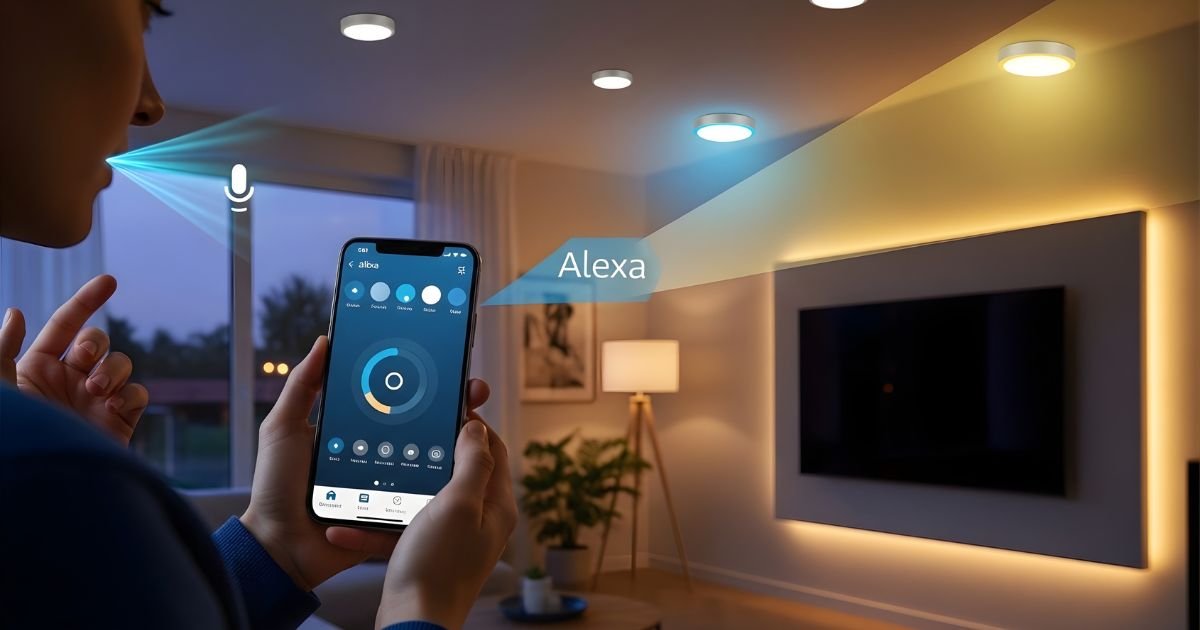
Imagine walking into a room and simply saying, “Turn on the lights,” and they instantly brighten up. Sounds like magic, right?
But with smart lights and Alexa, this can be your everyday reality. If you’ve ever wondered how to control your smart lights using Alexa, you’re in the right place. This guide will show you exactly how to make your home smarter, more convenient, and totally hands-free.
Ready to transform your lighting experience? Keep reading—you’ll be amazed at how simple it is to get started.
Choosing Compatible Smart Lights
Choosing the right smart lights for Alexa control is important. Not all smart lights work well with Alexa. Picking compatible lights makes setup easier and ensures smooth operation. This section explains what to check before buying smart lights for Alexa.
Top Brands That Work With Alexa
Several brands offer smart lights that connect easily to Alexa. Philips Hue is a popular choice. It has many light options and reliable Alexa support. LIFX lights also work well and do not need a hub. TP-Link’s Kasa series offers budget-friendly options with Alexa compatibility. Singled is another brand known for affordable, Alexa-ready bulbs. These brands provide good quality and easy Alexa integration.
Key Features To Look For
Check for “Works with Alexa” label on the packaging. This confirms the light supports Alexa commands. Wireless connection type matters; Wi-Fi bulbs connect directly to Alexa. ZigBee bulbs often need a hub like Echo Plus or Hue Bridge. Consider brightness levels and color options. Adjustable white and full color bulbs offer more control. Look for easy app setup and good customer support. These features ensure a smooth Alexa lighting experience.
Setting Up Your Smart Lights
Setting up your smart lights is the first step to enjoy hands-free lighting control. The process is simple and only takes a few minutes. Follow these steps to get your smart bulbs ready to work with Alexa.
Installing Bulbs And Fixtures
Start by turning off the power to the light fixture. Remove your old bulb carefully. Screw the smart bulb into the socket. Make sure it fits tightly but do not force it. Turn the power back on. Your smart bulb should light up. If it does not, check the connection again.
Connecting To Wi-fi Network
Download the smart light’s app on your phone. Open the app and create an account if needed. Follow the app instructions to connect the bulb to your Wi-Fi. Ensure your phone is near the bulb during setup. Use a 2.4 GHz Wi-Fi network for better compatibility. Wait for the app to confirm a successful connection. Now your smart light is ready to link with Alexa.
Linking Smart Lights To Alexa
Linking your smart lights to Alexa lets you control lighting with your voice. This connection makes daily tasks easier and your home smarter. Follow simple steps to connect your devices and enjoy hands-free lighting control.
Using The Alexa App
Start by opening the Alexa app on your smartphone. Tap the Devices icon at the bottom of the screen. Select “Add Device” and choose “Light” from the list. Pick the brand of your smart lights. Follow the on-screen instructions to connect your lights to Alexa. Make sure your smart lights are powered on and near your Wi-Fi router for a smooth setup. After linking, your lights will appear in the Devices list. You can now control them using Alexa.
Enabling The Right Skills
Skills are apps that help Alexa work with smart lights. Go to the Alexa app’s menu and select “Skills & Games.” Search for the brand of your smart lights. Tap “Enable” to add the skill to Alexa. You may need to sign in to your smart light account. This links your smart lights with Alexa’s system. Once enabled, Alexa can control your lights using voice commands. Skills make your smart light experience simple and effective.
Controlling Lights With Voice Commands
Controlling smart lights with voice commands makes home lighting simple and hands-free. Alexa listens to your words and changes the lights quickly. This feature helps you set the mood or save energy without moving from your seat.
Using voice commands with Alexa is easy. You only need a smart speaker or device that supports Alexa and smart lights connected to the same network. Speak clearly to make sure Alexa understands your requests. Let’s explore some commands you can try.
Basic Commands To Try
Start with simple commands to turn lights on or off. Say, “Alexa, turn on the living room light.” To switch lights off, say, “Alexa, turn off the kitchen light.”
Change the brightness by saying, “Alexa, dim the bedroom light to 50%.” You can also ask Alexa to brighten the room with, “Alexa, brighten the hallway light.”
Change light colors if your bulbs support it. Try commands like, “Alexa, set the living room light to blue.”
Advanced Voice Controls
Use groups to control multiple lights at once. Say, “Alexa, turn off all downstairs lights.” Grouping saves time and effort. You can create groups inside the Alexa app.
Set routines to automate lighting. For example, say, “Alexa, good night,” and have the lights turn off automatically. Routines add convenience to daily life.
Adjust lights with more detail. Say, “Alexa, set the dining room light to 70% warm white.” This command controls brightness and color temperature together.
Creating Routines And Schedules
Creating routines and schedules with Alexa makes smart lighting simple and useful. You can set lights to turn on or off at specific times. This helps save energy and fits your daily habits. Alexa routines also let you control multiple devices with one command. This section explains how to automate light settings and customize scenes for different moods.
Automating Light Settings
Automating light settings saves time and effort. You can tell Alexa to switch lights on at sunset or off at bedtime. Set specific times for your lights to follow your schedule. For example, brighten the living room in the morning and dim it at night.
Alexa routines allow you to control several lights together. This way, you do not need to adjust each light separately. You can create a routine that fits your lifestyle. This makes your home smarter and more comfortable.
Customizing Scenes For Different Moods
Custom scenes help set the right mood in any room. Choose colors and brightness levels for relaxing, working, or watching TV. Save these settings as a scene in your Alexa app. Activate the scene with a simple voice command or schedule.
Scenes make your smart lights more personal. You can change the ambiance quickly without adjusting each light. Use scenes for parties, reading, or quiet evenings. Alexa helps create a perfect atmosphere every time.
Troubleshooting Common Issues
Controlling smart lights with Alexa is simple, but sometimes issues happen. Troubleshooting common problems helps keep your smart home running smoothly. This section covers easy ways to fix common issues quickly. Follow the steps below to solve problems and enjoy seamless control of your smart lights.
Connectivity Problems
Smart lights need a strong Wi-Fi connection to work with Alexa. Check if your Wi-Fi is working well. Move closer to the router if the signal is weak. Restart your router and smart light device. Make sure your smart light is connected to the correct Wi-Fi network. Avoid using a 5 GHz network if your smart lights only support 2.4 GHz. These steps often solve connection issues fast.
Alexa Not Recognizing Devices
Sometimes Alexa does not find your smart lights. First, check if the smart light is powered on. Open the Alexa app and refresh the device list. Use the “Discover Devices” option to search again. Ensure your smart light is linked to the same Amazon account as Alexa. If problems continue, try removing and re-adding the device in the app. This usually helps Alexa find your smart lights.
Frequently Asked Questions
How Do I Connect Smart Lights To Alexa?
To connect smart lights, first install the light’s app. Next, enable the light’s skill in the Alexa app. Then, discover devices through Alexa to link the lights for voice control.
Can Alexa Control Multiple Smart Lights At Once?
Yes, Alexa can control multiple smart lights simultaneously. Use groups in the Alexa app to manage several lights with one command. This simplifies controlling lights in the same room or area.
What Voice Commands Work For Alexa Smart Lights?
Common Alexa commands include “Turn on/off the lights,” “Dim the lights to 50%,” and “Change light color to blue. ” These commands offer simple and flexible control for smart lighting.
Do Smart Lights Work With Alexa Without Wi-fi?
No, smart lights require a Wi-Fi connection to communicate with Alexa. Without Wi-Fi, Alexa cannot send commands to the smart lighting system.
Conclusion
Controlling smart lights with Alexa makes life easier and more fun. Just connect your lights and use simple voice commands. You can turn lights on or off, dim them, or change colors quickly. Alexa listens and responds right away. This tech helps save energy and adds comfort to your home.
Start using Alexa today and enjoy hands-free lighting control. Small steps bring big convenience.
