

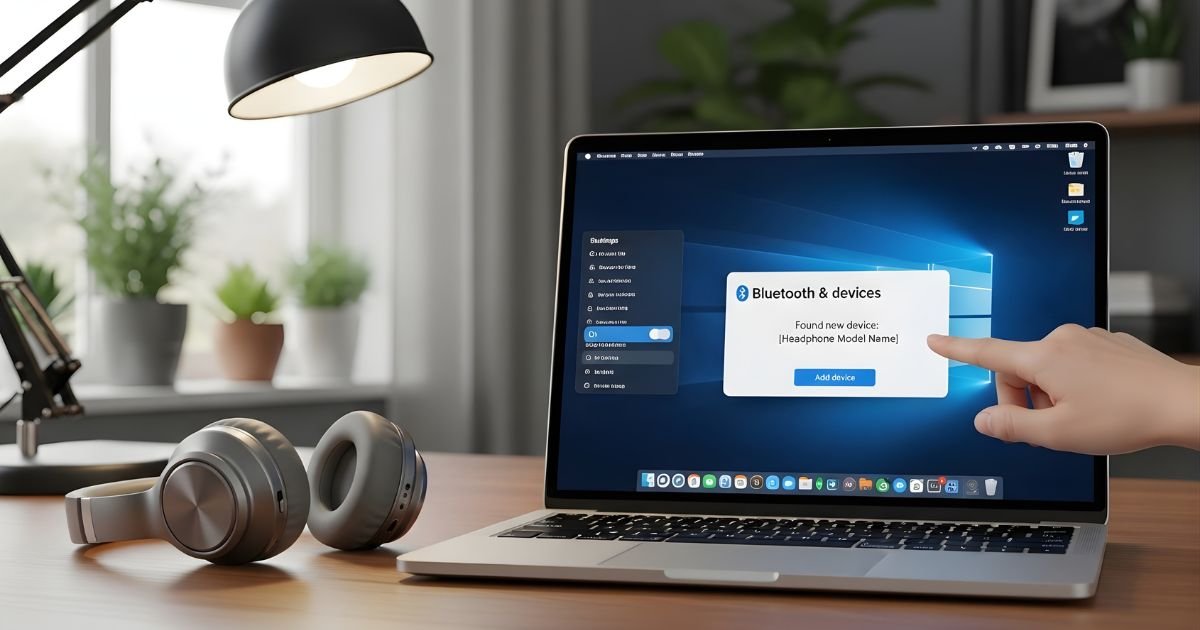
Using wireless Bluetooth headphones with your laptop opens up a world of convenient options: you can move freely while making gaming videos, have a friend watch a movie with you without waking the entire house, or binge on Netflix from bed.
If you’re on a Windows, macOS, or Linux computer, all the to-dos are quite simple once you know what to do. In this beginner’s guide, we’ll explain how to connect Bluetooth headphones to your Windows or MacOS laptop, step by step (so you don’t miss a beat).
By the time you get to the end of this post, you’ll be streaming some tunes and making phone calls wirelessly like it’s nothing. Let’s explore this straightforward, yet crucially important process that changes the way you listen.
What Is Bluetooth Technology and Compatibility
Before diving into the pairing process, it’s helpful to understand what makes Bluetooth connections work. Bluetooth is a wireless technology standard that allows devices to communicate over short distances, typically up to 30 feet. Most modern laptops come equipped with built-in Bluetooth capabilities, though some older models may require a USB Bluetooth adapter.
Your wireless Bluetooth Headphones need to be Bluetooth-enabled, which virtually all modern wireless headphones are. The good news is that Bluetooth technology is designed to be universal—your headphones don’t need to be the same brand as your laptop to work perfectly.
Whether you have Sony headphones and a Dell laptop, or AirPods and a Windows PC, the connection process follows similar principles across all devices and brands.
How to Connect Wireless Bluetooth Headphones to a Laptop on Windows
Preparing Your Headphones for Pairing
The first step in connecting your Bluetooth headphones is putting them into pairing mode. This is a crucial step that many users overlook, leading to connection frustration. Most headphones enter pairing mode when you press and hold the power button for several seconds until you see a flashing LED light—usually alternating between blue and red, though this varies by manufacturer.
Some headphones have a dedicated Bluetooth or pairing button separate from the power button. Check your headphones’ user manual for specific instructions, as the process can differ between models.
Once in pairing mode, your headphones become discoverable to nearby devices, including your laptop. Keep your headphones close to your laptop during this process for the strongest initial connection.
Step-by-Step Windows Pairing Process
For Windows 10 and 11:
- Open Settings: Click the Start menu and select the gear icon, or press Windows key + I
- Navigate to Bluetooth: Click on “Devices” (Windows 10) or “Bluetooth & devices” (Windows 11)
- Enable Bluetooth: Toggle the Bluetooth switch to “On” if it isn’t already
- Add Device: Click “Add Bluetooth or other device” at the top of the window
- Select Bluetooth: Choose “Bluetooth” from the device type options
- Choose Your Headphones: Wait for your headphones to appear in the list and click on them
- Complete Pairing: Follow any additional on-screen prompts and wait for the “Connected” status
Your laptop may play a sound or display a notification when the connection is successful. Once paired, your headphones should automatically connect whenever they’re turned on and within range of your laptop, with Bluetooth enabled on both devices.
Connecting Bluetooth Headphones to MacBook or Mac Laptop
Enabling Bluetooth on macOS
Mac users enjoy a streamlined process for connecting wireless audio devices. Apple has refined the Bluetooth pairing experience to be intuitive and quick. Start by putting your headphones into pairing mode using the same method described earlier. The macOS interface provides clear visual feedback throughout the pairing process, making it easy to confirm successful connections.
macOS Pairing Instructions
- Access System Preferences: Click the Apple menu in the top-left corner and select “System Preferences” (or “System Settings” on macOS Ventura and later)
- Open Bluetooth Settings: Click on “Bluetooth” in the preferences window
- Turn On Bluetooth: Ensure Bluetooth is enabled by clicking “Turn Bluetooth On” if needed
- Locate Your Headphones: Your Bluetooth Headphones should appear in the list of nearby devices
- Click Connect: Click the “Connect” button next to your headphones’ name
- Confirm Connection: Wait for the status to change to “Connected”
Special Note for AirPods Users: If you’re using AirPods or Beats headphones with a Mac, the process is even simpler. Open the charging case near your Mac, and a connection prompt should appear automatically. Click “Connect” and you’re done—the seamless integration is one of Apple’s ecosystem advantages.
Troubleshooting Common Bluetooth Connection Issues
But even with easy-to-follow instructions, you may face challenges, such as when connecting wireless Bluetooth headphones to your laptop. Dealing with connection issues can be frustrating, but there is often a simple fix.
The common issues are devices not showing up in the list of available devices, pairing problems, sound quality drop-outs or disconnects. When you recognize these challenges and how to fix them, you’re able solve the problems on your own rather than with support.
Device Not Showing Up in Bluetooth List
When your headphones won’t appear in the available devices list, several factors could be responsible. First, verify that your Bluetooth Headphones are actually in pairing mode—the LED indicators should confirm this. If they’re not flashing, restart the pairing process.
Next, check that your headphones aren’t already connected to another device like your smartphone. Bluetooth headphones can typically only connect to one device at a time, though some newer models support multipoint connectivity. Disconnect from other devices before attempting to pair with your laptop.
Additionally, ensure your laptop’s Bluetooth is functioning correctly. Try restarting the Bluetooth service by turning it off, waiting ten seconds, then turning it back on. On Windows, you can also restart the Bluetooth Support Service through the Services application.
Distance matters too—keep your Bluetooth Headphones within three feet of your laptop during initial pairing to ensure the strongest signal for establishing the connection.
Poor Audio Quality or Stuttering Sound
If you successfully connect but experience choppy audio or poor sound quality, several adjustments can help. Bluetooth connections can be affected by interference from other wireless devices, so move away from Wi-Fi routers, microwaves, or other Bluetooth Headphones devices. Check your laptop’s sound settings to ensure your headphones are set as the default audio output device and that the volume levels are appropriately configured.
Windows users should verify that their audio is using the “Stereo” profile rather than “Hands-Free” mode, which prioritizes microphone quality over audio quality. You can change this in the sound,
Settings by right-clicking the volume icon, selecting “Sound settings,” then clicking “Device properties” under your headphones, and checking the audio quality settings. Updating your Bluetooth drivers can also resolve audio quality issues—outdated drivers are a common culprit for performance problems.
Optimizing Your Wireless Audio Experience
Battery Management and Connection Range
Maximizing your Bluetooth Headphones performance goes beyond just connecting them. Battery life directly impacts your listening experience, so develop good charging habits.
Most Bluetooth headphones provide 20-40 hours of playback time, but this varies by model and usage. Charge your headphones regularly and consider turning them off when not in use rather than leaving them in standby mode, which still drains battery.
Connection range is another important consideration. While Bluetooth technically works up to 30 feet, walls, furniture, and other obstacles reduce this range significantly. For the best audio experience, maintain line-of-sight between your laptop and headphones when possible, or at least minimize the number of physical barriers between them.
Audio Settings and Sound Quality Tweaks
Enhance your audio through these adjustments:
- Update audio drivers: Keep your Bluetooth and audio drivers current for optimal performance
- Adjust equalizer settings: Use your laptop’s built-in equalizer or third-party apps to customize sound
- Disable audio enhancements: Sometimes Windows audio enhancements cause more problems than improvements
- Check codec support: Ensure your devices are using the best available Bluetooth codec (apt, AAC, or LDAC)
- Reduce background applications: Close unnecessary programs that might interfere with audio processing
Managing Multiple Bluetooth Devices
Contemporary laptops can remember several paired Bluetooth devices, so it’s simple to switch between your Bluetooth Headphones, speakers, or other accessories. There is one catch, but only a single audio output can be active at a time. Quickly switch between paired devices with a few taps on Windows and macOS, using the quick settings panel or system tray.
On a PC, switch audio output devices by clicking the volume icon in the taskbar, then click the arrow next to the volume slider to see a list of audio devices.
On Mac, press down the Option key and then click on the volume icon in the menu bar to show you a list of available output devices. This is especially useful if you switch between headphones (private listening) and speakers (group music).
Security Considerations for Bluetooth Connections
While Bluetooth is generally secure, awareness of potential vulnerabilities helps protect your privacy. Always keep your laptop’s Bluetooth turned off when not in use to prevent unauthorized connection attempts. Modern Bluetooth versions include encryption, but staying within close range of your laptop reduces interception risks.
When pairing devices in public spaces, be aware that your device names are visible to others scanning for Bluetooth devices. Consider using generic names rather than personal information in your device names. Additionally, remove paired devices you no longer use from your Bluetooth settings to minimize potential security entry points.
Conclusion
Learning how to connect wireless Bluetooth headphones to laptop devices empowers you with the freedom and convenience that wireless audio provides. Whether you’re using Windows, macOS, or Linux, the pairing process is straightforward once you understand the basic steps: enable
Bluetooth, put your Bluetooth Headphones in pairing mode, select them from the available devices list, and confirm the connection. Remember to troubleshoot common issues like ensuring devices are in range, checking for interference, and verifying proper audio settings.
