

I’ve used Android phones for many years. During that time, one thing I’ve learned is how much smoother a device feels when you clear its cache regularly.
Sometimes apps lag, websites load slowly, or the phone feels unusually warm. In that case, clearing cache often fixes it instantly. Now the question is, how to clear cache on android.
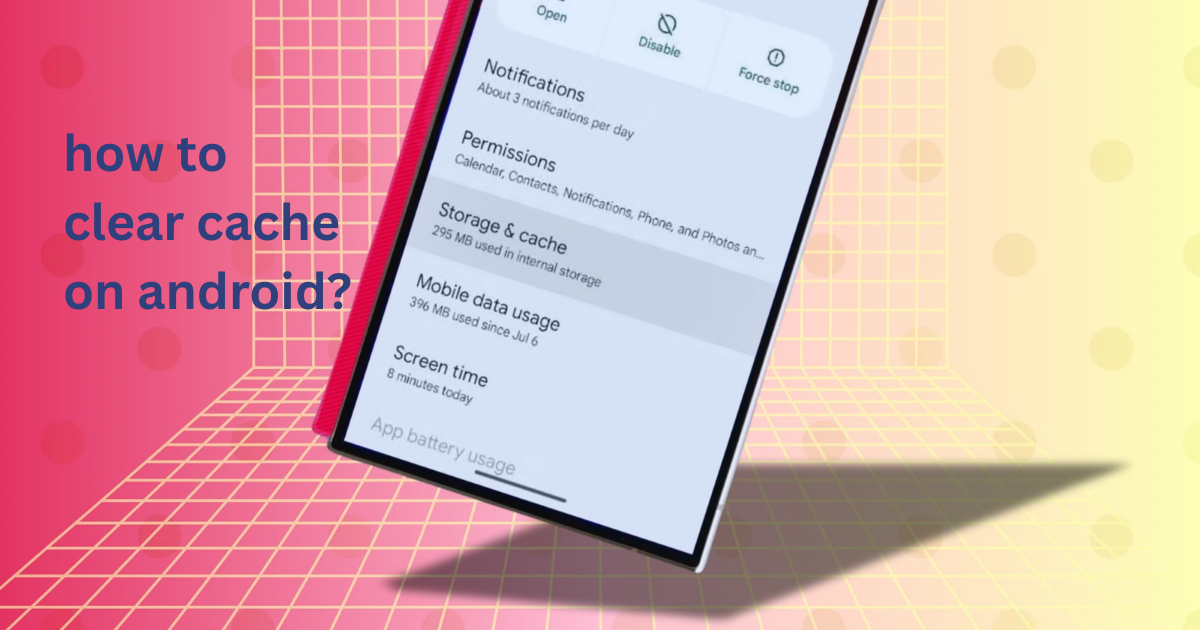
You can clear cache on Android by going to Settings → Apps → Select App → Storage → Clear Cache. This removes temporary files and improves performance without deleting personal data.
I discovered this trick back when my phone kept freezing during multitasking. Clearing cache made the difference in seconds, and since then, it has become one of my main troubleshooting habits. If you’ve never done it before, don’t need to worry! This guide will make everything simple for you.
What Is Cache on Android
Cache on Android refers to temporary data stored by apps and the system to load processes faster. Whenever you open an app or website, cached files help things run smoothly.
Android cache is temporary storage apps used to load data faster, such as images, scripts, and preferences. Clearing it frees space and solves performance issues.
For example, your browser stores website thumbnails, while apps like Instagram save image previews temporarily. Without cache, everything would take much longer to load each time.
Cache isn’t harmful for your phone. But when it builds up, it can slow your device or cause unexpected glitches. This is why clearing cache is so important while using the phone.
Why Clearing Cache on Android Matters
Clearing cache on Android is important because it removes unnecessary temporary files that slow down your phone. Once you do it, your device feels lighter and runs more efficiently. Here’s why clearing cache matters:
- Improves Overall Speed: When apps store too much cached data, they become heavy. Clearing cache helps Android reload only the necessary files, making apps run smoother.
- Fixes App Crashes: Apps sometimes misbehave due to corrupted cache. Removing it often solves random crashes or freezing issues instantly.
- Frees Up Storage Space: Some apps store hundreds of megabytes of junk files. Clearing cache gives you instant extra storage without deleting anything important.
- Reduces Battery Drain: A bloated cache can force apps to run in the background more than needed. Cleaning it helps your phone save power.
- Improves Browser Performance: Websites load faster and more accurately once outdated cached files are removed.
What Are the Things to Consider Before Clearing Cache
Before knowing about how to clear cache on Android, it’s important to understand what actually happens when you remove these temporary files. Cache helps apps load faster, so deleting it resets some quick-loading features.
Remember that clearing cache does not delete personal data, meaning your photos, messages, settings, and accounts will remain untouched. Only temporary performance files get removed. This makes the process safe, but it may affect loading speed for a short time.
Some apps may rebuild cache immediately after you open them again. For example, Instagram or Chrome will download new thumbnails and preview files. This is normal and part of how Android optimizes performance.
If you use apps that depend on offline data—like Google Maps offline downloads or music apps with cached playback files—some temporary previews may disappear after clearing cache. You won’t lose real downloads, but the app may take longer to load content at first.
The final thing is, if your device is extremely low on storage, clearing cache is helpful. But it’s only a temporary fix. A phone with consistently low storage may need deeper cleanup or unused apps removed to maintain long-term performance.
How to Clear Cache for a Single App on Android
Clearing cache for a single app is the easiest and safest method when one specific app is causing issues such as slow performance, freezing, or unusual glitches. This process removes only temporary files stored by that app while keeping your personal data, accounts, and settings completely intact. To clear cache for a single app on Android, follow these instructions:
- Open the Settings app on your Android device. This is usually found on the Home screen or in the app drawer.
- Scroll down and tap “Apps” or “Applications.” On some devices, it may appear as “App Management” or “Manage Apps.”
- Find and select the specific app you want to clear cache for. You can tap the search bar or scroll manually to locate apps like Chrome, YouTube, Instagram, or Facebook.
- Tap “Storage” or “Storage & Cache.” This section displays how much space the app uses, including its cached data.
- Tap the “Clear Cache” button. This instantly removes temporary files without affecting your login, downloaded files, or saved progress.
- Reopen the app to rebuild fresh cache. The app may load slightly slower at first, but it will function smoother once the new cache is generated.

How to Clear Cache for All Apps on Android
Clearing cache for all apps at once is a great option when your entire phone feels slow, storage is running low, or many apps are lagging at the same time. Instead of clearing cache individually, this method removes all temporary files across the device in one action. It’s safe, quick, and doesn’t affect personal data such as photos, accounts, or saved settings.
To clear cache for all apps on Android, follow these step-by-step instructions:
- Open the Settings app on your Android device. This is usually accessible from your notification bar or app drawer.
- Scroll down and tap “Storage.” On some devices, it may appear as “Device Care,” “Device Maintenance,” or “Storage Settings.”
- Wait for your device to calculate storage usage. It may take a few seconds to analyze app data, cached files, and system storage.
- Look for the option labeled “Cached Data” or “Temporary Files.” Different Android versions show it as:
– Cached Data
– Clean Junk Files
– Temporary App Files
– Other Apps Data
- Tap the option to clear cached data. A popup will appear asking for confirmation to remove cache for all apps.
- Confirm by tapping “OK,” “Clear,” or “Delete.” Within seconds, Android will remove cached files for every installed app.
- Restart your device (optional but recommended). Restarting helps the system rebuild necessary temporary files and improves overall performance.
How to Clear Browser Cache on Android
Clearing browser cache on Android is important when websites load incorrectly, pages appear outdated, or your browser becomes slow over time. Each browser stores temporary images, scripts, and website files to speed up loading.
But these files can eventually cause glitches. Clearing them refreshes your browsing experience and often fixes loading or login issues instantly. Here is a detailed guideline for the most commonly used Android browsers.
Clear Cache on Google Chrome
- Open the Chrome browser on your Android device.
- Tap the three-dot menu in the top-right corner.
- Select History from the menu.
- Tap Clear browsing data.
- Choose the Time Range (recommended: “All time”).
- Make sure Cached images and files are selected.
- Tap Clear data to remove temporary browser files.
- Restart Chrome to let it rebuild fresh cache files.
Clear Cache on Samsung Internet
- Open the Samsung Internet browser.
- Tap the menu icon (three horizontal lines) at the bottom or top corner.
- Select Settings.
- Tap Privacy and Security.
- Choose Delete browsing data.
- Check only Cache (you may also select images/files if needed).
- Tap Delete to confirm.
Clear Cache on Mozilla Firefox
- Launch Firefox on your Android.
- Tap the three-dot menu in the lower or upper corner.
- Select Settings.
- Scroll down and tap Delete browsing data.
- Check Cached images and files.
- Tap Delete browsing data again to confirm.
Clear Cache on Opera Browser
- Open the Opera browser.
- Tap the Opera logo/menu at the bottom corner.
- Go to Settings.
- Tap Privacy.
- Select Clear data.
- Check Cached images and files.
- Tap Clear data to finish the process.
How Often Should You Clear Cache on Android
I personally clear cache on Android every two to three weeks, depending on how heavily I use my apps. It’s not something you should do daily, but regularly helps maintain smooth performance.
You should clear cache on Android every 2–4 weeks to maintain performance, fix lags, and free up storage without harming personal data.
Sometimes I clear cache more frequently when using heavy apps like video editors or social media platforms. In rare cases, once a week works best if your device has low storage. The key is to keep it balanced so apps don’t build unnecessary junk files.
What Are the Common Problems After Clearing Cache
Clearing cache is safe, but sometimes it can lead to small temporary issues. The good news is that all of them have simple solutions.
One common problem is apps loading slower initially because they need to rebuild their temporary files. This usually fixes itself after a few minutes of use.
Another issue is browser pages logging out, especially if the site’s cached sessions are cleared. You can avoid this by selecting only cached files, not cookies during deletion.
Sometimes apps like YouTube or Instagram may briefly reload older content because their previews were removed. This is normal and doesn’t affect your saved data.
A rare issue is battery draining slightly faster immediately after clearing system cache. This happens because the system re-optimizes files in the background. It stabilizes after a short while.
What Are the Differences Between Cache vs App Data
Cache and app data are not the same. Cache is temporary, while app data contains essential information. Here are some of the key differences between these two.
| Feature | Cache | App Data |
| Definition | Temporary files stored for speed | Permanent files and settings |
| What It Includes | Images, scripts, thumbnails | Accounts, databases, preferences |
| Effects of Clearing | Frees space without losing info | Resets the app completely |
| Impacts on App | Loads slower temporarily | Logs you out, removes all settings |
| Recommend Use | Safe to clear anytime | Only clear for troubleshooting |
Frequently Asked Questions
- Does clearing cache delete my data?
No, it only removes temporary files. Your personal data remains safe. - Does clearing the cache speed up my phone?
Yes, especially if apps have built up large amounts of temporary data. - How often should I clear the cache?
Every 2–4 weeks is ideal for regular users. - Is it safe to clear the system cache partition?
Yes, but use it only when necessary or when your device lags heavily. - Why does cache build up so quickly?
Apps like social media, browsers, and video apps constantly store temporary files to load content faster.
Final Thought
Clearing cache on Android is one of the simplest ways to speed up your phone, fix glitches, and free storage. By learning how to clear cache on Android the right way, you can keep your device running smoothly without losing any important data. Regular maintenance ensures your phone performs at its best. Thank you all for reading this article.
