

Ever copied something on your work laptop, only to realize you need it on your home PC? We’ve all been there. Fortunately, Windows 11’s clipboard syncing feature solves this exact problem.
By enabling cloud clipboard functionality, you can seamlessly copy text, images, and HTML across multiple Windows devices signed into the same Microsoft account. This feature eliminates the need for email drafts, messaging apps, or USB drives just to transfer small bits of information.
In this comprehensive guide, we’ll walk you through exactly how to enable clipboard syncing in Windows 11, troubleshoot common issues, and maximize this productivity-boosting feature. Let’s transform how you work across devices.
Understanding Windows 11 Clipboard Syncing
Before diving into the setup process, it’s essential to understand what clipboard syncing actually does and why it matters for your daily workflow.
What Is Clipboard Syncing?
Clipboard syncing, also known as cloud clipboard, extends your traditional copy-paste functionality beyond a single device. When you copy something on one Windows 11 device, it becomes available to paste on any other Windows device where you’re signed in with the same Microsoft account.
This works with text under 4MB, HTML formats, and images smaller than 4MB. The feature integrates directly into the Windows 11 clipboard history (accessed via Win + V), creating a seamless bridge between your devices without requiring third-party applications or complex configurations.
Why Enable Clipboard Syncing Across Devices?
The benefits extend far beyond simple convenience. Professionals working across multiple devices—say, a desktop at the office and a laptop at home—can maintain workflow continuity without interruption. Students can copy research notes from a library computer and paste them directly into a paper on their personal device.
The feature supports productivity by eliminating friction points in your daily tasks. Additionally, clipboard history syncs automatically, meaning you’re not just transferring the most recent item but accessing your entire clipboard history across devices.
This creates a more intelligent, context-aware copying system that adapts to how you actually work rather than forcing you to adapt to technological limitations.
How to Enable Clipboard Syncing in Windows 11: Step-by-Step Instructions
Now that you understand the value proposition, let’s get your clipboard syncing configured properly. The process is straightforward, but there are a few prerequisites to check first.
Prerequisites Checklist
Before enabling clipboard syncing, ensure you meet these requirements:
- Windows 11 version 21H2 or later (check via Settings > System > About)
- Microsoft account (not a local account) signed in on all devices
- Internet connection (required for cloud synchronization)
- Same Microsoft account across all devices you want to sync
- Clipboard history enabled (this is required for syncing to work)
Enabling Clipboard Syncing: The Process
Follow these steps to activate clipboard syncing on your Windows 11 device:
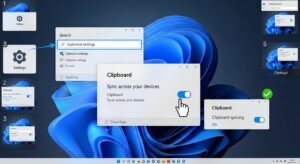
Step 1: Open Settings Press
Win + I on your keyboard or click the Start menu and select Settings (the gear icon).Step 2: Navigate to Clipboard Settings In the Settings window, click on “System” in the left sidebar, then scroll down and select “Clipboard” from the right panel.
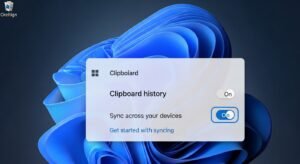
Step 3: Enable Clipboard History Toggle the “Clipboard history” switch to On. This is essential—clipboard syncing won’t work without history enabled.
Step 4: Activate Sync Across Devices Find the “Sync across devices” option and toggle it On. You’ll see two choices appear:
- Automatically sync text that I copy: Recommended for most users
- Never automatically sync text that I copy: Requires manual permission each time
Step 5: Choose Your Preference Select “Automatically sync text that I copy” for seamless operation, or choose the manual option if you prefer more control over what gets synced.
Step 6: Repeat on Other Devices Complete these same steps on every Windows 11 device where you want clipboard syncing enabled.
Step 7: Test the Feature Copy some text on one device (
Ctrl + C), then press Win + V on another device to access your clipboard history and paste the synced content.Quick Reference Table
|
Setting
|
Location
|
Recommended Value
|
|---|---|---|
|
Clipboard History
|
Settings > System > Clipboard
|
On
|
|
Sync Across Devices
|
Settings > System > Clipboard
|
On
|
|
Auto-Sync
|
Sync options
|
Automatically sync text
|
|
Clear Clipboard Data
|
Clipboard settings
|
Manual (for security)
|
Troubleshooting Common Clipboard Sync Issues
Even with proper setup, you might encounter occasional hiccups with clipboard syncing in Windows 11. Understanding the common pitfalls can save you significant frustration. Most sync failures stem from account authentication issues rather than the feature itself.
If your Microsoft account signs out unexpectedly or requires reauthentication, clipboard syncing will pause until you resolve the account status. Network connectivity plays a crucial role too—while Windows queues clipboard items locally when offline, they won’t sync until you reconnect to the internet.
Some users report that corporate or educational accounts with restrictive group policies may have clipboard syncing disabled at the administrative level, which means no amount of settings adjustments will enable it. Additionally, if you’re running multiple Microsoft accounts on the same device, ensure you’re checking the correct account’s sync status.
The clipboard history might appear empty if you’ve recently cleared it or if storage limits have been reached. Windows doesn’t publicly specify exact storage limits for cloud clipboard data, but excessive usage can trigger automatic cleanup.
Finally, remember that clipboard syncing only works between Windows 10 (version 1908 or later) and Windows 11 devices—it won’t sync with macOS, Linux, or mobile devices unless you’re using the Microsoft Launcher or SwiftKey keyboard on Android, which have their own clipboard sync implementations.
Maximizing Your Clipboard Sync Experience
Once you’ve successfully enabled clipboard syncing in Windows 11, you can leverage several advanced strategies to make the feature even more powerful. The clipboard history interface (Win + V) offers more functionality than many users realize.
Beyond simply viewing and pasting synced items, you can pin frequently used content—like email signatures, standard responses, or code snippets—to prevent them from being cleared when you delete clipboard history.
This creates a personalized library of go-to content accessible across all your devices. Consider organizing your workflow around clipboard syncing by establishing routines: copy reference materials on one device during research, then switch to another device for writing or analysis without breaking your concentration.
The feature works particularly well for developers who need to transfer code snippets between machines, writers moving between drafting and editing stations, or students conducting research across different locations.
You can also combine clipboard syncing with other Windows 11 features like Snap Layouts and Virtual Desktops to create sophisticated multitasking workflows. For enhanced security, periodically review and clear your clipboard history, especially after copying sensitive information like passwords or personal data.
Remember that while Microsoft encrypts clipboard data in transit and at rest, maintaining good digital hygiene means not leaving sensitive information in your clipboard history longer than necessary. Some power users create text expansion workflows by storing templates in their pinned clipboard items, dramatically reducing repetitive typing across devices.
Conclusion
Mastering how to enable clipboard syncing in Windows 11 transforms a simple copy-paste function into a powerful cross-device productivity tool. We’ve covered the essential setup steps, from enabling clipboard history to configuring sync preferences across your
Microsoft account. You now understand how to troubleshoot common issues and maximize the feature’s potential through strategic workflows and pinned content. The cloud clipboard eliminates friction in your daily computing tasks, whether you’re a professional juggling multiple devices, a student moving between campus and home, or anyone who values efficiency.
Don’t let your workflow remain fragmented across devices any longer. Take action now: open your Settings, navigate to System > Clipboard, and enable clipboard syncing in Windows 11 today. Your future self will thank you the next time you need to transfer information between devices instantly. Start experiencing seamless productivity across your entire Windows ecosystem.
