

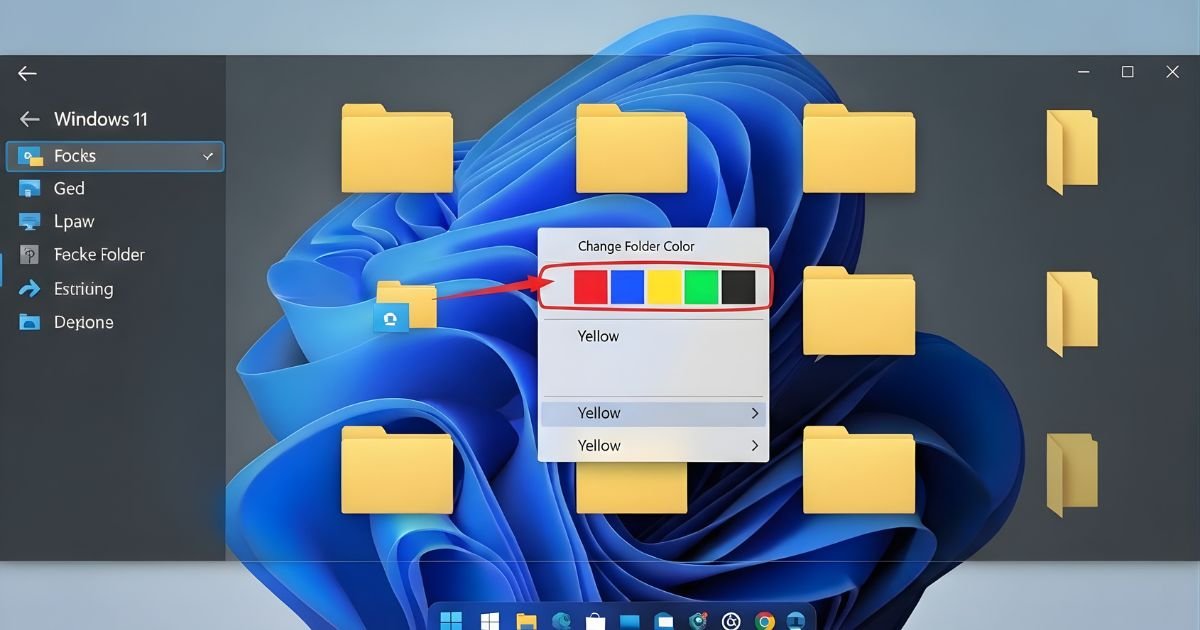
Tired of the same old yellow folders on your Windows 11? Changing folder colors can make your files easier to find and add a splash of personality to your desktop.
Imagine quickly spotting important folders or organizing your work with just a glance. You’ll learn simple and effective ways to change folder colors in Windows 11—no complicated steps or extra software needed. Ready to make your folders stand out and boost your productivity?
Reasons To Change Folder Color
Changing folder colors in Windows 11 offers practical benefits. It makes managing files easier and more pleasant. Simple color changes can greatly improve how you interact with your computer daily.
Below are key reasons to consider customizing your folder colors.
Improve Organization
Color-coded folders help you find files faster. You can assign colors to different projects or tasks. This reduces time spent searching for important documents. It also cuts down on mistakes from opening the wrong folder.
Enhance Visual Appeal
Bright folder colors make your desktop look cleaner and more lively. They break the monotony of plain yellow folders. A colorful workspace feels more inviting and less boring. This simple change can make your computer more enjoyable to use.
Boost Productivity
Seeing color differences helps your brain focus better. It separates tasks visually, reducing confusion. This leads to quicker decision-making and less stress. Organized folders with distinct colors keep you on track throughout the day.
Default Folder Colors In Windows 11
Windows 11 does not have a built-in option to change folder colors. Third-party apps fill this gap. These tools help you organize folders by color. Changing folder color with apps is simple and fast. You can pick from many available apps online. They offer different features and color options.
Popular Folder Colorizer Tools
Folder Marker is a popular app for changing folder colors. It offers many colors and icons. Another tool is Folder Colorizer 2. It is easy to use with a clean interface. Rainbow Folders is also well-liked. It supports many colors and lets you customize folder look.
Step-by-step Installation Guide
Download the app from its official website. Run the setup file by double-clicking it. Follow the on-screen instructions to install. Agree to the terms and select the install folder. Wait for the installation to finish. Finally, restart your PC if the app asks you to.
Changing Folder Color With Apps
Open the folder colorizer app. Select the folder you want to change. Choose a color from the available options. Click the “Apply” or “Colorize” button. The folder icon will change to the chosen color. Repeat the steps for other folders as needed.
Using Third-party Apps
Changing folder colors in Windows 11 can make file management easier and more fun. The manual way uses the Registry Editor. This method gives you full control but needs care. Editing the registry can affect your system if done wrong. Follow the steps carefully to change folder colors safely.
Backing Up The Registry
Start by opening the Registry Editor. Press Win + R, type regedit, and hit Enter. Before making changes, back up your registry. Click on File and select Export. Save the backup file in a safe place. This step helps you restore settings if something goes wrong.
Editing Folder Color Settings
Navigate to the folder color settings in the Registry Editor. Go to HKEY_CURRENT_USER\Software\Microsoft\Windows\Shell\. Find the key related to folder icons or create a new one if needed. Change the value data to a color code or path of a colored folder icon. Use simple hexadecimal color codes or icon file paths.
Applying Changes Safely
After editing, close the Registry Editor. Restart your computer to apply changes. Check if the folder color has changed. If not, repeat the steps or restore the backup. Avoid editing other parts of the registry to prevent errors. Always work with caution and keep backups.
Manual Method Using Registry Editor
Choosing the right folder colors helps keep your files organized and easy to find. It also makes your desktop look neat and pleasant. Picking colors is not just about beauty but also about making your work faster and simpler.
Consider how you use your folders and what colors can best match their purpose. This way, you get both a stylish and useful system for managing your files.
Color Coding For Categories
Assign different colors to different types of files or projects. For example, use blue for work, green for personal, and red for urgent tasks. This method helps you quickly spot the right folder without reading labels. It saves time and reduces confusion.
Try to keep a consistent color scheme. This makes it easier to remember and use your system every day.
Balancing Aesthetics And Functionality
Choose colors that look good but also serve a clear purpose. Bright colors catch attention but can feel overwhelming if overused. Soft colors are easy on the eyes and keep your screen calm.
Mix bold and soft colors to create a balanced look. Make sure colors stand out well on your desktop background. This balance helps you enjoy your workspace and find folders fast.
Tips For Choosing Folder Colors
Change Folder Color in Windows 11 can be simple. Yet, some users face issues during the process. This section helps fix common problems fast. Clear steps guide you through troubleshooting.
Color Changes Not Applying
Sometimes, the new folder color does not show. Check if you used the correct tool or app. Restart your computer to refresh settings. Make sure Windows updates are installed. Outdated software can block color changes. Try changing the color again after restarting.
Reverting To Default Folder Colors
Change Folder Color may return to default on their own. This happens if the system resets or updates. Avoid using conflicting apps for folder colors. Some apps undo your color changes automatically. Save your settings in the app before closing. If Change Folder Color revert often, reinstall the folder color tool.
Frequently Asked Questions
How Can I Change Folder Color In Windows 11?
To change folder color in Windows 11, use third-party apps like Folder Painter or Rainbow Folders. Windows 11 does not have a built-in folder color changer. These tools offer easy options to customize folder colors and improve organization.
Is It Safe To Use Apps To Change Folder Colors?
Yes, using trusted apps like Folder Painter is safe. Download from official websites or Microsoft Store. These apps only modify folder icons and colors without affecting system stability or data security.
Can I Restore The Original Folder Color Later?
Yes, you can restore the default folder color anytime. Most folder color changer apps provide an option to reset to the original icon and color quickly.
Does Changing Folder Color Affect Folder Functionality?
No, Change Folder Color only modifies its appearance. It does not affect folder access, permissions, or contents in any way.
Conclusion
Change Folder Color in Windows 11 is simple and fast. You can organize files better and find them quickly. Using color helps your computer look neat and personal. Just follow easy steps to customize your folders today. Try different colors to see what suits you best.
This small change makes your work more enjoyable. Give it a go and brighten up your desktop now.
