

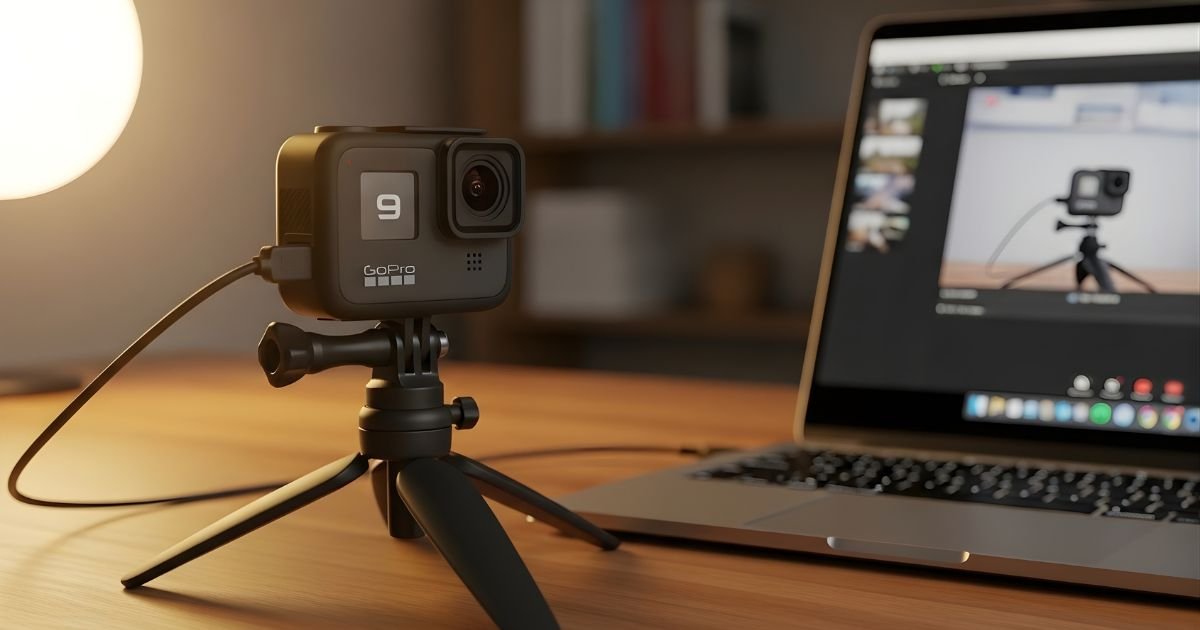
Are you looking to upgrade your video calls or live streams without spending a fortune on a new webcam? You might already have the perfect tool sitting on your desk—your GoPro.
But can you really use a GoPro as a webcam? The idea sounds great: stunning video quality, wide-angle views, and a sleek design. Yet, the answer isn’t as simple as plugging it in. If you want to know how to turn your GoPro into a powerful webcam and what you need to make it work seamlessly, keep reading.
This guide will walk you through everything step-by-step, so you can boost your video setup without extra hassle or cost.
GoPro Webcam Compatibility
Using a GoPro as a webcam is possible with certain models. Not all GoPro cameras support this feature. Knowing which models work helps you avoid compatibility issues.
The GoPro Webcam feature allows you to use your camera for video calls. It offers better video quality than many built-in laptop cameras. Checking system requirements is also important for smooth use.
Supported Gopro Models
GoPro added webcam support starting with the HERO8 Black. The HERO9 Black and HERO10 Black also support this feature. Some newer models may support it too. Older models like HERO7 or earlier do not work as webcams.
Using a supported model ensures the camera connects properly. It also allows access to webcam software provided by GoPro. This software helps your computer recognize the camera.
System Requirements
GoPro Webcam software works on Windows 10 and macOS 10.13 or higher. Your computer needs a USB 3.0 port for the best connection. A good USB cable is necessary to connect the camera.
Using a supported browser or app is important. Popular video call apps like Zoom, Microsoft Teams, and Google Meet work well. Ensure your computer meets minimum system specs for these apps.
Required Equipment
Using a GoPro as a webcam needs some specific tools. These tools help connect the camera to your computer and make it work smoothly. The right equipment ensures clear video and easy setup.
Two main things are necessary: cables and adapters, and software with drivers. Each plays a key role in turning your GoPro into a webcam.
Cables And Adapters
You need a USB-C cable to link the GoPro to your computer. This cable sends video signals from the camera to the PC.
Some GoPro models need a capture card. This device changes the camera’s video to a format your computer can read.
Adapters may be necessary for different ports. For example, USB-C to USB-A adapters work with older computers.
Check your GoPro model and computer ports before buying cables or adapters. This avoids connection issues later.
Software And Drivers
Software makes your computer recognize the GoPro as a webcam. GoPro offers its own app for this purpose.
Install the latest drivers for your camera to work well. Drivers help the system communicate with the hardware.
Some third-party software also supports GoPro webcams. These tools can offer extra features or better compatibility.
Keep software updated to fix bugs and improve performance.
Setting Up GoPro As Webcam
Using a GoPro as a webcam is practical and simple. It offers better video quality than many built-in laptop cameras. Setting up the GoPro as a webcam requires a few clear steps. This guide helps you connect your GoPro, adjust settings, and start webcam mode easily.
Connecting To Your Computer
First, connect your GoPro to your computer using a USB-C cable. Use the cable that comes with the camera or a compatible one. Plug the USB end into your computer and the other end into the GoPro. Ensure the camera is turned on. Your computer should recognize the device automatically.
Configuring Camera Settings
Open the GoPro app or the camera menu to adjust settings. Set the resolution to 1080p for good video quality. Disable auto power-off to keep the camera on during use. Turn off voice control and any other features that may interrupt streaming. Make sure the lens is clean and the camera is stable.
Launching Webcam Mode
On your GoPro, select the Webcam Mode option from the menu. The camera will display a message confirming it is ready to use as a webcam. Open your video call or streaming software. Choose the GoPro as your video source. Test the video feed to ensure the GoPro works properly. You are now ready to use your GoPro as a webcam.
Optimizing Video Quality
Using a GoPro as a webcam offers great video quality. Optimizing this quality makes your video clear and smooth. Small changes can improve the image and overall experience.
Focus on resolution, lighting, and stabilization. These three areas affect how you look on screen.
Adjusting Resolution And Frame Rate
Set your GoPro to a high resolution, such as 1080p or 720p. Higher resolution gives sharper images. Choose a frame rate of 30 frames per second for smooth video. Avoid very high frame rates; they may use more power and cause lag.
Balance resolution and frame rate to suit your internet speed and computer power. Lower settings work better for slower connections.
Lighting Tips
Good lighting makes a huge difference. Use natural light from windows if possible. Face the light source to avoid shadows on your face. Avoid backlight that can make you look dark.
Soft, even light helps the camera capture details better. Use lamps or LED lights if natural light is not enough. Position lights at a 45-degree angle for a natural look.
Stabilization Techniques
Keep your GoPro steady to avoid shaky video. Use a tripod or stable surface for mounting. Handheld use often causes unwanted movement.
Some GoPro models have built-in image stabilization. Turn it on for smoother video. Avoid sudden moves or quick turns while recording.
Common Issues And Fixes
Using a GoPro as a webcam can improve your video quality. Still, some users face common issues. These problems can stop your GoPro from working well during calls. Fixing them is often simple and quick. Below are some typical issues and easy fixes to help you.
Connection Problems
Sometimes your GoPro may not connect to your computer. Check the USB cable first. Use a cable that supports data transfer, not just charging. Try different USB ports on your computer. Restart your GoPro and computer before reconnecting. Make sure the GoPro is in webcam mode. Update your GoPro firmware to the latest version. These steps usually fix most connection problems.
Audio Sync Issues
Audio may not match the video from your GoPro. This happens when audio delay occurs in the software. Use software that supports external camera audio well. Try lowering video resolution to reduce lag. Restart the app or program you use. If audio is still off, use a separate microphone for better sound. Sync audio manually after recording as a last option.
Software Conflicts
Some apps may not recognize the GoPro as a webcam. Close other programs using the camera or microphone. Update your video conferencing app to the newest version. Check for drivers or software updates for your GoPro. Disable antivirus or firewall temporarily to see if they block the camera. Restart the computer after changes. This helps avoid conflicts and improves compatibility.
Alternative Methods
Using a GoPro as a webcam can be tricky. There are a few alternative methods to make it work. These options can help you connect your GoPro to your computer for video calls or streaming.
Using Capture Cards
A capture card can turn your GoPro into a webcam. It takes the video signal from the GoPro’s HDMI output. Then, it sends this signal to your computer through USB.
This method gives a clean, high-quality video feed. Many capture cards support 1080p or even 4K resolution. You just need to connect the GoPro to the capture card and the card to your PC.
Some popular capture cards include Elgato Cam Link and AVerMedia. They work with most video calling apps. This setup is reliable and has low delay.
Third-party Apps
Another way is to use third-party software. These apps let your computer recognize the GoPro as a webcam. They work over Wi-Fi or USB connection.
Examples include GoPro Webcam app and OBS Studio plugins. These apps often need your GoPro model to be compatible. They may offer easy setup and extra features.
Some apps add filters or control camera settings. This option can be budget-friendly. It might have more delay or lower video quality than capture cards.
Best Practices For Streaming
Using a GoPro as a webcam can improve your video quality. To get the best results, follow some key practices for streaming. These tips help you look professional and keep your stream smooth.
Positioning Your Gopro
Place your GoPro at eye level for a natural view. Avoid angles that make your face look distorted. Use a tripod or mount to keep the camera steady. Ensure good lighting on your face to avoid shadows. Check the background to keep it clean and simple.
Maintaining Battery Life
Connect your GoPro As a Webcam to a power source during streaming. This prevents the camera from shutting off unexpectedly. Turn off features you don’t need, like Wi-Fi or voice control. Lower the screen brightness to save power. Use a USB cable designed for data and charging.
Ensuring Stable Internet
Use a wired internet connection for the best stability. If you use Wi-Fi, stay close to the router. Close apps or devices that use bandwidth during your stream. Test your internet speed before going live. A steady connection reduces lag and video drops.
Frequently Asked Questions
Can You Use A Gopro As A Webcam Directly?
Yes, you can use a GoPro as a webcam with the right model. Recent GoPro models offer webcam mode via USB, making setup easy and effective for video calls and streaming.
Which Gopro Models Support Webcam Mode?
GoPro HERO8, HERO9, HERO10, and HERO11 support webcam mode. These models allow USB connection to computers for high-quality video streaming without extra capture cards.
How To Connect Gopro To A Pc As A Webcam?
Connect your GoPro via USB, enable webcam mode in settings, and select it as your video source. Use the official GoPro Webcam app for smooth integration on Windows or Mac.
Is Gopro Webcam Quality Better Than Regular Webcams?
Yes, GoPro As a Webcam offer superior video quality with wide-angle lenses and 4K capability. This results in clearer, more vibrant video compared to many standard webcams.
Conclusion
Using a GoPro as a webcam is possible and can improve video quality. You need the right cables and software to connect it to your computer. The setup might take some time but works well once done. This option suits those who want better video without buying a new webcam.
Keep in mind battery life and heat during long use. Overall, a GoPro can serve as a good webcam alternative for many users.
