

Have you ever wanted to save a great Instagram comment on your iPhone but didn’t know how? Maybe it’s a funny reply, a helpful tip, or just something you want to remember.
Copying Instagram comments isn’t as simple as it seems, but don’t worry—you’re about to learn an easy way to do it. Keep reading, and you’ll discover quick steps that will make saving those comments a breeze. This little trick can save you time and frustration every time you want to keep important or interesting messages from Instagram.

Copy Comments Using Instagram App
Copying comments directly from the Instagram app on your iPhone is simple. You do not need extra tools or apps. Just follow a few easy steps to save any comment you want.
This method works well for saving thoughts, ideas, or important information from Instagram posts. It keeps everything quick and neat.
Locate The Comment
Open the Instagram app on your iPhone. Find the post with the comment you want to copy. Scroll through the comments until you see it. Make sure the comment is fully visible on your screen.
Use Tap And Hold Method
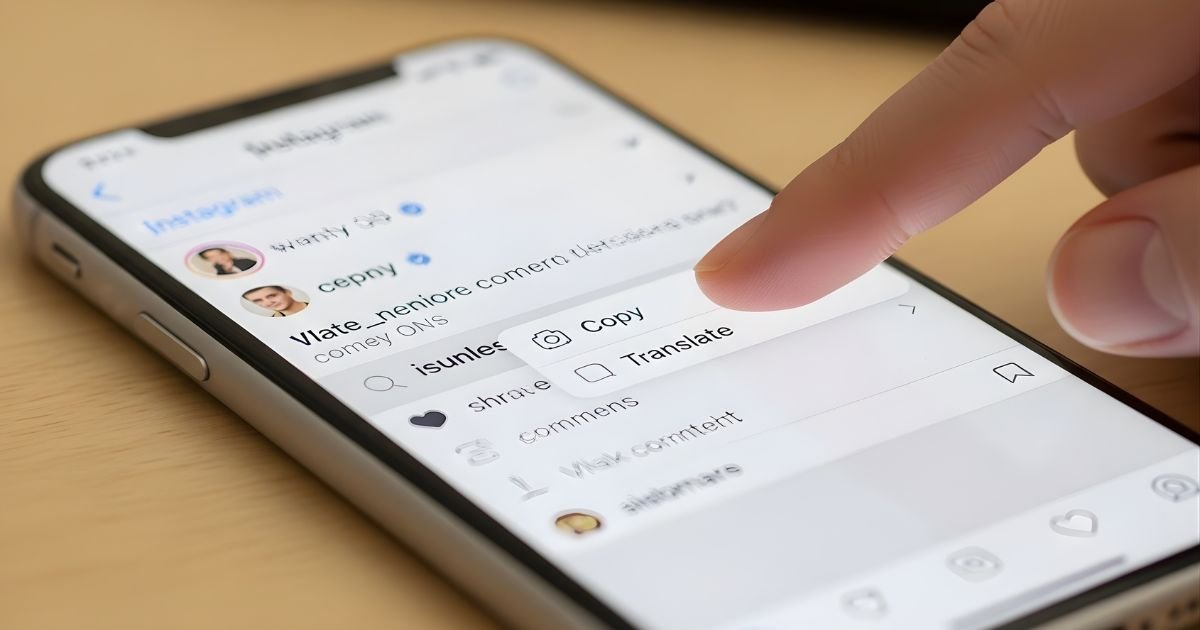
Tap and hold your finger on the comment text. Hold it for a second or two. A menu will appear on your screen. This menu gives you options to interact with the comment.
Copy Text To Clipboard
From the menu, tap on “Copy.” The comment text is now saved to your clipboard. You can paste it anywhere you want, like notes or messages. Just tap and hold in a text field and select “Paste.”
Copy Comments Via Screenshot
Copying Instagram comments on an iPhone can be tricky since the app does not offer a direct way to do it. Taking a screenshot of the comment section is a simple alternative. It helps save the comment visually. Later, you can extract the text from the image. This method works well for short comments or important replies you want to keep.
Take A Screenshot
Open the Instagram post with the comment you want to save. Press the side button and volume up button at the same time. On older iPhones, press the home button and the side button together. The screen will flash, confirming the screenshot is saved.
Crop And Save
Go to the Photos app and find your screenshot. Tap Edit and use the crop tool. Cut out everything except the comment you want. This makes the text clearer and easier to read. Save the cropped image to keep it handy.
Use Ocr Tools To Extract Text
OCR stands for Optical Character Recognition. It reads text from images and turns it into editable words. Use apps like Google Keep, Microsoft OneNote, or online OCR websites. Upload your cropped screenshot to these tools. They will extract the comment text quickly. Now you can copy, paste, and share the comments easily.

Use Third-party Apps
Using third-party apps can simplify copying Instagram comments on your iPhone. These apps offer features that Instagram itself does not provide. They help save time and make the process smooth. Choose an app carefully to protect your privacy and data.
Find Reliable Apps
Search for apps with good reviews and high ratings. Check if they are updated regularly. Read user feedback to avoid apps with bugs or security risks. Pick apps designed specifically for Instagram comment copying.
Grant Necessary Permissions
Allow the app to access your Instagram account securely. Only give permissions that are essential for copying comments. Avoid apps asking for extra access to personal data. This keeps your account safe and private.
Copy Comments Efficiently
Open the app and navigate to the Instagram post. Select the comment or comments you want to copy. Use the app’s tools to copy comments quickly. Paste them into notes, messages, or documents as needed.
Copy Comments From Instagram Web On Iphone
Copying comments on Instagram using your iPhone is easier through the web version. The Instagram app does not allow comment copying directly. Using a browser on your iPhone gives you a simple way to select and copy comments.
This method works well for saving important messages or sharing comments elsewhere. The steps are quick and require no extra tools.
Open Instagram In Browser
Open Safari or any browser on your iPhone. Type instagram.com in the address bar. Log into your Instagram account using your username and password. Navigate to the post with the comments you want to copy.
Select And Copy Comments
Scroll to the comment you want. Tap and hold the text until you see selection handles. Drag the handles to highlight the full comment. Tap “Copy” from the popup menu to save the text to your clipboard.
Paste Where Needed
Open the app or note where you want to save the comment. Tap the text area to bring up the menu. Select “Paste” to insert the copied comment. You can now save or share the comment as needed.
Tips To Copy Multiple Comments
Copying multiple Instagram comments on an iPhone can be tricky. Instagram does not offer a direct feature to copy many comments at once. You need a smart approach to save time and keep the comments organized.
Some tips help you manage and copy several comments smoothly. These tips also prevent errors while copying. Let’s explore easy ways to handle multiple comments efficiently.
Using Note Apps
Note apps like Apple Notes or Google Keep are great for collecting comments. Open your note app and create a new note. Then, copy each comment one by one and paste it into this note. This keeps all comments in one place.
Note apps allow quick editing and easy access later. You can also add tags or titles to separate comments by topic. These apps work well for saving many comments without losing any.
Organizing Copied Text
After copying comments, organize them clearly. Use bullet points or numbers to list each comment. This makes it easy to read and find specific comments later. You can add spaces or line breaks between comments for clarity.
Grouping comments by date or user helps too. It saves time when searching through many comments. Keep your text neat to avoid confusion or mixing up comments.
Avoiding Common Issues
Copying multiple comments may cause errors like missing text or formatting problems. To avoid this, check each copied comment before saving. Make sure all parts of the comment are included.
Also, avoid copying too fast. Give your iPhone time to register each copied comment. If a comment is too long, try copying it in smaller parts. This reduces chances of losing text.
Frequently Asked Questions
How Can I Copy Instagram Comments On Iphone?
To copy Instagram comments on iPhone, tap and hold the comment. Select “Copy” from the menu that appears. This saves the comment text to your clipboard for easy pasting anywhere.
Is There A Direct Way To Copy Multiple Comments On Instagram?
Instagram doesn’t support copying multiple comments at once. You must copy each comment individually by tapping and holding each comment.
Can I Use Third-party Apps To Copy Instagram Comments?
Yes, some third-party apps allow copying Instagram comments. However, use trusted apps only to protect your privacy and data security.
Why Can’t I Copy Instagram Comments On My Iphone?
If copying comments fails, ensure your Instagram app is updated. Bugs or outdated versions may restrict copying features.
Conclusion
Copying Instagram comments on your iPhone is simple and quick. You can save important messages or share them easily. Just follow the steps carefully and practice a few times. This skill helps you stay organized and connected with friends or followers.
Keep your phone updated for the best experience. Try it now and see how useful it can be!
