

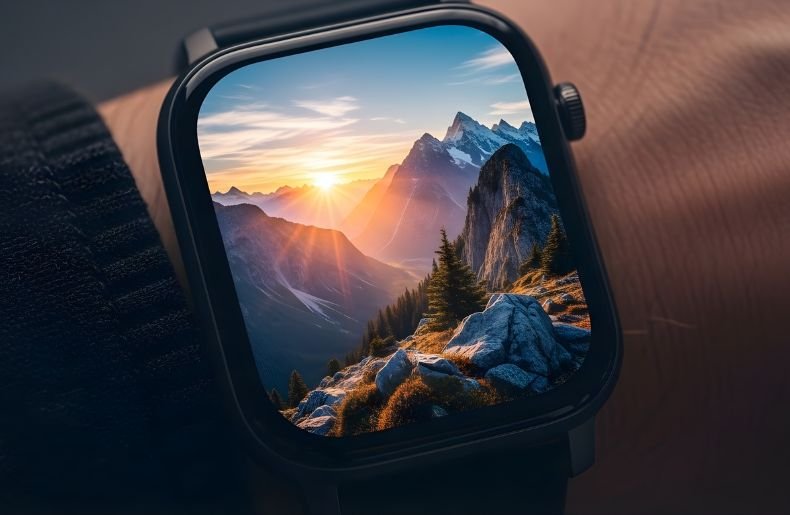
Your smartwatch is more than just a timekeeper it’s your personal statement worn on your wrist. One of the easiest and most impactful things you can do to make it all yours, though, is change up the wallpaper.
Whether you want to show off a favorite image, view motivational sayings, or just want your watch face to match your wardrobe, switching out that wallpaper on your smartwatch is easier than you would think.
The all-encompassing guide covers everything there is to know about customizing your device, from locating an image that works for you to troubleshooting frequently encountered problems. When we’re done here, you’ll be effortlessly changing wallpapers like it’s no one’s business, and your smartwatch will reflect who you are.

How Smartwatch Wallpapers Work
So before I take you through the how-to, let’s first understand what we’re changing here. Also referred to as watch faces or backgrounds, smartwatch wallpapers are the little images on your screen.
Smartwatches have customizable watch faces where, instead of fixed designs, you can add photos and even a themed background or animated design. The process is slightly different depending on your device’s OS,
Whether you’re using an Apple Watch, a Samsung Galaxy Watch, a Wear OS device, or a Fitbit. Nevertheless, the principle is still there: you are replacing whatever comes on with something that resonates a little better with you.
Choosing the Right Image for Your Smartwatch
Selecting the perfect wallpaper involves more than just picking your favorite photo. Smartwatch screens are significantly smaller than phone displays, typically ranging from 1.2 to 1.9 inches diagonally.
This means images need to be carefully chosen to look good at that scale. High-contrast photos work exceptionally well because they remain visible even in bright sunlight or during quick glances. Close-up portraits, bold graphics, and simple patterns tend to perform better than busy, detailed images that become muddy when compressed. Consider the color scheme as well—darker wallpapers can help conserve battery life on OLED screens, while lighter backgrounds might be easier to read in certain lighting conditions.
Your image resolution matters too. Most modern smartwatches have screens ranging from 240×240 pixels on smaller devices to 450×450 pixels or higher on premium models. Using images that match or exceed your watch’s native resolution ensures crisp, clear displays. Many smartwatch companion apps automatically crop and resize photos, but starting with properly sized images gives you better control over the final result.
Image Size and Format Tips for Best Results
To avoid blurry or stretched wallpapers, follow these guidelines:
| Watch Type | Recommended Size |
| Square screen | 320×320 to 454×454 px |
| Round screen | 360×360 to 480×480 px |
| High-res AMOLED | 480×480 or higher |
How to Put Wallpaper on Apple Watch
There are a few simple ways for Apple Watch owners to personalize the watch face. The most obvious method is via the watch itself. Press and hold on the current watch face until it enters edit mode (you’ll feel a haptic tap to let you know you’ve activated it).
Swipe left to peruse face options that are available, and then tap on “Customize” for the one you select. A lot of the faces let you add complications and alter background colors or photos. For face-aware faces such as Photos or Portraits, you can directly choose images from your synced album.
Or use your paired iPhone for added control. Open the Watch app and tap “Face Gallery” to see a wide range of faces you can customize. When you come across one that appeals, touch “Add” and then “Customize” to tweak it. For photo backgrounds, the Photos app can even pickand album or individual images.
The app automatically recommends photos with a good composition to appear on the watch face, or you can manually choose any other image in your library. When everything is set up, tap “Add” to sync the new face to your watch. You can create several custom faces and switch between them during the day.
Setting Up Wallpapers on Samsung Galaxy Watch
Samsung Galaxy Watch owners enjoy robust customization through the Galaxy Wearable app. Start by ensuring your watch is connected to your smartphone via Bluetooth. Open the Galaxy Wearable app and navigate to “Watch faces” or “Watch settings.”
Here you’ll find both pre-installed options and downloadable designs from the Galaxy Store. To use your own image, select a customizable face that supports photo backgrounds—the “My Photo+” face is specifically designed for this purpose.
Tap the face you want to customize, then look for options to change the background or add photos. The app will prompt you to select an image from your phone’s gallery. You can adjust the positioning, apply filters, and even add widgets or complications that display information like weather, steps, or calendar events.
Samsung’s interface makes it particularly easy to preview how your chosen image will look with different layouts and information displays. Once satisfied, tap “Save” or “Apply,” and your watch will update within seconds. The Galaxy Watch also supports animated wallpapers and video backgrounds if you want something more dynamic than static images.
Customizing Wear OS Smartwatches
Wear OS from Google is used to operate smartwatches made by various brands, including Fossil, TicWatch, and Mobvoi. How do you put wallpaper ona smartwatch with Wear OS? The process is finally nicely consistent between the manufacturers.
Start by pressing and holding your current watch face until it opens modes for customization. Swipe through the available faces, and when you find one you like, tap the settings icon to customize it. Numerous Wear OS faces offer custom photo backgrounds — search for options called “Photos,” “Gallery,” or “Custom image.”
You get even more control through your phone’s Wear OS app. Open the app, tap “Watch faces” and scroll through both your installed faces as well as the extensive collection you can download. Thousands of third-party developers design trillions of unique avatars, including ones with photo customization.
Choose a face that supports custom images, and the app will walk you through choosing photos from Google Photos or your device storage. Wear OS doesa reat job on its own, automatically cropping images to suit the round or rectangular screen, but you can also manually crop a picture by moving it around.
Adding Wallpapers to Fitbit Devices
Fitbit smartwatches like the Versa and Sense series handle wallpaper customization slightly differently than other platforms. While Fitbit focuses heavily on health tracking, personalization options remain robust.
Open the Fitbit app on your smartphone and tap your profile picture, then select your device. Navigate to “Gallery” and choose “Clock Faces.” You’ll find hundreds of designs, both free and premium, organized by categories like Photos, Stats, or Animated.
To use personal photos as your background, select a clock face specifically designed for custom images—these are clearly labeled in the gallery. After selecting such a face, you’ll see an option to add or change the background photo. The app accesses your phone’s photo library, allowing you to choose any image.
Fitbit’s system automatically optimizes images for your specific watch model, ensuring they display correctly regardless of your device’s screen specifications. Some photo-enabled faces also include customizable data fields, letting you display health metrics alongside your chosen image. Apply your selection, and the new face syncs to your watch during the next update cycle.
Creating Custom Wallpapers from Scratch
Occasionally, it is not a favourite wallpaper that you need, but a great one — and sometimes the best wallpapers don’t already exist in your Photos library. There are many apps and websites for creating smartwatch-optimized pics. Canva, for example, has templates for smartwatches sized accurately to match popular models.
You can create simple backgrounds, layers of text over your favorite quotes, or you can develop collages from several images, all designed to make the best use of a wrist display. Adobe Spark offers the same potential with a higher learning curve.
Photo editors can easily control image creation through advanced apps such as Photoshop or free alternatives such as GIMP. Begin by finding out the screen resolution of your watch; it’s usually listed in the product detail spec or easily found on a search engine.
Start a new project at that particular resolution, make your wallpaper with layers, filters, and effects as you like it, then save it to JPEG or PNG. Download the file to your smartphone, and it’s ready to use via a companion app for your watch.
Troubleshooting Common Wallpaper Issues
Even with straightforward processes, you might encounter occasional hiccups. If your custom image appears blurry or pixelated, the source photo likely has insufficient resolution. Try using a higher-quality image or one specifically sized for your watch model.
Images appearing stretched or improperly cropped usually result from aspect ratio mismatches—use your companion app’s editing tools to reposition the focal point or select a different face design that better accommodates your image’s dimensions.
Battery drain after changing wallpapers sometimes occurs, particularly with bright, colorful images on OLED screens. Darker wallpapers with fewer bright pixels consume less power. If your wallpaper won’t sync or apply, ensure your watch has sufficient battery charge and a stable Bluetooth connection to your phone.
Restarting both devices often resolves stubborn sync issues. Some watches limit the number of custom faces you can store simultaneously—if you can’t add a new wallpaper, try deleting unused ones first. Remember that third-party watch faces from unknown developers might occasionally cause compatibility issues, so stick with official sources or well-reviewed options when possible.
Maximizing Battery Life with Smart Wallpaper Choices
The other way around is true as well; depending on the type of display, with OLED or AMOLED, it has an impact on your battery life concerning the wallpaper. These screen technologies light up pixels individually, so black pixels consume practically no power while white ones use the most battery.
If you opt for mostly dark wallpapers witha little splash of bright elements, you can get an extra 10-20% in daily battery life out of your watch. This doesn’t mean forgoing style — many of the most beautiful wallpapers feature dark backgrounds while employing an accent color carefully.
Perhaps you should consider different wallpapers for different uses. A battery-conscious watch face is great for everyday use, but you may want to set up a more colorful, lively image when you know that night you’ll be recharging it.
Some watches come with the ability to have automatic brightness adjustments or always-on displays, which will also havean influence on battery performance. Combine a dark wallpaper with these features, and you get the best of both customization and longevity.
Exploring Advanced Customization Options
After you’ve played around with wallpaper and are comfortable making changes to it, digging a little deeper into the settings will get you even more personalization. A good number of smartwatches feature animated or live wallpapers with a little motion a subtle wave, the changing of a gradient, maybe even brief video loops.
Although attractive, they drain battery and processing power; only use them when needed. Certain platforms permit wallpapers that will transition automatically by time of day, location, or calendar events to build dynamic displays that change as your schedule does.
Possibilities are further expanded by third-party apps. Apps such as Facer and WatchMaker provide the ability to load thousands of community-created watch faces, mixed with a bit of customization.
Not only can you often swap in a different background image, but complications (those are chunks of useful information that appear on the face), fonts, color,s and sometimes even layouts.
Conclusion
Learning how do you put wallpaper on smartwatch opens up a world of personalization that makes your device truly yours. Whether you’re using an Apple Watch, Samsung Galaxy Watch, Wear OS device, or Fitbit, the process is remarkably straightforward once you understand your platform’s specific approach.
From selecting high-quality images that look sharp on small screens to troubleshooting sync issues and optimizing for battery life, you now have the knowledge to confidently customize your wearable.
Remember that your wallpaper can change as often as your mood—create collections for different occasions, experiment with custom designs, and don’t be afraid to try new styles.
Your smartwatch accompanies you throughout every moment of your day, so why not make it reflect who you are? Start experimenting with different wallpapers today, and transform that small screen into a canvas that brings you joy every time you check the time.
