

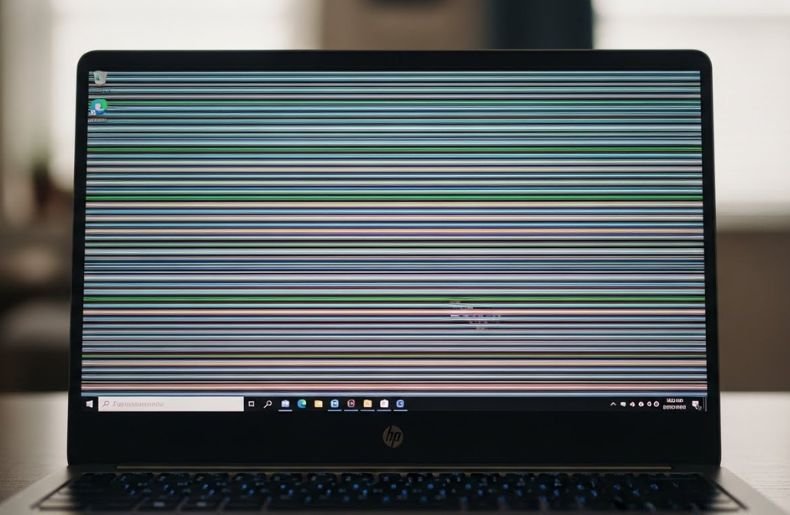
HP laptop horizontal lines on screen is a common concern for many HP users, especially when display issues suddenly affect work, study, or entertainment. These lines can appear thin, thick, colored, or flickering, making the screen uncomfortable to use.
Horizontal lines on an HP laptop screen may show up after a system update, physical impact, overheating, or prolonged usage. Sometimes the problem is software-related, while in other cases, it points to internal hardware damage. Are you thinking about how to fix HP laptop horizontal lines on screen?
The issue is usually caused by loose display cables, outdated graphics drivers, incorrect resolution settings, or a failing LCD panel. If you can troubleshoot these issues then you’ll be able to fix HP laptop horizontal lines on screen.
Ignoring screen line issues can worsen the problem over time and lead to a complete display failure. Early diagnosis helps prevent expensive repairs and data disruption.
What Causes HP Laptop Horizontal Lines on Screen?
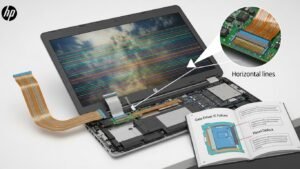
There are a few different things that can cause HP laptop horizontal lines on screen. One of the most common causes is a problem with the video cable. This is the cable that connects the video card to the monitor. If there is any damage to this cable, it can cause the image on the screen to be distorted.
Another common cause of HP laptop horizontal lines on screen is a problem with the graphics card. This is the part of the computer that processes the image and sends it to the monitor. If there is a problem with the graphics card, it can cause lines or flickering on the screen.
Other possible causes of HP laptop horizontal lines on screen include a faulty LCD screen, a problem with the motherboard, or a problem with the inverter.
How to Check Hardware of HP Laptop for Horizontal Lines?
If the issue seems to be hardware-related, there are a couple of things you can do to check the hardware and diagnose the problem.
The first step is to check the video cables. Unplug the laptop and remove the battery; then, use a flat head screwdriver to remove the screws on the back of the laptop. Gently pry open the laptop, and locate the video cables (they’ll be two thin, black cables near the top). Check to make sure that there are no breaks in the cable, and reattach them if there are any problems.
If there are no breaks in the video cables, you can try reseating the video card. Unplug the laptop and remove the battery; then, use a flat head screwdriver to remove the screws on the back of the laptop. Gently pry open the laptop, and locate the video card (it will be a small rectangular card near the bottom). Remove it, then reinsert it into its socket.
How to Disassemble & Fix HP Laptop Internal Problem for Horizontal Lines?
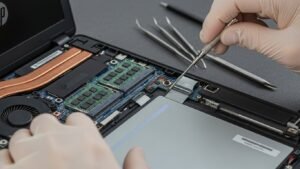
So, your HP laptop has started displaying horizontal lines on the screen, and you’re not sure what to do about it? We’re here to help.
In most cases, this problem is caused by a failure of the LCD Inverter Board, and it will need to be replaced. However, before you can do that, you’ll need to disassemble the laptop and fix the internal problem.
Here’s a step-by-step guide to disassembling and fixing your HP laptop:
- Turn off your laptop and remove the power cord.
- Remove the battery.
- Press and hold the Power button for about 15 seconds to discharge any residual power.
- Slide the release button on the hard drive cover and remove it.
- Remove the screws securing the keyboard bezel and remove it.
- Lift up the keyboard and disconnect it from the motherboard.
- Remove the screws securing the top cover and remove it.
- Disconnect all of the cables from the motherboard, including the display cable, fan cable, and any other cables that are in your way.
- Remove the screws securing the motherboard and lift it up carefully.
- Replace the LCD Inverter Board and replace all of the screws. Reassemble your laptop in reverse order, making sure that all of the cables are connected properly
Is It Necessary to Replace LCD Screen or Inverter Board of the HP Laptop?
If you’re wondering if it’s necessary to replace the LCD Screen or Inverter Board of your HP laptop, the answer is ‘it depends’. Generally, issues with horizontal lines on the screen can be fixed by updating the display driver. If that doesn’t work, then it could be a hardware issue and a replacement may be needed.
In some cases, the issue may be related to either an inverter board or an LCD. Here are a few signs that indicate either might need replacement: dimmest lights or no backlight on the laptop screen; distorted images; flickering effect on displays; severe ghosting or afterimages; and color disparities in shades and hues. If you’re experiencing any of these symptoms then it’s likely time to buy a new part.
If you’re replacing either of these parts yourself, always practice safe electronics repair by ensuring your laptop is turned off and unplugged before starting the process. That way, you won’t have to worry about electric shocks or other potential dangers while making the necessary repairs!
Final Thought
HP laptop is one of the best laptops in the market. However, users have reported that they are experiencing HP laptop horizontal lines on the screen. In this article, we will discuss the common causes of HP laptop horizontal lines on screen; and Step by Step Guideline to Fix HP laptop horizontal lines on screen.
