

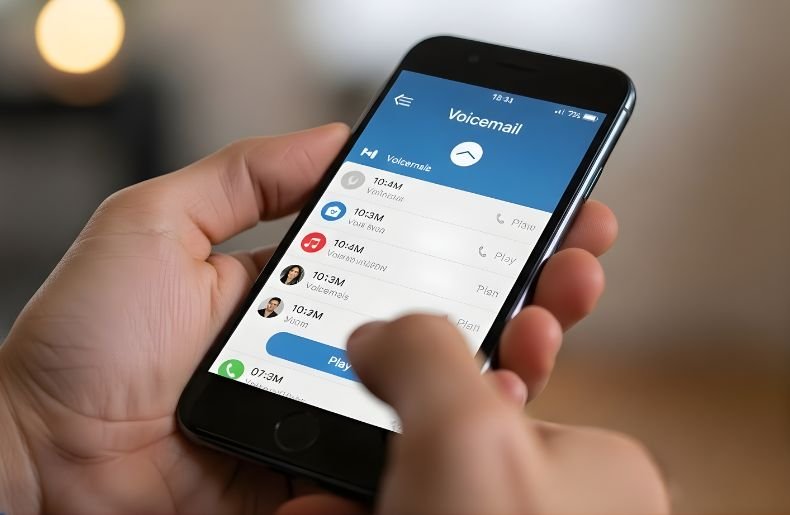
We’ve all been there—your phone dies at the worst possible moment, or you’ve left it at home, and you’re expecting an important voicemail. The good news? You don’t need your actual phone to access your voicemail messages.
Whether you’re using a landline, borrowing a friend’s smartphone, or calling from a hotel room, checking your voicemail remotely is surprisingly straightforward once you know the process. This comprehensive guide will walk you through exactly how to check your voicemail from another phone, covering all major carriers and different scenarios you might encounter.
By the end of this article, you’ll have the confidence to retrieve your messages from virtually anywhere, ensuring you never miss important information again.
What is voicemail?

Before diving into the specific steps, it’s helpful to understand how remote voicemail access actually works. Every mobile carrier and voicemail system is designed with a backdoor entry point that allows you to check messages when you’re not using your primary device. This feature relies on your voicemail password or PIN—a security measure that prevents unauthorized access to your private messages.
The beauty of this system is its universality. Whether you have an iPhone or Android device, whether you’re with Verizon, AT&T, T-Mobile, or any other provider, the fundamental principle remains the same: you dial your own phone number from another device, interrupt the greeting, and authenticate yourself with your PIN. The specific button sequences might vary slightly between carriers, but the logic is consistent across the board.
Most people don’t set up their voicemail PIN until they actually need to access messages remotely, which can create a frustrating situation when you’re in a hurry. That’s why it’s worth taking a few minutes now to ensure your PIN is active and memorized. This small preparation step can save you significant headaches down the road when you need urgent access to your messages.
How to Check Your Voicemail from Another Phone: Step-by-Step
For Mobile Phones (All Major Carriers)
The process to check your voicemail from another phone is remarkably similar across most carriers. Here’s the universal method that works for Verizon, AT&T, T-Mobile, Sprint, and most other providers:
Step 1: Using any phone, dial your own mobile phone number. This can be a landline, another cell phone, or even a payphone if you can still find one.
Step 2: Wait for your voicemail greeting to start playing. Don’t let it finish—you’ll need to interrupt it in the next step.
Step 3: Press the star key (*) or pound key (#) on the dial pad while your greeting is playing. Most carriers use the star key, but some use the pound key. If one doesn’t work, try the other.
Step 4: When prompted, enter your voicemail password or PIN. This is typically a 4-6 digit code you set up when you first activated your voicemail service.
Step 5: Follow the voice prompts to listen to your messages. The automated system will guide you through playing, saving, or deleting messages.
Step 6: After listening, you can manage your messages using the keypad options provided by the automated system.
Carrier-Specific Methods
While the general approach works universally, some carriers have specific shortcuts or alternative numbers:
Verizon: Dial *86 from another Verizon phone, or call your own number and press # during the greeting. Enter your password when prompted.
AT&T: Call your own number, press * when your greeting starts, then enter your password. AT & T customers can sometimes dial 1-888-288-8893.
T-Mobile: Dial your own number, press # during the greeting, and enter your voicemail password. T-Mobile also offers the shortcut number 1-805-637-7249 for voicemail access.
Sprint (now T-Mobile): Call your mobile number, press * when the greeting begins, and authenticate with your PIN.
Accessing Voicemail Without Your PIN

If you’ve forgotten your voicemail password, you’ll need to reset it before you can access messages remotely. Unfortunately, there’s no workaround for security reasons—this protection exists to keep your private messages safe from unauthorized access. Each carrier has a different reset process, but generally, you’ll need to contact customer service or log into your online account portal. For Verizon users, you can dial #793# from your device to reset your PIN. AT&T customers can visit their online account settings. T-Mobile subscribers should call 611 from their phone or contact customer support. The reset process typically takes just a few minutes, though you’ll need to verify your identity by answering security questions or providing account information.
Checking Voicemail from a Landline
The process for accessing your mobile voicemail from a landline is identical to using another cell phone. Simply dial your mobile number, interrupt the greeting with the appropriate key (usually * or #), and enter your PIN. One thing to keep in mind: if you’re calling from an office landline with a phone system that requires you to dial 9 for an outside line, remember to dial 9 first before entering your mobile number.
Using Visual Voicemail Remotely
Visual voicemail has revolutionized how we interact with voice messages, enabling you to view a list of messages and select which ones to listen to first. However, this feature typically requires your actual device and a data connection. If you’re trying to check voicemail from another phone, you’ll need to use the traditional dial-in method described above. Some carriers offer web-based visual voicemail portals where you can log in and access transcriptions or audio files, but availability varies significantly by provider.
Troubleshooting Common Issues
Sometimes the process doesn’t go as smoothly as planned. If pressing or during your greeting doesn’t prompt you for a password, try pressing the key earlier or later in the greeting. Some systems are sensitive to timing. If you’re certain you’re entering the correct PIN but it’s not being accepted, the issue might be with the phone you’re calling from—particularly older landlines sometimes don’t transmit tones clearly. Try using a different phone if possible.
Another common issue occurs when people haven’t set up a voicemail PIN at all. If this is your situation, you’ll need to call from your actual device to set one up before you can access messages remotely. This is a one-time setup that unlocks the remote access feature permanently.
Security Best Practices
Your voicemail can contain sensitive information—everything from medical test results to financial account notifications. That’s why securing your voicemail with a strong PIN isn’t just recommended; it’s essential. Avoid obvious choices like 1234 or your birth year. Choose a PIN you can remember but others can’t easily guess. If you write it down, store it securely, not on a note attached to your phone or in an easily accessible digital file.
Consider changing your PIN periodically, especially if you’ve shared it with someone temporarily or suspect it might have been compromised. Most carriers allow you to change your PIN through your online account settings or by calling customer service.
Conclusion
Learning how to check your voicemail from another phone is an invaluable skill that provides peace of mind and ensures you stay connected even when separated from your device. The process is straightforward: call your own number, press * or # during your greeting, enter your PIN, and follow the prompts. Whether you’re dealing with a dead battery, a lost phone, or simply forgot your device at home, you now have the knowledge to access your important messages from virtually any phone in the world.
Take a moment today to verify that your voicemail PIN is set up and that you remember it. This small investment of time will pay dividends the next time you need to check your voicemail from another phone in an urgent situation. Stay connected, stay informed, and never miss an important message again.
