

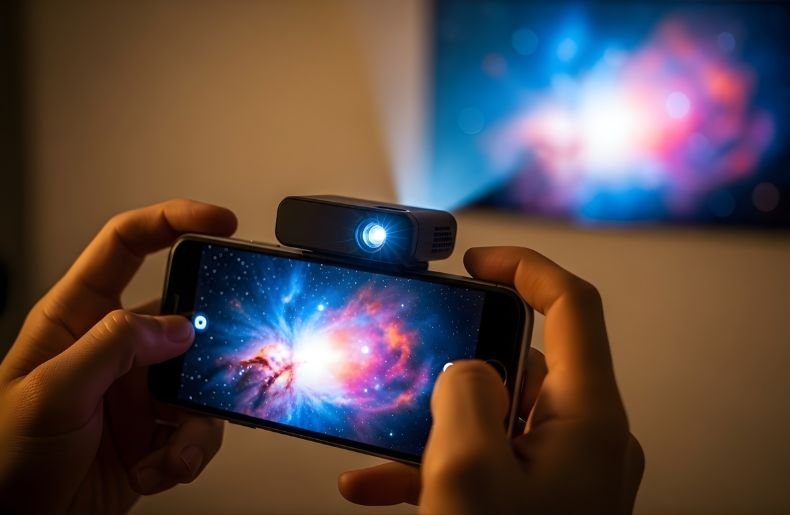
Picturebeing able to turn any blank wall into your own personal theater, a, nd something even more mind-blowing: being able to transform your living room into a presentation hall right from the device in your pocket. Mini projectors have revolutionized entertainment and short presentations on the go, and hooking one up to your phone is easier than you’d expect. Connect a mini projector to your phone either wirelessly using screen mirroring over the same Wi-Fi network, or with a cable using a USB-C or Lightning to HDMI adapter. Select the correct HDMI input on the projector and start mirroring.
Whether you’re having a movie night out in the backyard with family or sharing vacation photos with friends, if you know how to turn your phone in to a mini projector, the possibilities are limitless.
What makes many of the best mini projectors so great is that they’re relatively small, can be connected to your smartphone, and more or less let you stream what you want when you turn them on.
This guide will cover everything you need to know,w from whether the connection method is right for you to how to enhance your viewing experience and troubleshoot common problems along the way.
How Mini Projectors Work with Different Phones
Before we get into connections, it’s important to know why your phone and projector can communicate in the first place. Many mini projectors today are versatile when it comes to connecting, but a one-size-fits-all setup does not apply with phones.
The most obvious one is your phone’s operating system and the ports it offers for hooking up to peripherals. You’ll get more versatility with USB-C and native screen-mirroring support on an Android phone, or AirPlay and Lightning adapters if you’re using an iPhone.
Your projector’s features are important to consider as well — seek out wireless connections (either via Wi-Fi or Bluetooth), HDMI input ports, and USB support. Some projectors have built-in operating systems, such as Android TV, that make connecting much easier.
See your projector’s user manual for compatible phone models and connection types. Make sure to check resolution compatibility too — while your phone can record 4K video, most mini projectors top out at the native resolution of 1080p or 720p.
How to Use Mini Projector with Phone: Wireless Connection Methods
Screen Mirroring via Wi-Fi
Screen mirroring is the most convenient way to connect your phone wirelessly to a mini projector. For iPhone users, this process involves AirPlay, Apple’s proprietary wireless streaming protocol.
Start by ensuring both your iPhone and projector are connected to the same Wi-Fi network. On your iPhone, swipe down from the top-right corner to access the Control Center, tap “Screen Mirroring,” and select your projector from the available devices list. Your iPhone screen should appear on the projected display within seconds.
Android users have several options depending on their device manufacturer. Samsung phones use Smart View, while other Android devices typically use Google Cast or Miracast. Navigate to your phone’s quick settings panel, look for options labeled “Cast,” “Smart View,” or “Screen Mirroring,” and select your projector. Some projectors require you to download a companion app from the Google Play Store for seamless wireless connection
Using Built-in Wireless Features
Many modern mini projectors come equipped with their own wireless ecosystems that simplify phone connectivity. These projectors often include apps that you can download directly to your smartphone, creating a dedicated connection pathway that bypasses traditional Wi-Fi networks.
The advantage here is reliability and reduced latency compared to standard screen mirroring protocols. Download the manufacturer’s app from the App Store or Google Play Store, create an account if necessary, and follow the in-app pairing instructions. These apps frequently offer enhanced features like remote control functionality, allowing you to use your phone as a touchpad or presentation clicker while projecting content.
How to Use Mini Projector with Phone: Wired Connection Options
Connecting via HDMI Adapter
For the most stable and lag-free connection when learning how to use mini projector with phone, wired HDMI connections are unbeatable. iPhone users need a Lightning to HDMI adapter (officially called the Lightning Digital AV Adapter), which plugs into your phone’s charging port. Connect an HDMI cable from the adapter to your projector’s HDMI input port, and your phone screen should automatically display on the projector. One practical advantage of this method is that the adapter includes an additional Lightning port, allowing you to charge your phone simultaneously during extended viewing sessions.
Android phone connections vary based on your device’s port type. Most modern Android phones use USB-C, requiring a USB-C to HDMI adapter or cable. Some older models might use Micro-USB, which needs a Micro-USB to HDMI adapter specifically designed with MHL (Mobile High-Definition Link) technology.
USB-C Direct Connection
The latest generation of mini projectors offers USB-C connectivity that combines power delivery and video transmission in a single cable. If your projector supports USB-C input and your phone has a USB-C port with DisplayPort Alt Mode capability (most flagship Android phones from 2019 onward), you can achieve a one-cable solution.
Simply connect a USB-C to USB-C cable between your phone and projector, and the video signal transmits automatically while simultaneously charging your phone. This method is remarkably convenient for travelers and business professionals who want to minimize the number of cables they carry.
Optimizing Your Projection Experience
Plugging in is the first step, but making sure your setup is optimized for a night on the couch ensures you get the best possible experience. Begin with the right set-up: position your mini projector on a stable surface at the optimum distance from your viewing screen or wall.
All mini projectors have a throw ratio, or the distance they need to be away from the screen to display your image at your desired size. A good rule of thumb is to place your projector 5-8 feet away from the wall to achieve a 60-80 inch display size; each model will differ.
If your projector is not 100% directly in front of the wall, you can use the released L/R Keystone to adjust it. While a lot of newer projectors are equipped with automatic keystone adjustment, we often find that the manual approach works best.
The quality of the projection is influenced significantly by lighting. Mini projectors are usually less bright (lumens) than standard projectors, so darker rooms work much better.
Troubleshooting Common Connection Issues
No Signal or Connection Failures
If your projector displays “No Signal” or your phone won’t connect, start with the basics. For wireless connections, confirm both devices are on the same Wi-Fi network and that the network is functioning properly. Restart both your phone and projector, as this resolves most temporary glitches.
Check that your projector’s wireless features are enabled in its settings menu. For wired connections, inspect all cables and adapters for damage and ensure they’re firmly seated in their ports. Try a different HDMI cable or adapter if available, as faulty cables are surprisingly common culprits.
Some projectors require you to manually select the correct input source. Use the projector’s remote or onboard buttons to cycle through available inputs (HDMI 1, HDMI 2, USB-C, Wireless, etc.) until you find the one matching your connection method. If using screen mirroring on Android, ensure your phone’s screen mirroring feature isn’t blocked by your device’s security settings or parental controls.
Poor Image Quality or Lag
Blurry or pixelated images usually stem from incorrect focus or resolution mismatch. Manually adjust the projector’s focus ring or use auto-focus if available. Check your projector’s resolution settings to ensure they match your phone’s output.
Wireless connections experiencing lag or stuttering often indicate network congestion. Reduce the number of devices using your Wi-Fi network, move closer to your router, or switch to the 5GHz band if your router supports it. For severe lag issues, wired HDMI connections provide the most reliable solution.
If colors appear washed out or incorrect, adjust the projector’s picture settings (brightness, contrast, color temperature). Additionally, ensure your projection surface is white or light-colored, as darker or colored walls significantly degrade image quality.
Advanced Tips for Power Users
Streaming from Specific Apps
Not all content streams equally through projection. Apps like Netflix, Amazon Prime Video, and Disney+ have HDCP (High-bandwidth Digital Content Protection) that may block screen mirroring on some devices. If you encounter a black screen while trying to project copyrighted content, use a wired HDMI connection instead, which typically bypasses these restrictions.
Alternatively, if your mini projector has its own operating system with app support, download streaming apps directly onto the projector and use your phone merely as a remote control.
For YouTube, presentations, and personal media, screen mirroring works flawlessly. Consider using your phone’s file manager to organize content beforehand, creating dedicated folders for easy access during projection. Cloud storage apps like Google Drive, Dropbox, and iCloud enable you to project documents and presentations without consuming phone storage space.
Battery Management Strategies
Projecting content drains your phone’s battery rapidly due to maximum screen brightness and continuous wireless transmission. Always charge your phone during extended projection sessions using the charging port on your HDMI adapter or a separate wireless charger.
Some people prefer using wired connections specifically because they allow simultaneous charging. If wireless connection is essential and your phone supports it, enable battery saver mode for non-critical apps running in the background, though be aware this may slightly reduce performance.
For truly portable setups away from power outlets, consider carrying a high-capacity power bank (20,000mAh or higher) that can charge both your phone and potentially your mini projector simultaneously, extending your projection time significantly.
Conclusion
Learning how to use a mini projector with a phone turns the way you consume and share content on its head and provides more potential than ever for entertainment or work-related purposes. Whether you opt for the ease of wireless screen mirroring or prefer the stability provided by HDMI adapters, it’s a simple process once you determine what your devices are capable of.
Don’t forget to optimize your environment with the right placement, lighting, and audio setup for a great performance. Systematic troubleshooting, checking connections, rebooting devices, and changing settings typically fixes most problems.
The portability of smartphones combined with the capacity for projection opens up opportunities that simply didn’t exist a couple of years ago.
Ready to change the vibe of your next gathering or presentation? Get your phone, connect the mini projector to your device with these little gadgets, and you are ready to watch a movie wherever and whenever.
