

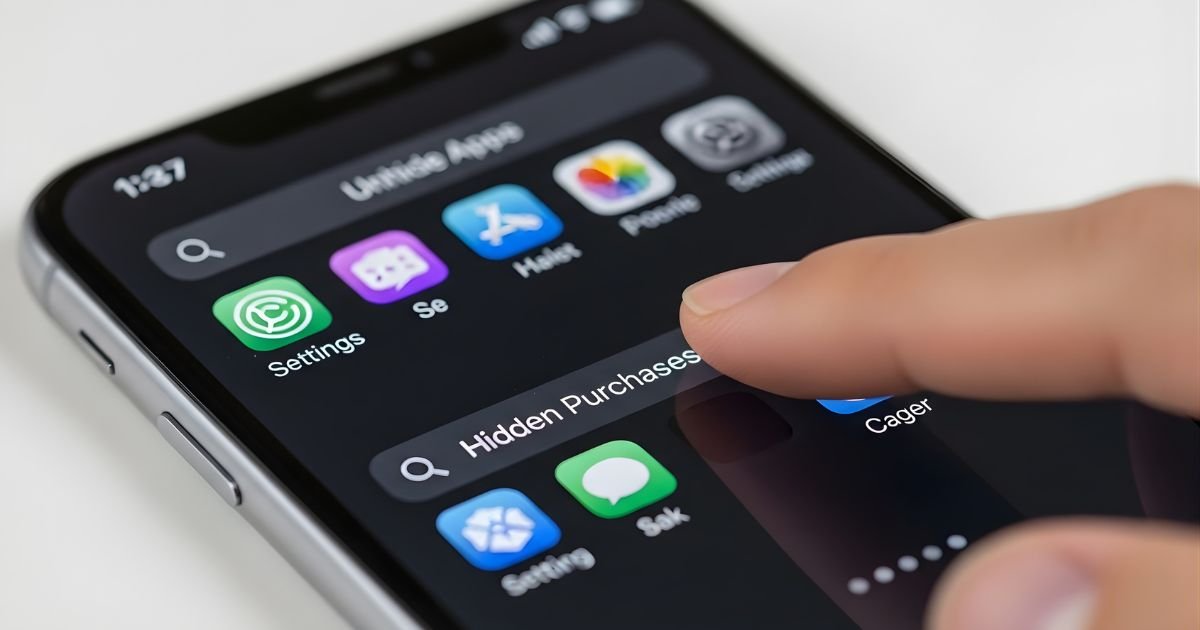
Have you ever found yourself searching for an app on your iPhone, only to realize it’s nowhere to be found? It can be frustrating when your favorite apps seem to vanish into thin air. Whether it’s due to a simple mistake or intentional hiding for a cleaner home screen, knowing how to unhide those elusive apps is essential.
In this guide, we’ll walk you through several methods to retrieve your hidden applications and even share some tips on organizing your home screen like a pro. Let’s dive in and reclaim that lost functionality!
Why would you want to unhide apps on iPhone?
There are several reasons you might want to unhide apps on your iPhone. First, hidden apps can lead to frustration, especially if they’re crucial for daily tasks. Imagine needing a navigation app while driving only to discover it’s out of sight.
In some cases, parents choose to hide certain apps from their children for safety or control. As kids grow and become more responsible, it’s natural for parents to restore access.
You may also find that an app you’ve hidden has new updates or features you want to explore. Keeping up with these changes is vital for getting the most out of your digital experience.
Hiding apps can sometimes result in cluttered home screens once they’re restored. Unhiding them gives you the chance to reassess how you organize and utilize each application effectively.
How to unhide apps on iPhone
Using the Settings app
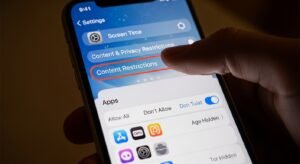
Scroll down and tap on “Screen Time.” This feature helps manage usage, but can often lead to hidden apps if restrictions are set.
Next, select “Content & Privacy Restrictions.” You might need to enter your Screen Time passcode here. Once in this menu, look for “Allowed Apps.”
Here, you’ll find a list of apps that may be restricted. Toggle off any switches next to the apps you’d like to restore visibility for.
Once done, exit out of the settings. Check your home screen or App Library; the previously hidden apps should now reappear where you expect them. It’s a simple process that brings back functionality right at your fingertips!
How to unhide apps on iPhone using the App Store
To unhide apps on your iPhone using the App Store, start by opening the App Store app. Tap on your profile icon in the top right corner to access your account settings.
Next, scroll down to find “Purchased.” This section will show all the Unhide Apps you’ve ever downloaded or purchased. If an app is hidden, it won’t appear on your home screen but will be listed here.
Look for the “Not on this iPhone” tab. Here you can see those tucked-away apps waiting for a little love. Simply tap on the download button next to any app you wish to restore.
Once tapped, it will begin downloading back onto your device. Easy as that! With just a few clicks, you’ll have all your favorite apps visible and ready for use again.
Other ways to hide and unhide apps on iPhone
If you’re looking for alternative methods to hide and unhide apps on your iPhone, you have options beyond the Settings app.
One effective way is to use folders. Simply drag an app into a folder with other apps, then place it on another screen or even bury it within pages of that folder. This trick can make certain apps less noticeable.
You can also utilize Screen Time restrictions to hide specific applications. By adjusting settings, you can prevent access to designated Unhide Apps without deleting them entirely.
Another method involves leveraging Siri Suggestions. If you turn off suggestions for certain apps in Siri settings, they won’t appear as frequently in search results or widgets—making them feel hidden.
These techniques provide flexibility and enhance your control over which apps are visible at a glance on your home screen.
Tips for organizing your home screen
Organizing your home screen can transform how you use your iPhone. Start by grouping similar apps. Create folders for social media, productivity, and entertainment to keep everything tidy.
Consider using the dock effectively. Place your most-used apps here for quick access without cluttering the main pages. This way, essential tools are always just a tap away.
Utilize widgets to add functionality while enhancing aesthetics. They provide updates at a glance and can elevate your home screen’s look.
Don’t shy away from customizing Unhide Apps icons or using shortcuts for added flair. Personalization makes navigation more enjoyable.
Review your apps regularly and remove any that you no longer use. This not only frees up space but also refreshes your home screen layout, keeping it relevant and efficient.
Why Apps Get Hidden on iPhone
Apps can get hidden on an iPhone for various reasons. One common scenario is when users want to declutter their home screen. By hiding less frequently used apps, they create a more streamlined and organized interface.
Another reason involves privacy concerns. People often hide social media or messaging apps to prevent others from accessing personal information. This is especially relevant if someone shares their device with family or friends.
iOS features like Screen Time also contribute to Unhide Apps. Parents may restrict certain applications for their children, keeping them out of sight until needed.
Accidental adjustments during updates or settings changes can lead to the unexpected hiding of apps. Users might not realize this has happened until they search for a specific application that seems missing.
How to Restore Hidden Apps from the App Store
Restoring hidden apps from the App Store is a straightforward process. Start by opening the App Store on your iPhone.
Once there, tap on your profile picture in the upper right corner. This will take you to your account settings where you can manage purchases.
Next, select “Purchased” to view all apps tied to your Apple ID. If an app has been hidden, it may not show up here initially.
To find it, scroll down and look for “Hidden Purchases.” Tap this option to reveal any apps you’ve previously concealed.
When you spot the app you’re looking for, simply click the download icon next to it. The app will then be restored onto your device seamlessly without losing any data associated with it.
Conclusion
Finding hidden apps on your iPhone can be a straightforward process. Whether you accidentally hid them or simply want to bring some organization back into your digital life, understanding how to unhide apps is essential.
Remember that the Settings app is your friend when it comes to revealing hidden applications. Use the App Store if you’re looking for apps you’ve deleted but want again. Sometimes, managing your home screen and knowing why apps get hidden in the first place can make all the difference.
Taking a moment to tidy up your home screen will enhance not only usability but also visual appeal. Keep those essential tools close at hand while minimizing distractions from unused applications.
By following these simple steps and tips to Unhide Apps, you’ll regain control over your iPhone’s interface and ensure that everything you need is just a tap away. Enjoy exploring all that your device has to offer!
