

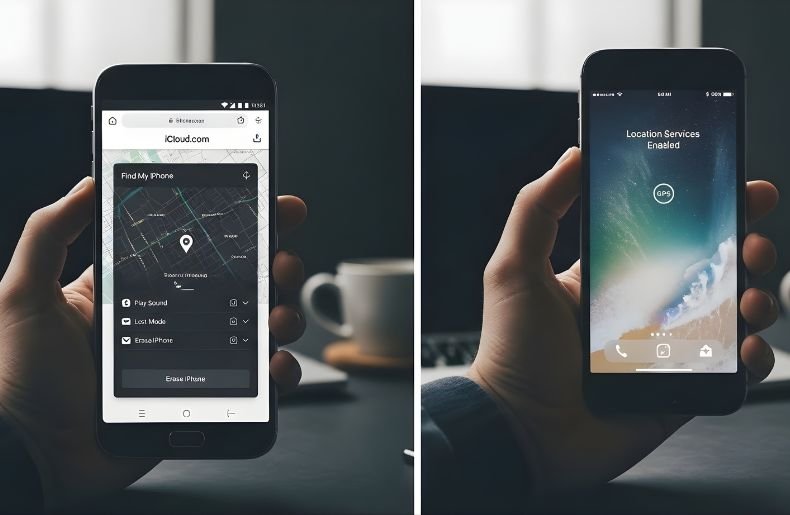
Wondering how to track an iPhone from an Android? You’re not alone. Whether you’re coordinating with family members, keeping tabs on your child’s whereabouts, or helping a friend locate their lost device, cross-platform tracking has become an everyday necessity.
The good news is that Apple and Android devices can communicate more seamlessly than you might think. While Apple’s ecosystem is famously closed off, several legitimate methods allow Android users to track iPhones without needing another Apple device.
From web-based solutions to location-sharing apps and family safety tools, you have multiple options at your fingertips. This guide walks you through the most effective and reliable ways to bridge the iOS-Android divide, helping you stay connected regardless of which smartphone ecosystem you prefer.
Understanding Cross-Platform Location Tracking
Before we get into the specific ways that you can use to track a cell phone and smartphone location, it’s worth noting how both operating systems work with each other in this regard. Apple and Android share different native ecosystems: iCloud for Apple devices and Google services for Android, which don’t easily come together.
However, both systems offer web-based access and 3rd part apps that bridge between the two. The secret to effective cross-platform stalking is that you’re either going to want to enable Apple’s web-based services or count on apps that are platform-agnostic, for both iOS and Android.
For legal and ethical reasons, most methods need to have the explicit consent of the owner of the iPhone and proper setup ahead of time. Privacy must be a primary issue; you only track devices when the owner has explicitly given permission.
Method 1: Using iCloud’s Find My iPhone via Web Browser
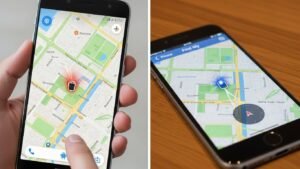
The most straightforward way to track an iPhone from an Android is through Apple’s iCloud website. This method doesn’t require any additional apps on your Android device—just a web browser and the correct credentials.
Step-by-Step Instructions:
- Open any web browser on your Android device (Chrome, Firefox, or Samsung Internet)
- Navigate to icloud.com and tap the login page
- Enter the Apple ID and password associated with the iPhone you want to track
- Complete two-factor authentication if enabled (you’ll need access to another trusted device)
- Once logged in, tap on the “Find iPhone” icon from the main menu
- Select “All Devices” at the top of the screen
- Choose the specific iPhone you want to locate from the dropdown list
- The map will display the iPhone’s current location with a green dot
From this interface, you can also play a sound on the device, enable Lost Mode, or remotely erase the iPhone if necessary. The location updates in real-time as long as the iPhone has an active internet connection and Location Services enabled.
How to Track an iPhone from an Android With Location Sharing Apps
If you need ongoing tracking rather than a one-time lookup, third-party location sharing apps are a better option. These apps work across platforms and are designed for families and close contacts.
Google Maps Location Sharing
Google Maps is one of the simplest cross-platform solutions.
- The iPhone user opens Google Maps
- They tap profile photo > Location sharing
- They share their live location with your Google account
Once shared, you can view the iPhone’s live location directly from your Android phone. No Apple ID required.
Method 3: Family Locator and Third-Party Apps
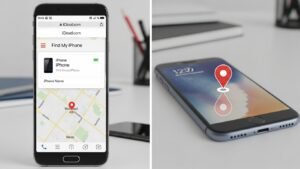
Dedicated family locator applications provide robust solutions for tracking iPhones from Android devices. Apps like Life360, Family Locator by Life360, Glympse, and Find My Friends alternatives offer comprehensive features beyond basic location tracking.
Popular Third-Party Options:
- Life360: Creates private circles for families with location history, driving reports, and crash detection
- Glympse: Temporary location sharing without requiring account creation
- GeoZilla: Real-time GPS tracking with geofencing and location alerts
- Sygic Family Locator: Battery-efficient tracking with panic button features
These applications require installation on both the iPhone and your Android device. Once both parties download the app and create accounts, you can add each other as connections or family members. The apps typically display all connected devices on a single map interface, making it easy to monitor multiple family members simultaneously.
Third-party apps often include bonus features like geofencing (alerts when someone enters or leaves a specific area), location history, battery level indicators, and emergency SOS functions. While many offer free basic versions, premium subscriptions unlock advanced features like unlimited place alerts and extended location history.
Setting Up Location Permissions Properly
Successful know how to track an iPhone from an Android being monitored. The iPhone owner must ensure Location Services are enabled by going to Settings, then Privacy & Security, then Location Services, and toggling it on.
For Find My iPhone specifically, they need to navigate to Settings, tap their name at the top, select Find My, and enable both “Find My iPhone” and “Share My Location.” For third-party apps, location permissions must be set to “Always” rather than “While Using App” to ensure continuous tracking.
This setting is found within Settings, then Privacy & Security, then Location Services, then selecting the specific app and choosing “Always Allow.” Battery optimization settings should also be adjusted to prevent the tracking app from being closed in the background, which could interrupt location updates.
Troubleshooting Common Tracking Issues
When attempting to track an iPhone from an Android, you might encounter several common obstacles. If the location isn’t updating, first verify that the iPhone has an active internet connection through cellular data or Wi-Fi. Location Services must remain enabled on the iPhone, and the device needs sufficient battery power—devices in Low Power Mode may delay location updates.
Authentication problems often arise with iCloud’s Find My iPhone when two-factor authentication is enabled. Ensure you have access to a trusted device to receive verification codes. For third-party apps, both devices need the latest app version installed, and background app refresh should be enabled on the iPhone to maintain consistent location updates.
Quick Troubleshooting Checklist:
| Issue | Solution |
| Location not showing | Check internet connection and Location Services |
| Can’t log into iCloud | Verify Apple ID credentials and complete 2FA |
| App not updating | Enable background refresh and disable battery optimization |
| Intermittent tracking | Ensure app permissions set to “Always Allow” |
| Login failed repeatedly | Reset Apple ID password or check account status |
How to Track an iPhone from an Android in Real-World Scenarios
Sometimes, a step-by-step tutorial is less useful than knowing how things work in the field. Let’s examine a few recurring situations.
For the vast majority of situations, if a family member’s iPhone goes missing, iCloud Find My is the quickest fix. You log in from your Android browser to see the last location, and choose where you go next. This works great even if the phone is offline, as long as Find My is turned on.
If you want continuous awareness, say, monitoring the whereabouts of a child after school, location-sharing apps are probably more appropriate. They operate in the background, quietly and automatically updating apps. Once installed, you rarely need to think about them again.
Conclusion
Learning how to track an iPhone from an Android is simpler than most people expect. Whether you choose the web-based iCloud method, leverage Google Maps’ built-in sharing features, or install a dedicated family locator app, you have reliable options that work across both platforms.
Each method offers distinct advantages: iCloud provides official Apple integration, Google Maps offers seamless cross-platform sharing, and third-party apps deliver enhanced features for families and groups. Remember that successful tracking requires proper setup, appropriate permissions, and most importantly, mutual consent and trust.
Choose the method that best fits your specific situation, follow the step-by-step guidance provided, and you’ll be able to stay connected with iPhone users in your life regardless of your Android device. Ready to get started? Pick your preferred method and set up location sharing today to experience the peace of mind that comes with knowing your loved ones’ whereabouts.
