

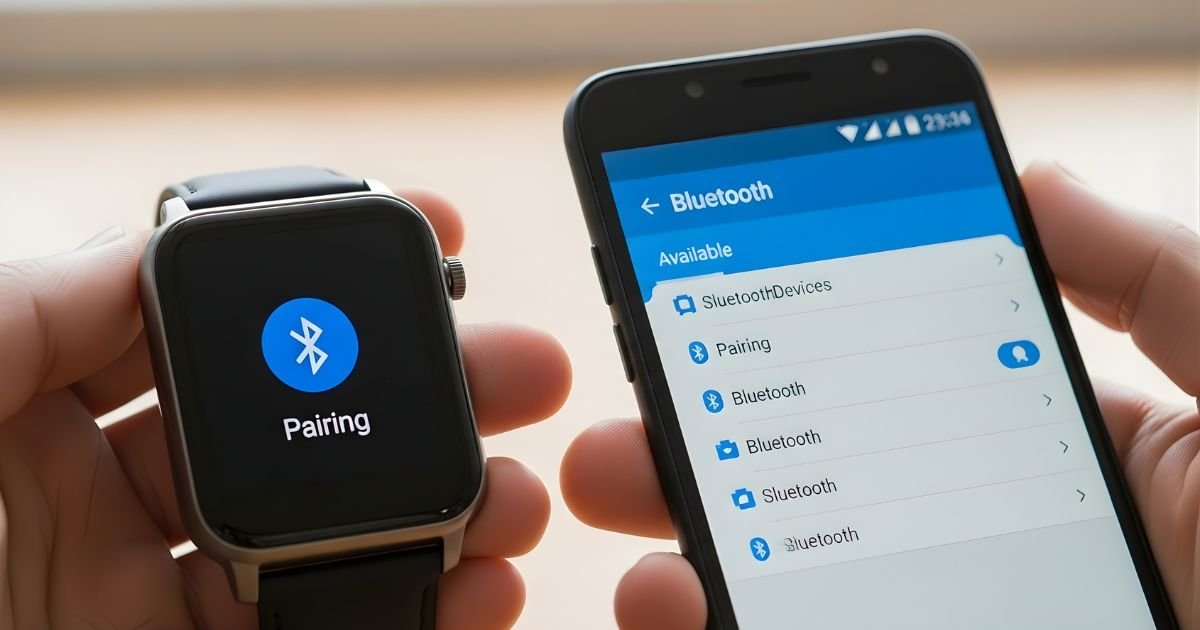
Are you ready to unlock the full potential of your smartwatch? Pairing it with your Android phone is the key to staying connected, tracking your fitness, and managing notifications all from your wrist.
But if you’ve ever felt stuck or unsure about how to get started, you’re not alone. This guide will walk you through simple, step-by-step instructions that anyone can follow. By the end, you’ll have your devices working seamlessly together, making your daily life easier and more efficient.
Keep reading to discover how easy it is to connect your smartwatch with your Android phone.

Choose The Right Smartwatch
Choosing the right smartwatch makes pairing with your Android phone easier. Not all smartwatches work well with every phone. Picking a watch that matches your phone and needs helps you enjoy the best experience.
Focus on compatibility, features, and your budget. These points guide you to the perfect match.
Check Compatibility
Make sure the smartwatch supports your Android version. Some watches need a specific Android update to work properly. Also, check if the watch app is available on the Google Play Store. Watches that use Wear OS usually pair smoothly with Android phones. Avoid watches designed only for iPhones as they may not work well.
Consider Features And Budget
List the features you want in a smartwatch. Think about fitness tracking, notifications, or music control. Some watches offer GPS, heart rate sensors, or water resistance. Decide which features matter most to you. Set a budget that fits your needs. Smartwatches come in many price ranges. Choose one that balances features and cost. This way, you get good value without spending too much.
Prepare Your Android Phone
Getting your Android phone ready is the first step to pair your smartwatch. This step makes sure the connection between devices is smooth and fast. Follow these simple actions to prepare your phone for pairing.
Enable Bluetooth
Bluetooth connects your smartwatch to your phone wirelessly. Turn it on before pairing. Go to Settings, then find Bluetooth. Tap the switch to enable it. Keep Bluetooth active during the pairing process.
Update Software
Software updates fix bugs and improve performance. Check if your phone’s system is up to date. Open Settings, select System, then tap Software Update. Download and install any available updates. This helps your phone work well with your smartwatch.
Install Required Apps
Smartwatches need special apps to work properly with Android phones. Search for the app that matches your watch brand in the Google Play Store. Download and install it. Open the app to set up your watch and manage its features.
Power On And Set Up Smartwatch
Powering on and setting up your smartwatch is the first step to enjoy its features. This process prepares the device for pairing with your Android phone. Follow clear and easy steps to get started quickly. Understanding this setup helps avoid common problems.
Charge Your Device
Before powering on, charge your smartwatch fully. Connect the charger to the watch and plug it into a power outlet. Charging ensures the battery lasts through the setup process. A low battery can interrupt setup and cause delays. Wait until the battery indicator shows full or near full.
Initial Setup Steps
Press and hold the power button to turn on the watch. Select your language from the options displayed. Connect to a Wi-Fi network if prompted. Follow the on-screen instructions to set date and time. Some watches ask for your Google account to sync data. This step helps with app downloads and notifications. Allow permissions for location and other features as needed. The watch will guide you through these steps clearly. Once complete, your smartwatch is ready to pair with your phone.
Pairing Process
The pairing process connects your smartwatch to your Android phone. This step lets both devices share data and work together smoothly. The process is simple and quick. Follow these clear steps to pair your devices successfully.
Open Pairing App
Start by opening the pairing app on your Android phone. This app is usually called “Wear OS” or the brand name of your smartwatch. The app guides you through the pairing process. Make sure your phone’s Bluetooth is turned on before you open the app.
Scan For Devices
Next, scan for nearby devices with the app. Your smartwatch should appear in the list of available devices. If it does not, check if the watch is powered on and in pairing mode. Tap your watch’s name on the phone screen to select it.
Confirm Connection
After selecting your watch, a code appears on both devices. Check that the codes match exactly. Confirm the connection by tapping “Pair” on your phone. The devices will connect and sync. Your smartwatch is now ready to use with your Android phone.
Troubleshooting Pairing Issues
Pairing a smartwatch with an Android phone can sometimes face problems. These issues can stop your devices from connecting properly. Troubleshooting helps fix these common problems quickly. Follow these simple steps to solve pairing issues and get your devices working smoothly.
Restart Devices
Turn off your smartwatch and phone. Wait for about 10 seconds. Turn them back on. Restarting clears temporary glitches. This step often solves connection problems fast. Try pairing again after the restart.
Reset Network Settings
Open your phone’s settings menu. Find the option to reset network settings. This resets Wi-Fi, Bluetooth, and mobile data. It removes old connections that may cause trouble. After the reset, reconnect Bluetooth and try pairing once more.
Check App Permissions
Go to your phone’s app settings. Find the smartwatch app you use. Check if it has permission to access Bluetooth and location. These permissions are necessary to pair devices. Grant any missing permissions and restart the app.
Customize Smartwatch Settings
Customizing your smartwatch settings makes your device truly yours. It helps you get alerts, see information clearly, and track health easily. These settings improve how you use your watch every day.
Set Notifications
Choose which apps can send alerts to your watch. Turn on calls, texts, or app alerts you want to see. Silence the ones that distract you. This keeps your watch helpful and not annoying.
Adjust Display Preferences
Change brightness and screen timeout to save battery. Pick a watch face you like and can read easily. Some watches let you choose colors or styles. This makes your watch clear and personal.
Sync Health Data
Connect your watch with health apps on your phone. Sync steps, heart rate, and sleep data automatically. Check your progress anytime on your phone or watch. This keeps your health info up-to-date and useful.
Maintain Connection
Keeping your smartwatch connected to your Android phone ensures you get notifications, fitness updates, and more. A stable connection means your devices work smoothly together. Follow these steps to maintain a strong link between your smartwatch and phone.
Keep Bluetooth On
Bluetooth allows your smartwatch and phone to talk to each other. Keep Bluetooth turned on at all times on both devices. Turning it off can break the connection and stop syncing data. Check Bluetooth settings regularly to make sure it stays active.
Regularly Update Software
Software updates fix bugs and improve device performance. Update your smartwatch and phone software often. Updates help keep the connection stable and add new features. Set your devices to update automatically if possible.
Frequently Asked Questions
How Do I Connect My Smartwatch To An Android Phone?
To connect, turn on Bluetooth on both devices. Open your watch’s app on the Android phone, then follow pairing instructions. Ensure devices are close and compatible for a smooth connection.
What Apps Are Needed To Pair A Smartwatch With Android?
Most smartwatches require specific apps like Wear OS or the manufacturer’s app. Install the app from Google Play Store, then open it to start pairing your watch with your Android phone.
Why Won’t My Android Phone Detect My Smartwatch?
If your phone can’t detect the watch, ensure Bluetooth is enabled and both devices are close. Restart both devices, update software, and check if your watch is in pairing mode.
Can I Use Any Smartwatch With Any Android Phone?
Not all smartwatches work with every Android phone. Check compatibility before buying. Some features may be limited if devices run different software versions or brands.
Conclusion
Pairing your smartwatch with an Android phone is simple and quick. Just follow the steps carefully, and your devices will connect smoothly. This link helps you get notifications, track fitness, and control music easily. Remember to keep Bluetooth on and your devices close.
Enjoy the convenience of a connected smartwatch every day. Stay updated and make the most of your tech without any hassle.
