

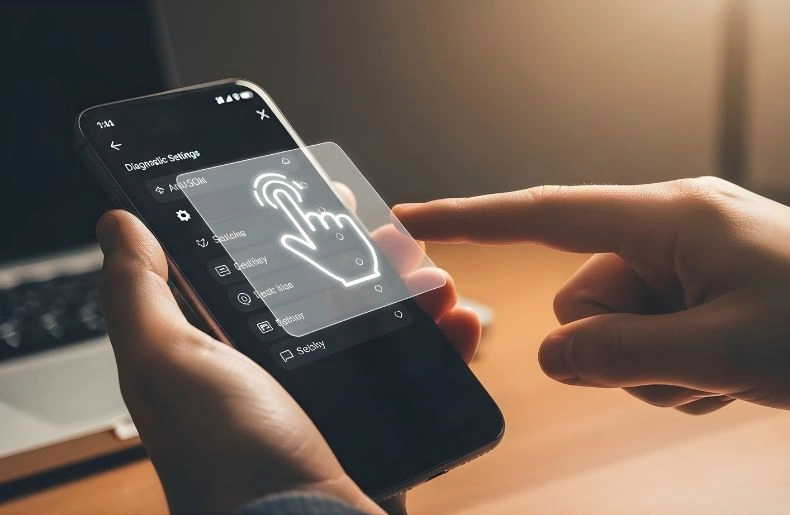
Have you ever been typing a message, scrolling through an app, or playing a game when your phone suddenly starts acting on its own? This frustrating issue is known as ghost touch Android, and it can quickly make your device feel unreliable.
When an Android screen touching itself becomes a regular problem, it may open apps, type random letters, or swipe without any input. Many users describe it as their phone screen moves on its own, which can interrupt daily tasks and even cause accidental actions. The good news is that most ghost touch problems can be fixed without replacing your phone.
Understanding what causes ghost touch and following the right steps can save you time, money, and stress. This guide walks you through how to fix ghost touch on Android, why it happens, and how to prevent it from coming back so your phone responds only when you touch it.
Understanding Ghost Touch on Android
Ghost touch happens when your phone’s touchscreen registers input that is not actually happening. In simple terms, it is a touchscreen malfunction Android users often face due to software bugs, hardware faults, or environmental factors.
One common cause is software-related. A faulty app, background process, or Android software update touch problem can confuse the touchscreen controller. When this happens, your phone may react even when you are not touching it.
Hardware issues are another major cause. A damaged digitizer, loose internal connectors, or an Android display hardware issue can all trigger ghost touch. External pressure from accessories is also common, especially when a screen protector causing ghost touch interferes with touch accuracy.
Environmental factors should not be ignored either. High humidity, wet hands, or moisture causing touch screen issues can lead to false inputs. Heat is another trigger, as overheating Android touch screen problems can temporarily affect responsiveness.
Quick Software Fixes to Solve How to Fix Ghost Touch on Android
Before assuming hardware damage, try these simple software solutions. They often resolve common fix Android touch screen issues without much effort.
Restarting your phone is the easiest step. A reboot clears temporary glitches that can cause phantom touches. Turning the phone off, waiting a few seconds, and powering it back on can make a noticeable difference.
Keeping your system updated is also important. Manufacturers frequently release patches for touch-related bugs. Installing the latest updates can fix issues linked to an Android software update touch problem from earlier versions.
Closing background apps helps as well. Too many running apps can overload your device, leading to lag or touch confusion. If ghost touch started after installing a new app, uninstalling it may solve the issue.
Some devices allow you to adjust touch sensitivity. If you are dealing with an Android screen sensitivity problem, tweaking sensitivity settings can reduce accidental touches and improve accuracy.
Common Causes and Fixes at a Glance
Key problems explained with simple, practical fixes
| Cause Type | Common Reason | Best Fix |
| Software | Buggy app or system glitch | Restart, update, uninstall apps |
| Accessories | Poor-quality case or protector | Remove or replace accessories |
| Environment | Heat, moisture, static | Dry and clean the screen |
| Hardware | Digitizer or internal damage | Professional repair |
Cleaning and Inspecting Your Screen
Physical factors play a big role in ghost touch issues. Dirt, oil, sweat, or water droplets can confuse the touchscreen and make it behave unpredictably.
Clean your screen gently with a microfiber cloth. Avoid harsh cleaners that can damage the display. If your phone has a screen protector, remove it temporarily. Many users discover that a damaged or poorly fitted protector is the real issue, especially when a screen protector causing ghost touch creates uneven pressure.
Environmental conditions matter too. Using your phone with wet hands or in humid environments can cause moisture causing touch screen issues. Keeping the screen dry and clean often restores normal behavior.
Advanced Steps for Fixing Ghost Touch on Android
If basic fixes do not work, try deeper software troubleshooting before considering repairs.
Booting into safe mode disables third-party apps. If ghost touch disappears in safe mode, the issue is likely caused by an app. This helps identify an Android safe mode touch problem linked to installed software.
Resetting system settings is another useful step. This restores default configurations without deleting personal data and can fix conflicts affecting touch performance.
As a last resort, a factory reset can solve stubborn software issues. Performing a factory reset Android touch issue fix often eliminates deep system errors, but always back up your data first.
Hardware Considerations for Ghost Touch
When ghost touch persists even after resets and safe mode testing, hardware problems are likely.
A cracked or damaged digitizer is a common cause. Users experiencing cracked screen ghost touch often notice phantom touches in the same area repeatedly. Loose internal connections from drops or impacts can also trigger erratic behavior.
Water damage, battery swelling, or other internal faults fall under Android display hardware issue categories and usually require professional repair. Attempting DIY fixes without experience may cause further damage.
Preventing Ghost Touch in the Future
Once your phone is working properly again, prevention is key. Use high-quality accessories that fit well and avoid cheap protectors that interfere with touch accuracy.
Regular cleaning helps prevent buildup that leads to false inputs. Installing apps only from trusted sources reduces the risk of software conflicts. Keeping your system updated minimizes future fix Android touch screen issues related to bugs.
Avoid exposing your phone to extreme heat or humidity. If supported, Android touch screen calibration can also improve accuracy and reduce phantom touches over time.
Additional Tips and Insights
Some ghost touch problems only appear under specific conditions. If phantom touches always occur in the same spot, hardware damage is likely. Temperature changes can temporarily trigger issues, especially with overheating Android touch screen behavior.
Using your phone while charging can also cause interference. Low-quality chargers may lead to electrical noise, making the screen act unpredictably. Certified accessories can help prevent this.
Keeping track of when ghost touch occurs can help diagnose the root cause faster.
When to Seek Professional Help
You should consider professional repair if ghost touch continues in safe mode, the screen is physically damaged, or there are signs of water damage or battery swelling. Multiple areas of the screen acting unpredictably usually point to hardware failure.
Authorized service centers can correctly diagnose and fix issues related to Android display hardware issue components like the digitizer or connectors.
Conclusion
Ghost touch can disrupt everything from messaging to gaming, but most problems are fixable. Start with simple software steps, clean your screen, and remove questionable accessories. If needed, try safe mode, reset settings, or a factory reset.
When hardware damage such as cracked screen ghost touch is involved, professional repair is the best solution. By following this complete guide on how to fix ghost touch on Android, you can restore smooth performance and prevent future issues.
With regular maintenance and smart usage habits, your phone can stay responsive and reliable, reacting exactly when and where you touch it.
