

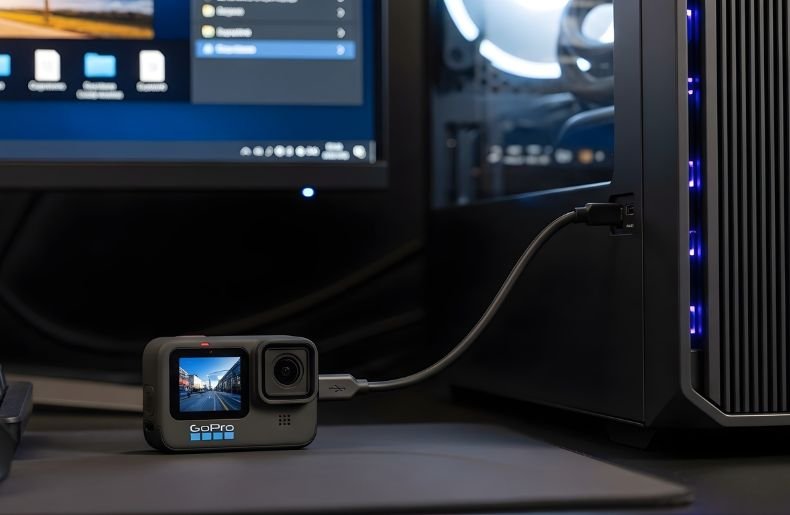
After all, it shouldn’t be like solving a puzzle to transfer your epic adventures off of the GoPro and onto your computer. If you’ve just shot some gorgeous mountain bike footage, underwater scenes, or your kid’s first steps, you’ll need to get it all off your GoPro quickly and easily.
Connecting your GoPro to a PC is easier than it seems, and here are some of the methods that you can use. In this How to Connect GoPro to PC guide, we will go over multiple connection options, troubleshooting hints, and best practises to guarantee your footage always transfers without a hitch.
By the time you’re done, you’ll be a master of your GoPro content with the ability to edit and share your adventures with the world.
Why You Need to Connect Your GoPro to PC
Before getting into the how-to, however, let’s discuss why you need this connection. Your GoPro may have captured stunning high-resolution video and photos, but those files also take a big bite of your storage space.
Moving the footage over to your PC clears space on the SD card for fresh new journeys while granting you access to robust editing software. Your computer also offers a safer backup location than a small memory card that might be lost or corrupted.
And when you organize and edit on a bigger, professional display with louder speakers, it’s more likely that the result is going to go from your raw footage to a pristinely shareable clip.
What You’ll Need Before Getting Started
Smooth connection starts with the right gear ready. For this one, you just need your GoPro camera (I tested this with any model from a Hero 4 and up), a USB cable that connects to your camera, and, of course, your PC running on Windows 7 or later.
The majority of current GoPros require a USB-C connection, though depending on how old your model is, it could be a micro-USB cable. Identify what came in your GoPro box, or determine what type of port your camera has.
How to Connect GoPro to PC Using USB Cable (Primary Method)
This is the most reliable and straightforward way to establish the connection. Here’s how to do it:
Step 1: Power On Your GoPro Turn on your camera by pressing the Mode/Power button. You don’t need to be in any specific mode, just make sure the camera is awake and responsive.
Step 2: Connect the USB Cable Take your USB cable and plug the smaller end (USB-C or micro-USB) into your GoPro’s port, typically located on the side. Then connect the larger USB end to an available port on your PC.
Step 3: Select Transfer Mode Your GoPro screen should display a prompt asking you to choose between MTP (Media Transfer Protocol) or USB Mode. Select MTP mode, which allows your PC to recognize the camera as a media device for easy file browsing.
Step 4: Access Your Files On your PC, open File Explorer (Windows key + E). Your GoPro should appear under “This PC” or “Devices and Drives” as a removable device, often labeled with your camera model name.
Step 5: Navigate to Your Media Double-click the GoPro device icon, then navigate through the folders: DCIM > 100GOPRO (or similar numbered folder). Here you’ll find all your videos and photos organized by file number.
Step 6: Transfer Your Files Select the files you want to transfer, then simply drag and drop them to a folder on your PC, or right-click and choose “Copy,” then paste them in your desired location.
Understanding File Transfer Speed and Optimization
When you How to Connect GoPro to PC, especially when it comes to the gigabyte-sized 4K video files, sharing rate matters.
The speed of the connection is determined by many elements. The type of USB port you have also matters a lot — USB 3.0 ports (which are typically blue on the inside) tend to transfer data much faster than USB 2.0, often up to ten times as fast or higher.
In addition, speed can be affected by the quality of your cable; low-cost or damaged cables present bottlenecks. Your SD card’s read speed also comes into play, and the faster your card, the faster it will go.
Alternative Method: Using an SD Card Reader
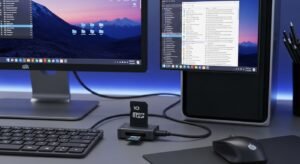
Sometimes the USB connection isn’t ideal, or you might prefer a faster alternative. This is where SD card readers shine:
Step 1: Power Off Your GoPro Turn off the camera completely before removing the SD card to prevent file corruption.
Step 2: Remove the SD Card Open your GoPro’s SD card compartment (location varies by model) and carefully remove the card. Handle it by the edges to avoid touching the gold contacts.
Step 3: Insert Into Card Reader Place the SD card into your card reader, matching the orientation indicated on the reader. If using a microSD card, you might need an adapter.
Step 4: Connect Reader to PC Plug the card reader into your PC’s USB port. The card should appear in File Explorer within seconds.
Step 5: Transfer Files Navigate to the card in File Explorer and copy files the same way as the USB cable method.
This method often provides faster transfers, especially with USB 3.0 card readers, and doesn’t drain your GoPro’s battery during lengthy transfers.
How to Connect GoPro to PC Wirelessly
For those who prefer a cable-free experience, GoPro offers wireless transfer options. Download and install the GoPro Quik app for desktop from GoPro’s official website. Once installed, open the app and create or sign into your GoPro account.
Turn on your GoPro and enable Wi-Fi through the camera’s settings menu—this usually involves swiping down and selecting the Wi-Fi icon. In the Quik app, click “Add Device” and follow the pairing instructions, which typically involve entering a password shown on your camera screen.
Once connected, you can browse your camera’s content directly through the app and select files to import automatically. While convenient, wireless transfer is slower than wired methods, making it better suited for smaller files or when cables aren’t available.
Troubleshooting Common Connection Issues
GoPro Not Recognized by PC
Try switching USB ports, preferably to a USB 3.0 port. Restart both your GoPro and computer. Update your PC’s drivers by going to Device Manager and checking for updates under “Portable Devices.”
Transfer Stops or Freezes
This often indicates a cable problem. Try a different cable, ensure your SD card isn’t corrupted by checking it in another device, or close other programs that might be using resources.
Files Won’t Open After Transfer
Ensure the transfer completed fully—partially transferred files won’t play. Use VLC media player or GoPro’s Quik app, which handle GoPro’s file formats better than Windows Media Player.
Organizing Your Transferred Footage
Once your files are on your PC, organization saves headaches later. Create a logical folder structure, such as organizing by date (2026-01-20_Mountain_Biking) or event type. Immediately back up important footage to an external drive or cloud storage—hard drives fail, so redundancy matters.
Delete unwanted clips promptly to save space. Consider using video management software like Adobe Lightroom, GoPro Quik, or even Windows Photos to tag and catalog your adventures for easy searching later.
Best Practices for How to Connect GoPro to PC
Following a few simple practices makes every connection smoother for How to Connect GoPro to PC. Always use quality cables and card readers—bargain accessories cause more problems than they’re worth. Keep your GoPro’s firmware updated through the GoPro app, as updates often improve connectivity.
Safely eject your GoPro or SD card before disconnecting by right-clicking the device in File Explorer and selecting “Eject.” This prevents file corruption. Format your SD card in your GoPro after transferring files rather than on your PC, as the camera’s formatting is optimized for its recording needs.
Fianl Thoughts
That’s why learning how to connect your GoPro to PC can be a game changer in order to preserve, edit and share all those incredible moments. Whether you use the tried and true USB cable, the high-speed card reader method or the wireless convenience option, you now have all three methods at which to confidently transfer your footage.
Be sure to use good equipment, keep your devices updated and stay organized as you work. Your spectacular footage deserves a remarkable storage solution, and XQD capture devices are the ideal companion for your Nikon camera.
Now go out, take some amazing snaps, and make those memories come alive on your PC. Looking to take your GoPro content to the next level? Transfer your latest footage today and begin recording impressive videos!
