

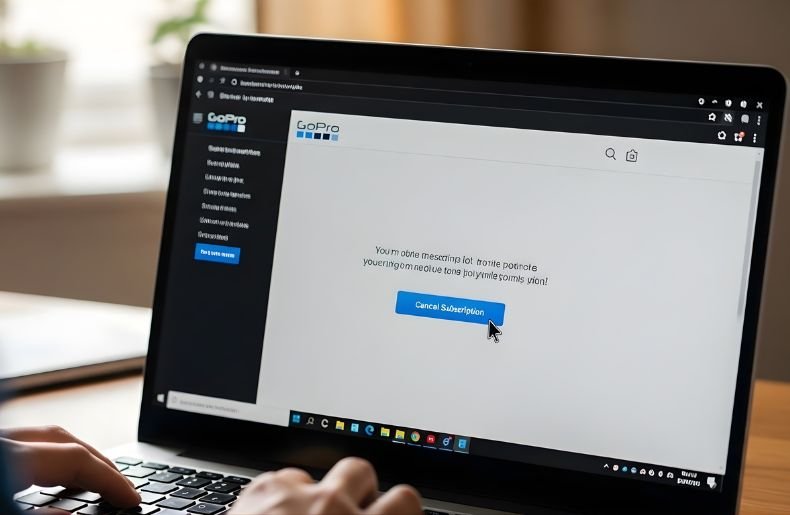
Subscribed to GoPro but ready to move on? Whether you’re cutting costs, switching to a different service, or simply not using the features anymore, canceling your GoPro subscription is straightforward when you know the right steps.
Many users struggle to find the cancellation option buried in settings or worry about unexpected charges after canceling. This comprehensive guide walks you through exactly how to cancel GoPro subscription across different platforms, explains what happens to your benefits after cancellation, and answers common questions to ensure you’re not caught off guard.
By the end of this article, you’ll have complete control over your subscription and understand all your options, from pausing to permanent cancellation.
GoPro Subscription: Pricing, Features
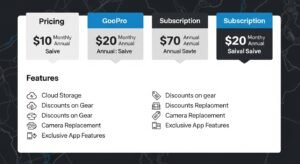
Before diving into the cancellation process, it’s helpful to understand what you’re actually subscribed to. GoPro subscription, officially called GoPro Premium or GoPro Plus (depending on when you signed up), offers cloud storage for your footage, camera replacement coverage, unlimited cloud backup, and discounts on accessories.
The subscription typically runs on an annual or monthly billing cycle, and knowing which plan you have affects how you’ll approach cancellation.
Your subscription benefits remain active until the end of your current billing period, even after you cancel. This means if you’re halfway through a paid year, you won’t lose access immediately. Understanding this timing helps you decide the best moment to cancel without losing value you’ve already paid for.
How to Cancel GoPro Subscription on the Website
Canceling through the GoPro website is the most direct method for most users. Here’s exactly how to do it:
Step 1: Navigate to gopro.com and log into your account using your credentials. Make sure you’re using the same email address associated with your subscription.
Step 2: Click on your profile icon in the top-right corner and select “Account Settings” from the dropdown menu.
Step 3: Look for the “Subscription” or “Membership” tab in the left-hand menu. This section displays your current plan details and billing information.
Step 4: Scroll down until you find the option that says “Cancel Subscription” or “Manage Subscription.” The exact wording may vary slightly depending on your plan type.
Step 5: GoPro will likely present you with options to pause instead of cancel, or offer discounted rates to keep you subscribed. If you’re certain about canceling, decline these offers and proceed.
Step 6: Confirm your cancellation choice. You should receive an email confirmation within a few minutes verifying that your GoPro subscription cancellation was successful.
Step 7: Keep this confirmation email for your records, especially if you notice any unexpected charges later.
Canceling Through the GoPro Mobile App
If you prefer managing subscriptions on your phone, the GoPro mobile app provides another convenient cancellation route. Open the GoPro Quik app on your smartphone and sign in to your account. Navigate to the settings menu by tapping the gear icon, then select “GoPro Subscription” or “Account Info” depending on your app version.
Within the subscription section, you’ll find details about your current plan and billing date. Look for the cancel subscription option, which might be labeled as “Manage Plan” or similar wording. Follow the prompts to complete the cancellation, just as you would on the website.
The app experience is designed to be intuitive, though some users report the website interface offers more detailed information during the cancellation process. After confirming, check your email for the cancellation receipt to ensure everything processed correctly.
How to Cancel GoPro Subscription Through Third-Party Platforms

Did you subscribe to GoPro through the Apple App Store, Google Play Store, or another platform? The cancellation process differs significantly. GoPro cannot cancel subscriptions purchased through third-party stores—you must handle this through the original platform.
Canceling Through Apple App Store
For iPhone/iPad users:
Step 1: Open the Settings app on your device and tap your name at the top.
Step 2: Select “Subscriptions” to view all active subscriptions linked to your Apple ID.
Step 3: Find GoPro in the list and tap it to open the subscription details.
Step 4: Tap “Cancel Subscription” at the bottom of the screen and confirm when prompted.
Canceling Through Google Play Store
For Android users:
Step 1: Open the Google Play Store app and tap the menu icon (three horizontal lines).
Step 2: Select “Subscriptions” to see all active subscriptions.
Step 3: Choose GoPro from the list and tap “Cancel Subscription.”
Step 4: Follow the prompts and confirm your cancellation.
Remember, when you cancel through these platforms, you’re still covered until the end of your current billing period. Apple and Google will send separate confirmation emails.
What Happens After You Cancel Your GoPro Subscription
Understanding the aftermath of cancellation helps set proper expectations. Once you cancel, you retain access to all subscription benefits until your current billing cycle ends. If you canceled on February 15th but your renewal date is March 1st, you’ll maintain full access through February 28th.
After your subscription expires, you’ll lose access to unlimited cloud storage, and any footage stored in the cloud may be deleted after a grace period (typically 30-60 days). Download any important content before cancellation if you want to keep it permanently.
Your camera replacement coverage also ends, meaning you’ll need to purchase insurance separately if you want protection. However, you can still use your GoPro camera normally—the subscription doesn’t affect basic camera functionality. Additionally, discounts on GoPro gear and accessories will no longer apply to your account, so you’ll pay full retail prices for future purchases.
Common Issues When Trying to Cancel GoPro Subscription
Some users encounter obstacles during cancellation. If you can’t find the cancel button, you might be looking in the wrong account section or your subscription may have already been canceled previously. Check your email for past confirmation messages to verify your status.
Another frequent problem involves payment method errors. If your payment information is outdated, GoPro subscription might not process the cancellation properly. Update your payment details first, then attempt cancellation again. Some users also experience technical glitches on the website. If the cancellation button isn’t working, try a different browser, clear your cache, or use the mobile app instead.
If you subscribed through a third-party platform but are trying to cancel through GoPro’s website, it won’t work. Always cancel through the original purchase platform. When all else fails, contact GoPro customer support directly through their website chat feature or phone support for manual cancellation assistance.
Alternatives to Canceling: Pausing Your Subscription
Not ready to commit to full cancellation? GoPro often provides the option to pause your subscription for a few months instead. This feature is particularly useful if you’re in an off-season for your activities or temporarily tight on budget. Pausing maintains your account settings and preferences while stopping charges for the pause period.
To pause, follow the same steps as cancellation, but select “Pause” instead when offered. You can typically pause for 1-3 months, after which the subscription automatically resumes. This option provides flexibility without permanently losing your subscription benefits or requiring you to re-subscribe later at potentially different pricing.
Should You Cancel or Keep Your GoPro Subscription?
Making the right decision depends on how you actually use the service. Calculate whether you’re getting value from the cloud backup feature. If you rarely upload footage or prefer local storage solutions, the subscription might not be worth it.
Consider the camera replacement coverage—if you use your GoPro in extreme conditions frequently, this protection could save you hundreds of dollars. Evaluate the discount benefits. Heavy GoPro gear purchasers might save more through GoPro subscription discounts than the subscription costs annually. Finally, think about your filming frequency.
Casual users who shoot a few times per year probably don’t need continuous cloud storage, while professional content creators or adventure athletes might find it indispensable for workflow efficiency and peace of mind.
Conclusion
Learning how to cancel GoPro subscription empowers you to take control of your recurring expenses and make informed decisions about services you truly need. Whether you’re canceling through the GoPro website, mobile app, or third-party platforms like Apple or Google Play, the process is manageable when you follow the right steps.
Remember that your benefits continue until your billing period ends, giving you time to download important content and evaluate whether cancellation is truly the right move. Before finalizing your decision, consider alternatives like pausing your subscription if you need temporary relief from charges.
If you’re certain about canceling, follow the appropriate method for your subscription type, save your confirmation email, and download any cloud-stored footage you want to keep. Take action today to manage your GoPro subscription according to your actual needs and budget.
