

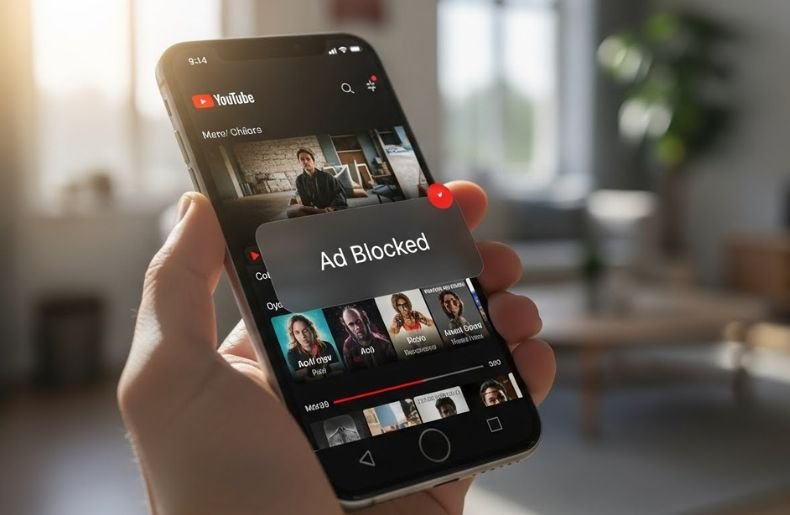
Watching YouTube on your Android device should be an enjoyable experience, but nothing ruins it faster than constant ads interrupting your favorite videos. Whether it’s a short pre-roll ad or a lengthy commercial, ads can be frustrating and time-consuming. The good news is that there are several effective How to Block YouTube Ads on Android without compromising your device’s performance or security.
From using ad-blocking browsers to tweaking your device settings, this guide will walk you through practical methods to enjoy uninterrupted viewing. By the end, you’ll have the knowledge to make your YouTube experience cleaner, faster, and ad-free.
How to Block YouTube Ads on Android Using Ad-Blocking Browsers
One of the easiest ways to block YouTube ads on Android is by using an ad-blocking web browser. Browsers such as Brave, Firefox with uBlock Origin, or Samsung Internet with ad-blocking extensions can let you watch YouTube without ads. These browsers cut out most ad pop-ups, video ads, and banners included so you can enjoy a seamless browsing experience.
First up, you’ll need to download the browser of your choice from the Google Play Store. Once installed, open the browser and go to YouTube. Com instead of the app. There are ad-blocking features that will block ads when the video is played. Some are also designed to be more private and load faster, which makes for a better browsing experience in general, particularly if you’re a user of one with those features enabled.
Using these browsers is a convenient way to jump over the app hurdle without having to root your device. It’s great for the people who want zero hassle and don’t mind using YouTube through a browser interface.
How to Block YouTube Ads on Android with YouTube Premium
While browser solutions work well, subscribing to YouTube Premium is the official and legal way to remove ads entirely. YouTube Premium not only blocks ads but also offers benefits like offline downloads, background play, and access to YouTube Music.
To subscribe, open the YouTube app, go to your profile, and tap Get YouTube Premium. The subscription is paid monthly, but for those who watch YouTube frequently, it offers the most reliable, ad-free experience. Unlike third-party apps, this method ensures no interruptions or risks to your device’s security.
YouTube Premium is especially valuable for users who want uninterrupted content on all devices. Even though it’s not free, the enhanced features and seamless experience often justify the cost.
Why YouTube Ads Appear on Android Devices
YouTube is funded, in part, by an advertising model just as Facebook and Google are supported by ads, which is why you see them before, during, and after videos. These ads are embedded directly into the official YouTube app and are difficult to bypass through normal methods. Android devices have an open ecosystem, which means that they provide more freedom than iOS when it comes to customizing your user experience.
It’s important to understand How to Block YouTube Ads on Android best way to block them according to your circumstances. The issue with blocking YouTube ads on Android runs so much deeper, as the apps essentially run around Google’s ecosystem and are based on links to websites.
Unlike website ads, which can be blocked with browser add-ons, YouTube’s mobile app pushes ads through its code. That means conventional ad-blocking methods don’t always stick. Fortunately, the Android platform is flexible, and there are a few workarounds that can be used to minimise or eliminate these distractions.
How to Block YouTube Ads on Android with Third-Party Apps
There are several third-party apps designed to block YouTube ads on Android, such as AdGuard and NewPipe. These apps work by filtering out ad content and often allow you to download videos for offline viewing.
For instance, AdGuard provides system-wide ad-blocking, including YouTube ads. After installing the app from the official website (not Play Store), you can enable YouTube ad filtering. NewPipe, on the other hand, is an alternative YouTube client that doesn’t include ads at all. It’s lightweight and consumes fewer resources than the official YouTube app.
These apps can be a bit technical to set up, but once configured, they provide one of the most effective ad-blocking solutions on Android. They are particularly helpful for users who prefer the native app experience without paying for YouTube Premium.
How to Block YouTube Ads on Android Without Rooting
For users wary of rooting their Android device, there are still options to block YouTube ads. One approach is using VPN-based ad blockers or DNS services like AdGuard DNS or NextDNS. These services route your device traffic through servers that filter out ads before they reach your apps, including YouTube.
Another method involves tweaking your browser settings. Many Android browsers support content-blocking extensions that filter out ads system-wide. While this approach may not remove every ad, it significantly reduces interruptions without risking your device’s security or warranty.
For most users, this method strikes a balance between convenience and functionality. It doesn’t require special permissions or technical expertise, making it a safe choice for everyday use.

Why Blocking YouTube Ads on Android Improves User Experience
Ads can be more than just annoying they slow down video loading, drain battery life, and consume mobile data. How to Block YouTube Ads on Android , you not only gain uninterrupted viewing but also enhance your device’s performance. Videos load faster, and there’s less data consumption since ads often require additional bandwidth.
Moreover, reducing ads decreases distractions, allowing you to focus on the content you want. Whether it’s tutorials, music, or vlogs, an ad-free experience feels smoother and more professional. Many users also report that ad-blocking helps preserve battery life, as fewer background processes are running.
This approach ultimately makes your Android experience more enjoyable, efficient, and productive.
Common Myths About Blocking YouTube Ads
Many people assume blocking YouTube ads is risky or illegal. The truth is, using browsers, DNS services, or YouTube Premium is completely safe and widely accepted. Only downloading unofficial apps from untrustworthy sources may pose a risk.
Another myth is that ad-blocking deprives content creators of income. While this is partially true, methods like YouTube Premium still compensate creators, and some ad-blocking tools allow whitelisting favorite channels. Understanding these nuances helps users make informed decisions without compromising ethics or security.
Comparison of YouTube Ad-Blocking Methods on Android
This table helps you quickly choose the method that suits your needs and preferences.
| Method | Cost | Ease of Use | Reliability | Features |
| YouTube Premium | Paid | Very Easy | 100% | Ad-free, offline, background play |
| Ad-blocking Browsers | Free | Easy | High | Ad-blocking, privacy tools |
| Third-Party Apps | Free/Paid | Moderate | Very High | Ad-free, offline download, app features |
| VPN/DNS Ad-Blockers | Free/Paid | Moderate | High | System-wide ad filtering |
How to Block YouTube Ads on Android Safely
When trying to block YouTube ads on Android, safety is key. Avoid downloading apps from unknown sources, as they may contain malware. Stick to reputable browsers, official apps like AdGuard, or YouTube Premium. Keep your device updated and check app permissions regularly.
Additionally, backing up your settings before making changes ensures that you can revert if anything goes wrong. By following these precautions, you enjoy ad-free YouTube without putting your device or data at risk.
Conclusion
Blocking YouTube ads on Android is easier than most people think. Whether you choose an ad-blocking browser, YouTube Premium, a third-party app, or a VPN-based solution, each method offers a way to enjoy uninterrupted videos. By implementing these strategies, you save time, reduce distractions, and improve your device performance.
Start with a method that suits your tech comfort level. If you prefer simplicity, YouTube Premium is unbeatable. For free solutions, ad-blocking browsers or trusted apps provide excellent alternatives. Take control of your YouTube experience today and enjoy ad-free content anytime, anywhere.
