

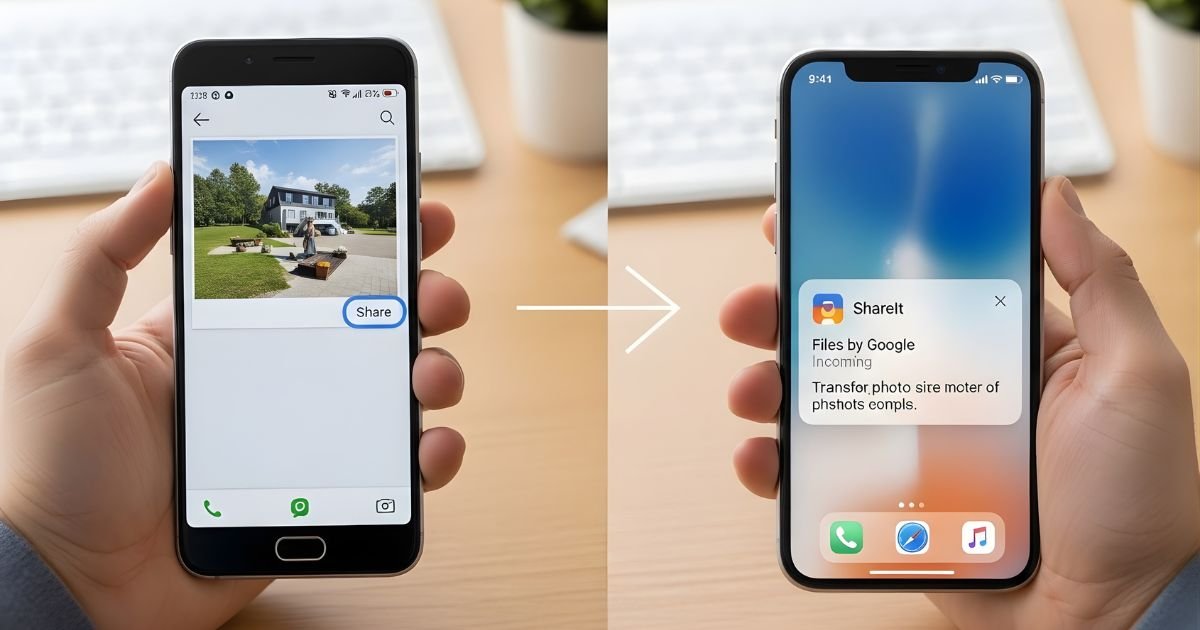
Want to share your favorite photos from your Android phone to an iPhone but don’t know where to start? You’re not alone.
Sending pictures between these two devices can feel tricky, but it doesn’t have to be. Imagine being able to quickly and easily send your memories without any hassle or confusion. You’ll discover simple, step-by-step ways to transfer your photos smoothly.

Use Airdrop Alternatives
Sending photos from Android to iPhone can be tricky without AirDrop. Apple devices use AirDrop, but Android devices do not. Luckily, several apps work as great AirDrop alternatives. These apps help share photos quickly and easily.
Apps like ShareIt and Xender work well for transferring files. They do not need internet data, only a local connection. Using these apps, you can move photos fast between Android and iPhone.
Install Shareit Or Xender
First, download ShareIt or Xender from the Google Play Store and the Apple App Store. Both devices need the same app installed. The apps are free and easy to use. Open the app on both phones after installation.
Connect Devices on the Same Network
Make sure both phones connect to the same Wi-Fi network. This connection helps the apps find each other. Some apps create a hotspot if no Wi-Fi is available. Follow the app’s instructions to connect devices properly.
Transfer Photos Seamlessly
Open the app on Android and select photos to send. Choose the iPhone device from the list of nearby devices. On the iPhone, accept the incoming files. The transfer happens fast without losing image quality.
Send Photos Via Email
Sending photos from Android to iPhone using email is simple. It does not need special apps or cables. Just use your email account to share images quickly. This method works well for a few photos and keeps the process clear and easy.
Attach Photos In Email
Open your email app on the Android phone. Tap the compose button to start a new message. Look for the attach icon, usually a paperclip symbol. Tap it and select “Gallery” or “Photos.” Choose the photos you want to send. Attach them to the email. You can add more than one photo at a time.
Send To iPhone Email Address
Type the recipient’s email address linked to the iPhone. Double-check the email address to avoid mistakes. Add a short message if you want. Tap the send button to deliver the email. The photos will travel through the internet to the iPhone’s inbox.
Download Photos On iPhone
Open the Mail app on the iPhone. Find the email with the photos in the inbox. Tap to open the message. Tap each photo to view it in full size. Tap the share icon and select “Save Image.” The photos save to the iPhone’s Photos app. Now you can see and use them anytime.

Use Cloud Services
Using cloud services is a simple way to send photos from an Android to an iPhone. It does not require cables or extra apps. You just need an internet connection. Upload your photos to a cloud storage and access them on your iPhone. This method works fast and saves space on your devices.
Upload Photos To Google Drive
Open the Google Drive app on your Android phone. Tap the plus (+) button to add files. Select “Upload” and pick the photos you want to send. Wait for the upload to finish. The photos will be stored safely in your Google Drive account.
Share Link With iPhone
Find the uploaded photos in Google Drive. Tap the three dots next to the file or folder. Select “Get link” or “Share.” Change the link settings to “Anyone with the link can view.” Copy the link and send it to your iPhone user via text or email.
Download From Cloud On Iphone
Open the link on your iPhone’s browser or Google Drive app. You will see the shared photos. Tap the download icon to save them to your iPhone. Now your photos are ready to use in your iPhone’s gallery or any app.
Transfer With Messaging Apps
Transferring photos from an Android to an iPhone can be simple using messaging apps. These apps are popular, easy to use, and work on both devices. You do not need cables or special tools. Just use apps like WhatsApp or Telegram to send your photos quickly.
Use WhatsApp or Telegram
WhatsApp and Telegram work well for sharing pictures. Install the app on both phones. Sign in with your phone number. These apps keep photos clear and send them fast. They also protect your privacy with encryption.
Send Photos In Chat
Open a chat with your iPhone contact. Tap the attachment or plus icon. Choose the photos you want to send. Select multiple photos if needed. Then tap send. The photos will upload and appear in the chat on the iPhone.
Save Photos On iPhone
On the iPhone, open the messaging app. Find the photos in the chat. Tap a photo to open it full screen. Tap the share or save button. Choose “Save Image” to add the photo to the iPhone gallery. Repeat for other photos.
Use a USB Transfer Tool
Using a USB transfer tool is a simple way to move photos from Android to iPhone. This method does not need the internet or extra apps. You just need a computer with a USB port and iTunes installed. The process involves connecting your Android phone to the computer, copying your photos, and syncing them to your iPhone. This is a safe and quick way to transfer pictures without losing quality.
Connect Android To Pc
Use a USB cable to connect your Android phone to the computer. Unlock your phone and allow file transfer if asked. Your phone should appear as a drive on your computer. Open the drive to access your Android files. Look for the folder named “DCIM” or “Pictures.” These folders contain your photos.
Copy Photos To Computer
Select the photos you want to transfer. Copy and paste them into a folder on your computer. Create a new folder to keep your photos organized. Wait for the copying process to finish. Check that all photos are correctly saved on your computer.
Sync Photos To iPhone Via iTunes
Open iTunes on your computer. Connect your iPhone using a USB cable. Click on the device icon in iTunes. Go to the “Photos” tab in the sidebar. Check the box “Sync Photos” and choose the folder with your copied pictures. Click “Apply” to start syncing. Wait until the sync is complete before disconnecting your iPhone.
Try Bluetooth Transfer
Try Bluetooth transfer to send photos from Android to iPhone without cables. Bluetooth is a wireless technology found on most devices. It allows simple sharing of files like photos. This method works well for small batches of pictures. It’s easy to use and does not need the internet.
Enable Bluetooth On Both Devices
Start by turning on Bluetooth on your Android phone. Open the Settings app, then find Bluetooth and switch it on. Do the same on your iPhone. Go to Settings, tap Bluetooth, and enable it. Make sure both devices stay close to each other during the transfer.
Pair Android And Iphone
Next, pair the two devices for a secure connection. On Android, look for your iPhone’s name in the list of available devices. Tap it to start pairing. On the iPhone, accept the pairing request and confirm the code shown. This step connects the devices and prepares them for sharing.
Send Photos Via Bluetooth
Open the Gallery or Photos app on your Android phone. Select the photos you want to send. Tap the Share icon and choose Bluetooth as the sharing method. Select your paired iPhone from the list. Accept the incoming files on your iPhone to complete the transfer.
Frequently Asked Questions
How Can I Send Photos From Android To Iphone Wirelessly?
You can use apps like Google Photos, ShareIt, or Send Anywhere to transfer photos wirelessly. Both devices must connect to Wi-Fi. These apps offer easy, fast transfers without cables or email.
What Is The Easiest Way To Transfer Photos From Android To iPhone?
Using the “Move to iOS” app is the easiest method. It transfers photos, messages, and more during iPhone setup. Just install it on Android and follow the prompts.
Can I Use Bluetooth To Send Photos From Android To iPhone?
No, Bluetooth doesn’t support photo transfer between Android and iPhone. Use Wi-Fi-based apps or cloud services for cross-platform photo sharing.
How Do Cloud Services Help Transfer Photos Between Android And iPhone?
Cloud services like Google Photos or Dropbox upload your photos online. You then download them on the iPhone, making the transfer simple and accessible anywhere.
Conclusion
Sending photos from Android to iPhone is simple with the right steps. Choose the best method based on your needs. Use apps, email, or cloud services to share pictures quickly. Keep your devices connected to avoid delays. Practice a few times to get comfortable.
Sharing memories should never be hard. Now, you can easily move photos between phones. Try these tips and enjoy smooth photo transfers every time.
