

Are you struggling with large PDF files slowing down your Android device or making it hard to share important documents? You’re not alone.
Big PDFs can eat up your storage and cause headaches when you try to send them via email or messaging apps. But what if you could shrink those files quickly and easily, right from your phone? You’ll discover simple, effective ways to reduce PDF file size on Android.
By the end, you’ll save space, speed up sharing, and keep your important documents handy without the bulk. Ready to make your PDFs lighter and more manageable? Let’s dive in!
Reasons To Compress PDFs on Android

Compressing PDF files on Android has many practical benefits. Large PDFs take up much space on your device. They also slow down file sharing and uploading. Reducing file size makes document management easier and faster.
Small PDFs load quickly. They use less mobile data. This saves money and improves your experience. Compressed files also open faster on older or slower devices. This helps you stay productive without delay.
Less Storage Space Used
Android devices have limited storage. Large PDFs fill up space fast. Compressing them frees up room for other apps and files. You avoid running out of storage and keep your device running smoothly.
Faster File Sharing
Smaller PDFs upload and send faster. Sharing files by email or messaging apps becomes quicker. This helps you meet deadlines and communicate easily. Large files often fail to send or take too long.
Improved Device Performance
Heavy files slow down your phone or tablet. Compressing PDFs reduces strain on your device. It runs better and avoids crashes. You can open and view documents without lagging.
Better Compatibility
Some apps and websites limit file size. Compressing PDF files ensures they meet these limits. You avoid errors and upload problems. This makes your documents accessible everywhere.
Built-in Android Features For Pdf Compression

Android devices have simple tools to help reduce PDF file size. These tools do not need extra apps. They use features built into Android systems. These features make PDF compression easy and fast.
You can use these features to save space on your phone. Smaller files upload and share faster. Android’s built-in features are handy for quick PDF compression.
Using Google Drive To Compress Pdfs
Google Drive on Android can help reduce PDF size. Upload the PDF to Google Drive. Then open it with Google Docs. Google Docs converts the PDF into an editable file.
After editing, you can save it back as a PDF. This new PDF is often smaller than the original. This method works well for text-based PDFs.
Saving Pdfs As Images With Lower Quality
Android allows saving PDFs as images. You can lower image quality to shrink file size. Open the PDF in your gallery or file viewer.
Use the share or export option to save as JPEG or PNG. Choose lower quality or resolution. This reduces the PDF size but keeps content visible.
Using Print To Pdf Feature For Compression
The Print to PDF option can compress files on Android. Open the PDF in a viewer app. Select Print and choose Save as PDF.
Adjust settings like paper size or quality. Smaller paper size or lower quality reduces file size. Save the new PDF to your device.
Top Apps To Reduce Pdf Size
Reducing PDF file size on Android is simple with the right apps. These tools help save space on your device. They also make sharing files faster and easier.
Several apps offer effective compression without losing quality. Choose one based on your needs and device compatibility. Here are the top apps to reduce PDF size on Android.
Using Adobe Acrobat Reader
Adobe Acrobat Reader is a trusted app for PDF tasks. It includes a feature to reduce PDF file size. Open your PDF in the app and select the compress option.
The app lowers file size by optimizing images and removing extra data. It keeps the text clear and readable. Adobe Acrobat Reader works well for basic compression needs.
Using Pdf Compressor Apps
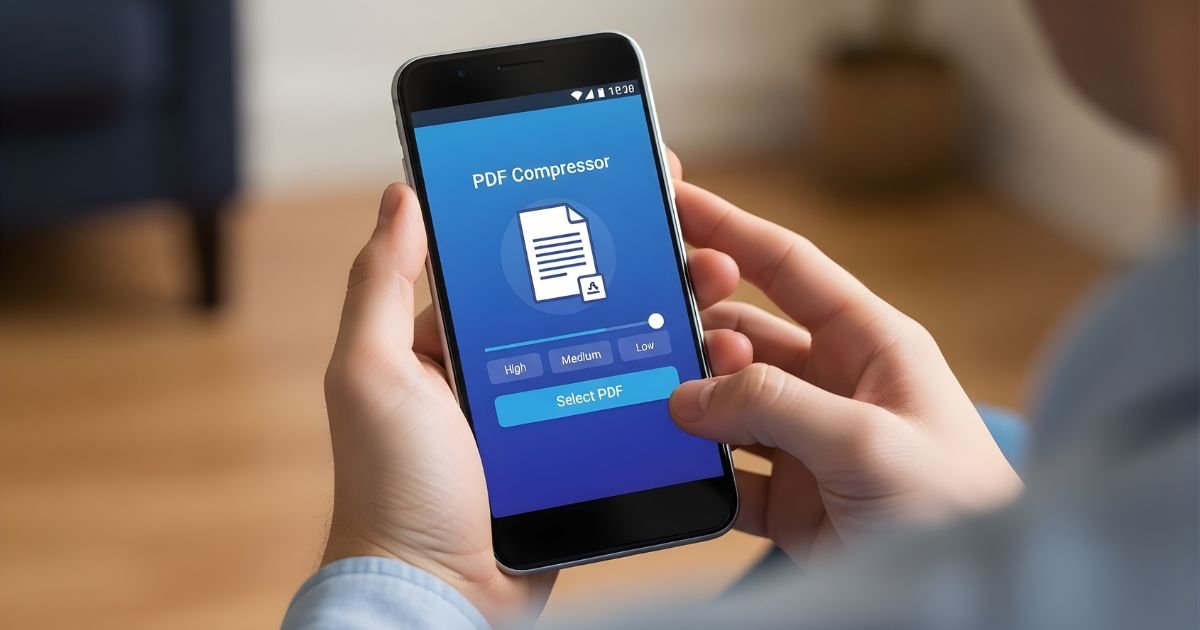
Special PDF compressor apps focus on reducing file size efficiently. Apps like “PDF Compressor” and “iLove PDF” offer this service free. Upload your PDF, then choose the compression level.
These apps balance size and quality. They often support batch processing. This saves time when compressing many files at once. Most are easy to use with clear instructions.
Using Online Compression Tools
Online tools are handy for quick PDF compression. Websites like Small pdf and PDF2Go allow you to upload files directly. The tool compresses the PDF and provides a download link.
This method does not require app installation. It works on any Android browser. Be mindful of privacy when uploading sensitive documents. Choose reputable sites with secure connections.
Step-by-step Guide To Compress Pdfs
Reducing the size of a PDF file on your Android device is simple and quick. This step-by-step guide helps you compress PDFs without losing quality. Follow these clear instructions to make your files smaller and easier to share.
Selecting The Pdf File
Open your PDF compression app on Android. Tap the option to add or select a file. Browse through your folders to find the PDF you want to compress. Tap the file to select it. The app will load your PDF for compression.
Choosing Compression Settings
Look for compression options in the app. Choose a setting that balances size and quality. Some apps offer low, medium, and high compression. Low compression keeps quality but reduces size less. High compression shrinks file size more but may lower quality. Select the option that fits your needs best.
Saving And Sharing The Compressed File
After choosing your settings, tap the compress button. Wait a few seconds for the app to reduce the file size. Once done, save the compressed PDF to your device. You can rename the file for easy finding. Use the share option to send it via email or messaging apps. Your smaller PDF is now ready for use.
Tips To Maintain Pdf Quality
Reducing PDF file size on Android can sometimes lower the document’s quality. Maintaining good quality matters for clear text and sharp images. Use simple methods to keep your PDF readable and professional.
These tips help you balance size and quality. They keep your PDF small without losing important details.
Optimize Images Without Losing Detail
Compress images carefully to reduce size. Use apps that lower image resolution slightly. Avoid heavy compression that makes images blurry or pixelated.
Choose The Right Pdf Compression Tool
Select apps designed to keep quality high. Some tools focus only on size and damage the text or images. Test different apps to find one that fits your needs.
Adjust Pdf Settings Before Saving
Check your app’s save options. Lower DPI settings can reduce size but keep text clear. Avoid settings that remove important fonts or colors.
Remove Unnecessary Elements
Delete extra pages, annotations, or large attachments. Less content means smaller files. Keep only what you need for easy reading.
Use Text Instead Of Images When Possible
Text takes less space than pictures. Replace scanned text images with editable text. This change reduces size and improves clarity.
Common Issues And Fixes
Reducing PDF file size on Android can sometimes be tricky. Various issues affect the compression quality and speed. Understanding common problems helps fix them quickly.
Some issues stem from the app used for compression. Others relate to the PDF content itself. Knowing these problems and their solutions saves time.
Inadequate Compression Tools
Many free apps offer limited compression features. They may not reduce file size enough or lower quality too much. Choose apps with good user reviews and tested compression methods.
Large Images Inside Pdf
High-resolution images make PDF files very large. Compress images before creating the PDF. Some apps let you reduce image quality or resize photos inside the PDF.
Embedded Fonts And Graphics
Fonts and vector graphics add extra size to PDFs. Some apps allow font sub setting or removing unnecessary fonts. Simplify graphics or convert them to lower resolution versions.
File Corruption Or Errors
Corrupted PDFs can cause compression to fail or produce errors. Open and save the PDF again using a reliable app. This often repairs minor file issues.
Lack Of Storage Space
Low storage on your Android device can stop the compression process. Clear space by deleting unwanted files. Ensure enough free memory before starting compression.
Frequently Asked Questions
How Can I Reduce Pdf File Size On Android Devices?
You can reduce PDF size using apps like Adobe Acrobat or online compressors. These tools optimize images and remove unnecessary elements. This makes sharing and storage easier while maintaining quality. Always back up files before compression to avoid data loss.
Which Apps Are Best For Compressing Pdfs On Android?
Popular apps include Adobe Acrobat, Pdf File Compressor, and i Love PDF. These apps offer easy compression with adjustable quality settings. They are user-friendly and often free or have free versions. Choose based on features and your specific needs for best results.
Does Compressing Pdfs Affect Document Quality On Android?
Yes, compression may slightly reduce quality, especially in images. However, most apps balance size and clarity well. You can usually adjust compression levels to maintain acceptable quality. Always check the compressed file to ensure it meets your standards.
Can I Compress Pdfs Offline On Android?
Yes, many apps allow offline compression without internet. Adobe Acrobat and Pdf File Compressor offer offline modes. This ensures privacy and faster processing. Offline compression is ideal when dealing with sensitive documents or limited connectivity.
Conclusion
Reducing PDF file size on Android is simple and helpful. Use apps or online tools to shrink files fast. Smaller PDFs save storage and send quickly. Keep original files safe before compressing. Try different methods to find what works best.
Now, managing Pdf File on your phone feels easier. Save space and share documents without stress.
