

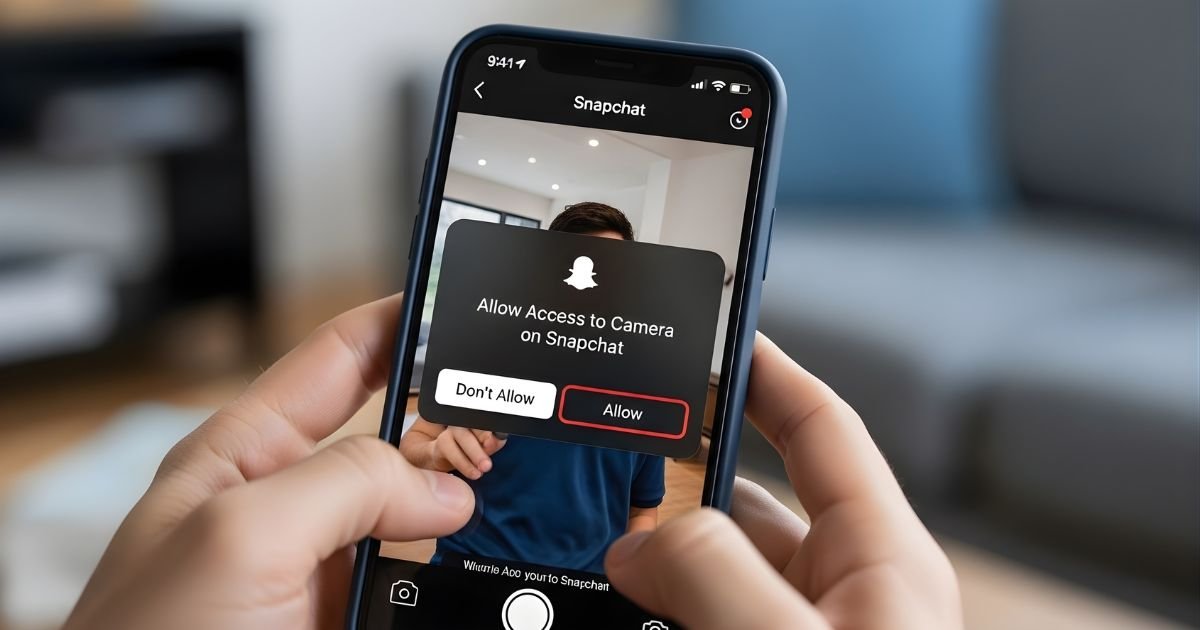
Are you struggling to use your camera on Snapchat? Without camera access, you miss out on all the fun of snapping and sharing moments with friends.
Don’t worry—getting your camera working again is easier than you think. You’ll learn simple, step-by-step ways to allow Snapchat to access your camera. By the end, you’ll be ready to capture and share memories in no time. Keep reading to unlock the full Snapchat experience!
Enable Camera Access On iPhone

To use Snapchat’s camera on your iPhone, you must allow camera access. Without it, Snapchat cannot take photos or record videos. Enabling this permission is quick and simple. Follow these steps to give Snapchat access to your iPhone camera.
Open iPhone Settings
Start by unlocking your iPhone. Find and tap the “Settings” app. This app has a gray gear icon. It controls your phone’s features and app permissions.
Locate Snapchat Permissions
Scroll down in Settings to find the list of apps. Look for “Snapchat” and tap on it. This opens Snapchat’s settings on your phone. Here, you can see all permissions Snapchat requests.
Toggle Camera Access On
Find the “Camera” option in Snapchat settings. If the toggle switch is gray, it means camera access is off. Tap the switch to turn it green. This allows Snapchat to use your camera.
Allow Camera Access On Android
Allowing Camera on Snapchat access on Android is essential for using Snapchat’s main features. Without permission, Snapchat cannot take pictures or videos. Granting access is quick and easy through your phone’s settings. Follow these simple steps to let Snapchat use your camera.
Open Android Settings
Start by unlocking your Android phone. Find and tap the “Settings” app. It looks like a gear icon. This app controls all your phone’s functions.
Find App Permissions
Scroll down in Settings to find “Apps” or “Apps & notifications.” Tap it. You will see a list of all installed apps. Find “Snapchat” in this list and tap it. Then, select “Permissions” to see what Snapchat can access.
Grant Camera Permission To Snapchat
Look for “Camera” in the permissions list. If it is off or denied, tap it. Choose “Allow” to give Snapchat access. Close the settings. Now, Snapchat can use your camera to capture photos and videos.

Troubleshoot Camera Access Issues
Sometimes Snapchat cannot use your camera even when you allow access. This can stop you from taking snaps or videos. Troubleshooting camera issues helps fix this problem fast. Try some simple steps to get your camera working again.
Restart Your Device
Turn your phone off and then back on. Restarting clears temporary bugs. It refreshes the system and apps. This often solves camera permission problems on Snapchat.
Update Snapchat App
Open your app store and check for updates. Using the latest Snapchat version is important. Updates fix bugs and improve app functions. An old app may block camera access.
Clear App Cache And Data
Go to your phone settings and find Camera on Snapchat. Tap on storage, then clear cache first. If the problem stays, clear app data next. This resets Snapchat and removes corrupted files. It helps the app request camera access again.
Check Snapchat In-app Camera Settings
Before using your camera on Snapchat, check the app’s camera settings. This step ensures the app can access your device’s camera properly. Sometimes, Snapchat’s internal settings may block camera use even if system permissions are granted. Adjusting these settings helps fix camera issues quickly and easily.
Access Snapchat Camera Settings
Open Camera on Snapchat and tap your profile icon at the top left. Next, tap the gear icon to open Settings. Scroll down to find the “Permissions” section. Here, you can see if the camera access is enabled or not. This section controls how Snapchat uses your camera inside the app.
Adjust Relevant Permissions
In the Permissions menu, look for “Camera.” Make sure it is turned on. If it is off, tap it to allow camera access. This change lets Snapchat use your camera for snaps and video calls. After enabling, close settings and try using the camera again in Snapchat.
Prevent Future Camera Access Problems
Preventing camera access problems on Camera on Snapchat starts with good habits. Avoid frequent interruptions by keeping your device and apps ready. Small steps help maintain smooth camera use. Follow these tips to reduce access issues in the future.
Keep Apps Updated
App updates fix bugs and improve performance. Snapchat updates often include better camera support. Make sure your Snapchat app is always the latest version. Update your phone’s operating system regularly too. This helps apps work well with your device.
Regularly Review App Permissions
Apps need permission to use your Camera on Snapchat . Sometimes permissions change after updates. Check your phone’s settings to confirm Snapchat has camera access. Remove permissions for apps you no longer use. This keeps your device secure and avoids conflicts.
Frequently Asked Questions
How Do I Enable Camera Access On Snapchat?
Go to your device’s Settings, find Snapchat, and tap on Permissions. Enable the Camera option to allow access.
Why Is Snapchat Camera Not Working?
Camera on Snapchat access might be disabled in settings. Check permissions and restart the app to resolve common issues.
Can I Allow Camera Access For Snapchat On iPhone?
Yes. Open Settings, scroll to Snapchat, and toggle on Camera permissions to enable camera use on iPhone.
How To Fix Snapchat Camera Blocked Error?
Ensure Camera on Snapchat permissions are enabled in device settings. Restart Snapchat or your phone if the error persists.
Conclusion
Allowing Camera on Snapchat is simple and quick. Just follow the steps carefully to avoid issues. This lets you take photos and share moments easily. Remember to check your phone settings if the camera does not work. Keep your app updated for better performance.
Enjoy capturing fun memories without any trouble. Snapchat becomes more useful with camera access enabled. Now, you can fully enjoy all its features.
