

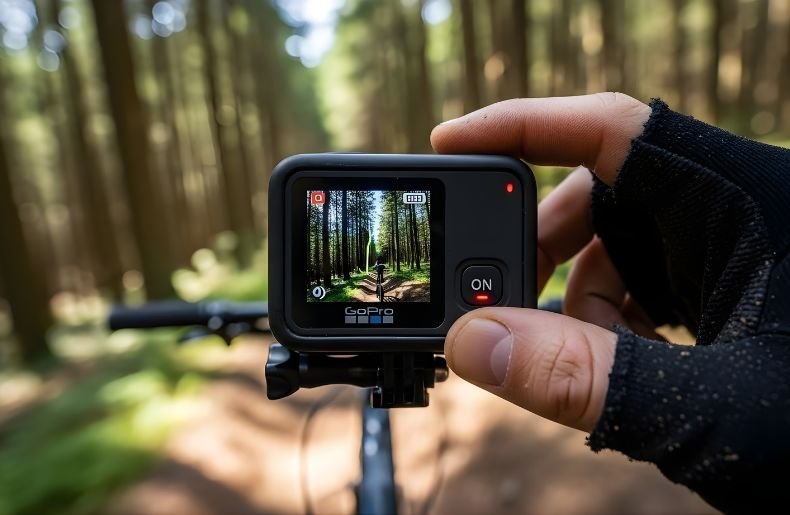
Getting started with your GoPro should be exciting, not frustrating. Whether you’ve just unboxed your first action camera or you’re troubleshooting why your GoPro won’t respond, understanding how to turn on a GoPro is your essential first step.
The power-on process is straightforward once you know where to look, but different models have slight variations that can catch newcomers off guard. This comprehensive guide walks you through everything you need to know about powering up your GoPro, from the basic button press to troubleshooting common issues.
By the end, you’ll confidently power on any GoPro model and be ready to capture your adventures without missing a moment.
How to Find Your GoPro’s Power Button

Before you can turn on a GoPro, you need to locate the power button. Most GoPro models feature a mode button that doubles as the power button, typically positioned on the side or front of the camera.
On newer models like the GoPro HERO11 and HERO12, you’ll find the mode/power button on the left side of the camera when viewing it from behind. Older models such as the HERO5, HERO6, and HERO7 have the button in a similar location.
The button itself is usually marked with a power icon or mode icon, making it relatively easy to identify. Some models feature a touch screen display on the back, which activates once the camera powers on, providing immediate visual feedback that your GoPro is ready to use.
How to Turn On a GoPro: The Basic Method
The fundamental process for powering on your action camera is remarkably simple. Press and hold the mode/power button for approximately two to three seconds. You’ll feel a slight click, and within moments, you should hear a series of beeps or see the status lights begin to flash.
The front display (if your model has one) will illuminate, showing the current shooting mode, battery level, and other key information. Release the button once you see or hear these indicators.
The rear touchscreen will activate, displaying the camera’s main interface where you can access settings, preview shots, and switch between photo and video modes. The entire startup sequence typically takes just a few seconds on modern GoPro models, though older versions may require slightly more time to boot up.
Turning On Different GoPro Models
Understanding how to turn on a GoPro becomes easier when you recognize that most models follow similar patterns, though subtle differences exist. The GoPro HERO series from HERO5 through the latest HERO12 all use the side-mounted mode button approach. Simply press and hold for two to three seconds, and your camera springs to life.
For the GoPro MAX, a 360-degree camera, the power button follows the same logic but sits in a slightly different position due to the camera’s unique design. The GoPro Fusion and older models like the HERO4 Session have the power button on top of the camera body.
Regardless of your specific model, the hold-and-press technique remains consistent—it’s just the button location that varies. If you’re uncertain about your particular model, checking the user manual or looking for the clearly marked power icon will guide you to the right spot.
What to Do When Your GoPro Won’t Turn On
Sometimes pressing the power button doesn’t produce the expected results. When this happens, several common culprits are usually responsible. The most frequent issue is a depleted battery. GoPro cameras are power-hungry devices, especially when shooting high-resolution video or using features like GPS and voice control. If your camera has been sitting unused for weeks or months, the battery may have completely drained.
Try connecting your GoPro to a power source using the USB-C cable (or micro-USB for older models) and a wall adapter. Look for the red charging light indicator, which confirms the battery is receiving power.
Give it at least 15-30 minutes of charging time before attempting to turn it on again. Another potential issue involves the SD card. A corrupted or incompatible memory card can prevent the camera from completing its startup sequence. Try removing the SD card and powering on the camera without it installed. If the GoPro turns on successfully, you’ve identified the problem as card-related.
Occasionally, the camera’s firmware might freeze, requiring a manual reset. For most models, you can perform a hard reset by holding down the power button for 10-15 seconds. This forces the camera to shut down completely and clear any temporary glitches. When you release and press the button again normally, the GoPro should start fresh.
Maximizing Battery Life for Reliable Power-On Performance
The relationship between battery health and your ability to turn on a GoPro cannot be overstated. GoPro batteries are lithium-ion cells that degrade over time, especially when exposed to extreme temperatures or left in a discharged state for extended periods. To ensure your camera always powers on when you need it, maintain your battery properly.
Store your GoPro with the battery at approximately 50% charge if you won’t be using it for several weeks. This sweet spot prevents the deep discharge that damages lithium-ion cells while avoiding the stress of maintaining a full charge.
Keep spare batteries on hand, particularly for long shooting sessions or travel adventures where charging opportunities are limited. Always use genuine GoPro batteries or certified third-party alternatives that meet the manufacturer’s specifications—cheap knockoffs can fail unexpectedly and may even damage your camera.
Temperature affects battery performance significantly. In cold weather, batteries lose capacity temporarily, which might make your GoPro sluggish to turn on or prevent it from powering up at all.
If you’re shooting in winter conditions, keep spare batteries warm in an inside pocket and swap them as needed. Similarly, excessive heat accelerates battery degradation, so avoid leaving your GoPro in direct sunlight or hot vehicles.
Essential Post-Power-On Checks and Settings
Once you’ve successfully powered on your GoPro, taking a moment to verify key settings ensures you’re ready to capture footage. Check your shooting mode—are you in video, photo, or time-lapse mode? The front and rear displays clearly indicate your current selection, and you can switch modes using the mode button or touchscreen interface.
Verify your video resolution and frame rate settings match your intended use. Higher resolutions like 4K or 5.3K produce stunning quality but drain the battery faster and consume more SD card space.
Confirm that your memory card has adequate free space by checking the remaining recording time displayed on the screen. Enable QuickCapture in your settings if you want the ability to power on and immediately start recording with a single button press—a feature that’s invaluable for capturing spontaneous moments.
Using QuickCapture: Power On and Record Instantly
QuickCapture is one of GoPro’s most convenient features, allowing you to bypass the standard power-on process and start recording immediately. When enabled, pressing the shutter button (typically the red button on top of the camera) when the GoPro is off will simultaneously turn on the camera and begin recording.
This eliminates the precious seconds lost during normal startup, which can mean the difference between capturing or missing fleeting action.
To activate QuickCapture, power on your GoPro normally and navigate to Preferences through the touchscreen menu. Find the QuickCapture option and toggle it on. From that point forward, your camera remains in a low-power standby state, ready to spring into action.
When you’re finished recording, the camera automatically saves your footage and powers down, conserving battery life. This feature is particularly valuable for activities like surfing, mountain biking, or wildlife photography where moments of interest appear unexpectedly.
How to Diagnose Advanced Power Problems
When basic troubleshooting doesn’t resolve power-on problems, more advanced issues might be at play. Water damage ranks among the most serious concerns, even though GoPros are designed to be waterproof.
If moisture has penetrated the camera’s housing, internal components can short circuit or corrode. Look for condensation inside the lens or screen, which indicates water intrusion. In such cases, immediately remove the battery and SD card, open all compartments, and let the camera dry completely in a warm, dry environment for at least 48 hours.
Firmware corruption represents another potential culprit. If your GoPro turns on but immediately freezes, crashes, or displays error messages, the operating system might need updating or reinstalling. Connect your camera to a computer and use the GoPro Quik desktop application to check for firmware updates.
The software can often repair corrupted installations and restore normal functionality. As a last resort, performing a factory reset through the camera’s settings menu will wipe all custom configurations and return the GoPro to its original state, which can resolve persistent software issues.
Final Thoughts
Learning how to turn on a GoPro is more than just pressing a button it’s understanding your camera’s power ecosystem, from battery maintenance to Quick Capture functionality. By following the straightforward press-and-hold technique, knowing where to locate the power button on your specific model, and implementing proper battery care practices, you’ll ensure your GoPro is always ready when adventure calls.
Remember to address power issues systematically, starting with simple solutions like charging and SD card checks before moving to advanced troubleshooting.
Now that you’re equipped with comprehensive knowledge about powering up your action camera, it’s time to get out there and capture incredible footage. Don’t forget to enable Quick Capture for those spontaneous moments, keep spare batteries charged, and regularly update your firmware. Start your next adventure with confidence your GoPro will be ready when you are.
