

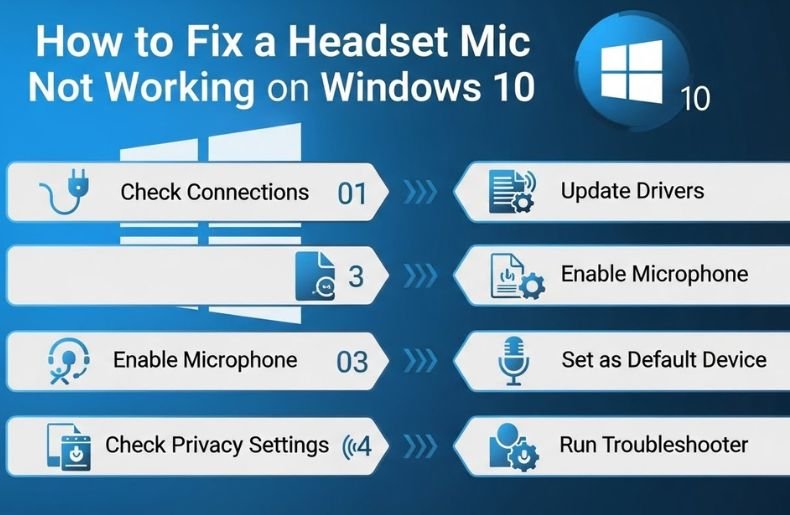
Headsets are considered as one of the essential communication tools, especially for those who carry out various tasks from their home. It’s also a very popular tool for some gamers because they often have to talk to their teammates.
One of the best ways to use a headset is Microsoft Windows because it gives users the best benefits. Several users use headsets on Windows 10 to get the maximum benefits. Although Windows makes it easy for users to use headsets, it does not mean that you can use it without any problems.
Many users have noticed that their headset mic is not working on Windows 10. This problem can occur for a variety of reasons, so you must first confirm the cause of the problem and then take action.
We are now going to discuss what is the reason for your headset mic not working Windows 10 and how to fix it. So let’s get started with it. Read the entire article and gain a complete idea about it.
Check the Hardware Connections are Right or Not
One of the main reasons why your headset mic is not working Windows 10 is because of a faulty connection to the hardware. You must first check that all the connections of the hardware are properly OK or not.
You may be thinking how to check it? There’s no reason to panic because it’s not a very difficult task to check.
First, you need to unplug your microphone and plug it in shortly. When plugged in, you can hear a sound indicating that Windows has recognized the new hardware.
Did you hear the sound? If you do not find it, open your computer’s Start menu and search for ‘Device Manager’ and click on the first option displayed.
Now you need to click to expand the audio input and output section from the device manager. If your microphone is properly plugged in, it will definitely show you there.
If the microphone doesn’t show up here, then plug it in again after unplugging it. However, if the problem is not resolved, you can try plugging it into another port.
You can also try plugging it into another Windows computer, so you can know if your computer has a problem or not. If nothing works, then you have to understand that this is the problem with your microphone. You either have to repair it or buy a new one.
Check the Microphone Device Settings
Do you know how your microphone is set up on the computer? If the microphone is disabled or set as the default device, it will never work on Windows. Follow these processes to check the settings:
- Hold down the window logo key and press the “R” key on the keyboard to bring up the Run dialog at the same time. Now type “Control” and then press Enter.
- Choose the Large icons from the drop-down menu in Control Panel and select Sound.
- Now select the Recording tab, right-click on any vacant place inside the device list and tick Show disabled devices.
- Right-click to select the Headset Microphone and enable it
- Again, right-click on it and set it as the default device.
- Right-click on the Headset Microphone and then click on Properties
- Now click on the Levels tab and drag the volume slider to the most considerable value
- Click OK then click OK
If you follow all the above steps, then, of course, you can enable your microphone and set it as default. If you see that it is working on your Windows 10, it means that you have been able to solve your problem.
Update your Audio Driver
Your headset mac will not be able to work Windows 10 if it is out of date or incorrect. For this, you need to update your headset Mac so that it can work on Windows 10 without any problems. There are two types of updating processes, one is manually, and the other is automatic.
Manually is a time-consuming and technology-dependent process, but there are risks. On the other hand, the automatic process is simple, and there is no risk.
So we’ll show you the steps on how to update automatically.
- First, download and install the Driver Easy.
- Manage Driver Easy and click on the “Scan Now button”. This software will scan your computer and detect any problems.
- Now you have to click on the Update button. You can also click the Update button at the bottom right to update all outdated or missing drivers on your computer automatically. However, it does require a Pro version that will be requested when you want to upgrade. You can do it for free if you wish to, but it’s a partial manual.
- When the upgrade process is completed, shut down your computer and restart it after a while. After logging in, you will see that your microphone has been updated and is working on Windows 10.
Troubleshoot your Hardware Problems
If the problem is not resolved even after doing so, then there is a problem with your computer’s hardware or your headset. If this is the case, then there are a few things to do.
- You can connect your headset to your computer on another port. Maybe after changing the port, you can fix your problem.
- If changing the port doesn’t solve the problem, you can try connecting your mac to another computer. If this works, you may need to repair your computer.
- If your problem is not resolved in any of the above steps, then you should understand that the main problem lies in your microphone. You can repair your microphone or buy another one.
Final Thoughts
Are you worried about why your headset doesn’t work on Mac 10 on Windows 10? You don’t need to think more about it because you can now solve it yourself. We have tried to highlight in our article how to solve this problem.
Are the steps we mentioned very challenging? Of course not and you don’t even have to hire an expert for this. If you can follow these steps, you will be able to solve the problem yourself.
