

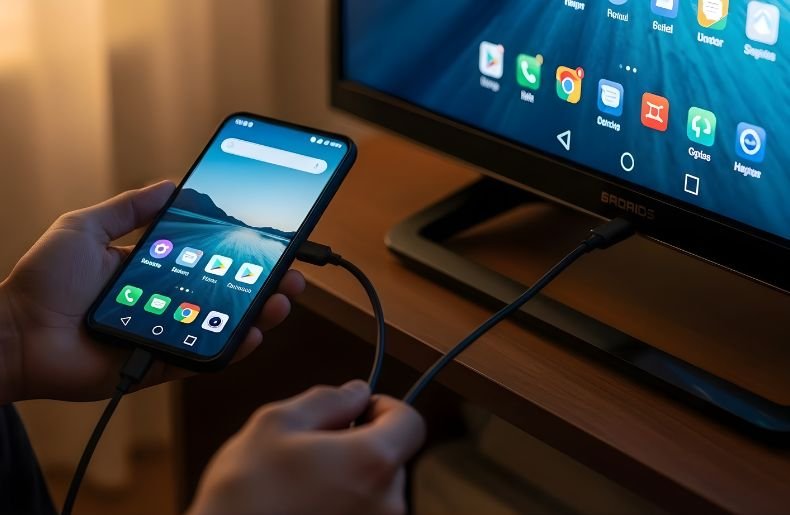
Streaming content from your phone to your TV is convenient, but what if you don’t have WiFi? Many people assume a wireless network is mandatory, but there are several ways to connect your phone to TV without WiFi.
Whether you want to watch movies, share photos, or play games on a bigger screen, you don’t need complicated setups. From wired connections like HDMI adapters to wireless solutions that work offline, this guide explains all the practical methods step by step. By the end, you’ll have clear options for both Android and iPhone devices, ensuring a smooth, reliable connection that doesn’t depend on your home network.
How to Connect Phone to TV Without WiFi Wired Methods
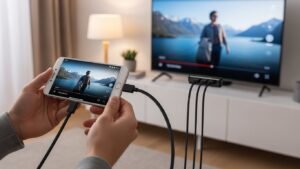
When WiFi isn’t an option, wired connections are often the most straightforward and reliable way to mirror your phone’s screen. Using physical cables ensures minimal lag and supports high-quality video and audio streaming.
HDMI and USB-C Adapters
Most modern smartphones can connect to TVs via HDMI adapters or USB-C to HDMI cables. For iPhones, you can use a Lightning to HDMI adapter. These adapters allow your phone to transmit both video and audio directly to your TV without needing any network connection. Simply plug the adapter into your phone, connect an HDMI cable to your TV, and select the correct input. Your phone’s screen will mirror instantly, making it perfect for movies, presentations, or gaming.
MHL (Mobile High-Definition Link)
Some Android phones support MHL, which lets you connect your device to your TV using a micro-USB or USB-C port along with an MHL adapter. Once connected, your phone powers the connection, so you don’t even need an extra charger in most cases. This method supports full HD video and sound, making it a dependable alternative if WiFi isn’t available.
USB Connections for Media Playback
Another simple wired method is connecting your phone to the TV via a USB cable. While this often won’t mirror your screen entirely, it allows you to play videos, music, and view photos stored on your phone directly through your TV’s media player. Most TVs recognize phones as external storage, so you can browse your files using the TV remote.
Choosing the Right Method for Your Situation
Selecting the best way to connect your phone to TV without WiFi depends on several factors. If you prioritize reliability and picture quality above all else, HDMI connections remain unbeatable. The wired approach eliminates wireless interference, provides consistently smooth playback, and works with virtually any TV manufactured in the last fifteen years.
For those who value convenience and don’t want cables running across the room, Miracast offers a solid wireless alternative, provided both your phone and TV support it. The USB method serves as an excellent middle ground when you only need to share media files and already have the necessary cable. Consider your specific use case: presentations benefit from reliable HDMI, casual photo sharing works fine with USB, and wireless methods suit those willing to trade slight performance for cable-free convenience. Your phone model also matters—iPhone users have fewer options than Android users, making adapters a worthwhile investment.
How to Connect Phone to TV Without WiFi: Wireless Offline Options
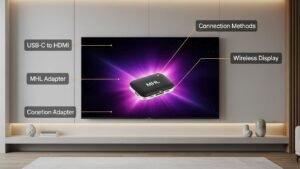
Even without a WiFi network, there are wireless solutions that let your phone communicate with your TV. These methods rely on direct device-to-device connections rather than a shared internet connection.
Screen Mirroring via Miracast
Miracast is a technology built into many Android phones and smart TVs. It allows your phone to create a direct wireless connection with your TV. To use it, enable the “Screen Mirroring” or “Cast” option on your TV and select your TV from the phone’s menu. Miracast works without a router, providing a reliable wireless connection for video, apps, and games.
Using a Wireless HDMI Kit
Wireless HDMI kits include a transmitter connected to your phone and a receiver connected to your TV. These devices create a private wireless link that doesn’t need WiFi, allowing you to mirror your screen or stream media with minimal setup. This method supports high-definition content and is ideal for home entertainment setups.
Bluetooth Media Streaming
While limited compared to HDMI or Miracast, some TVs and phones support Bluetooth streaming for audio, or in certain cases, basic video playback. It’s slower and may not support high-quality video, but it can be useful for sharing audio from apps like Spotify or YouTube Music without needing a network connection.
Tips for Connecting Phone to TV Without WiFi
Even with the right cables or adapters, there are a few things to keep in mind to ensure smooth performance:
- Check TV compatibility: Not all TVs support every connection type. Review your TV’s ports and specifications before buying adapters.
- Use quality cables: Poor-quality HDMI or USB cables can cause lag, flickering, or connection drops.
- Keep phone charged: Wired connections like MHL or HDMI can drain your battery, so have a charger handy if streaming long videos.
- Enable correct input source: Always select the correct HDMI or USB input on your TV to see your phone’s screen.
Wired vs Wireless: Choosing the Right Method
Choosing between wired and wireless options depends on your priorities. Wired connections offer more stability, less lag, and higher video quality, which is ideal for movies, gaming, or presentations. On the other hand, wireless offline methods like Miracast or a wireless HDMI kit provide flexibility and convenience, especially when cables are inconvenient or your phone is far from the TV. Some users even combine methods, using wired connections for video-heavy tasks and wireless connections for casual media sharing.
Common Issues and Troubleshooting
Even without WiFi, connections can sometimes fail. Here’s how to solve common problems:
- No signal on TV: Make sure you’ve selected the correct input and that cables are firmly connected.
- Phone not recognized: Restart both devices or try a different port or adapter.
- Lag or stuttering: Use a high-quality cable or reduce the resolution if using wireless methods.
- Unsupported formats: Some TVs may not support all video codecs. Convert files to compatible formats if needed.
By keeping these tips in mind, you can ensure a smooth experience connecting your phone to TV without WiFi.
Advantages of Connecting Without WiFi
Connecting your phone to a TV without WiFi gives you independence from your home network. You don’t have to worry about weak signals, router issues, or bandwidth limitations. This is particularly useful for travel, offices, or outdoor setups where WiFi is unavailable. Using direct connections like HDMI or MHL ensures consistent, high-quality streaming, while wireless offline options like Miracast still provide flexibility for casual media sharing.
Another advantage is security. When you connect directly to your TV without using a network, your content stays private. There’s no risk of accidental exposure over shared networks or cloud-based services. This can be especially important when showing personal videos, sensitive presentations, or work-related media. Direct connections also often allow lower latency, which benefits gaming and real-time screen mirroring.
Conclusion
Connecting your phone to TV without WiFi is simpler than most people think. Whether you choose wired options like HDMI, MHL, or USB, or wireless offline methods like Miracast or a wireless HDMI kit, you have multiple ways to enjoy your phone’s content on a larger screen. Wired connections provide stability and high-quality video, while wireless options give convenience without cables.
By understanding your device compatibility and following the tips above, you can mirror screens, watch videos, and share media anytime, anywhere. Try these methods today and experience the ease of connecting your phone to TV without WiFi.
