

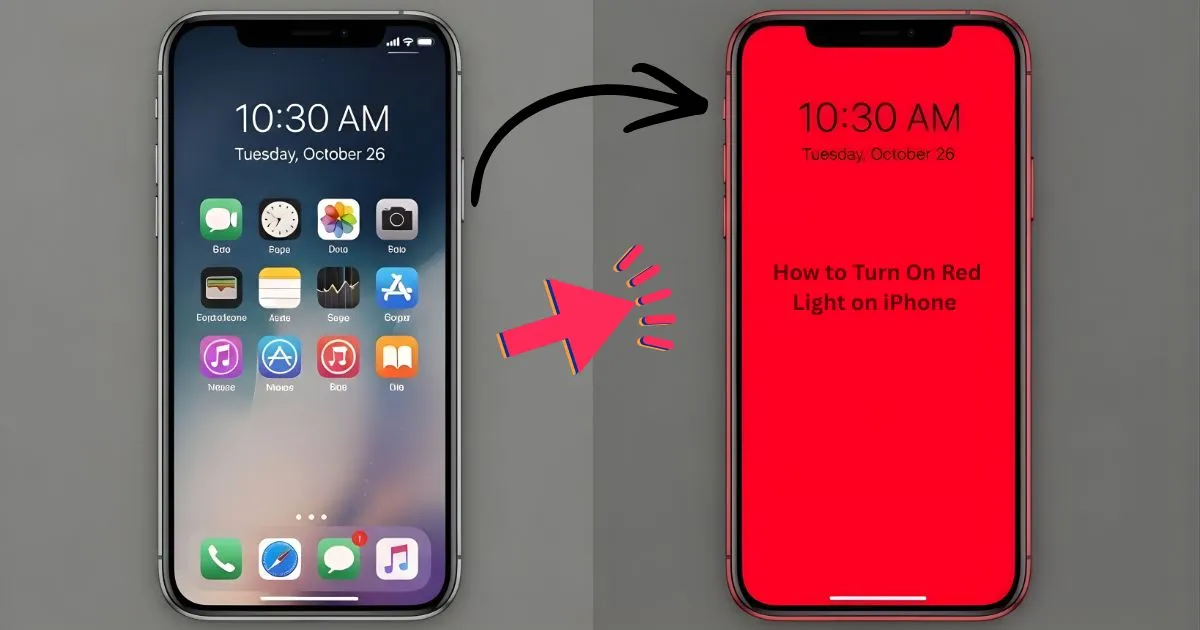
If you’ve ever tried to use your iPhone late at night, then you know how sharp the bright screen can be. And that is where the metaphor of a red light comes in. A lot of people look for how to turn on red light on iPhone because the red light is less harsh, preserves night vision, and just feels more comfortable in a dark room.
No, iPhones for sure do not offer a single switch labeled “red light.” However, Apple does have some savvy tools that deliver the same effect.
With the right settings, you can make your screen deep red and even dim it beyond its built-in minimum brightness to help lessen eye strain without reaching for those inadvisable apps.
In this guide, I’ll share practical, tested ways to achieve it, clarify when each option is right for you and help identify the setup that best suits your habits.
What Does Red Light Mean on an iPhone?
But first, let us back up and do a little clarifying of this whole red light on iPhone business. Then there’s a proper red light mode where it shows all red colours. That cuts down on blue and green light, its makers say, is proven to interfere with sleep and tire eyes in dark conditions.
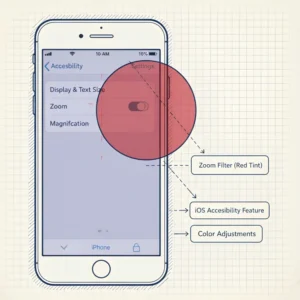
Apple does not officially call it “red light,” but you can do something similar by using settings such as Color Filters, Reduce White Point,t and Night Shift in combination.
Common reasons people want this include:
- Reading at night without waking others
- Protecting night vision for astronomy or camping
- Reducing eye fatigue before sleep
- Using the phone in very dark rooms
How to Turn On Red Light on iPhone Using Color Filters
This is the most effective and popular method. It gives you a true red screen and works on most modern iPhones.
Step-by-step setup
- Open Settings
- Go to Accessibility
- Tap Display & Text Size
- Scroll down and select Color Filters
- Turn on Color Filters
- Choose Color Tint
- Drag the Hue slider all the way to red
- Set Intensity close to maximum
Your screen should now appear deep red.
Why this works
Color Tint overrides normal colors and pushes everything toward red. Unlike Night Shift, it removes most blue and green light. This makes it ideal if your main goal is eye comfort or night vision protection.
How to Turn On Red Light on iPhone Quickly Using Accessibility Shortcut
Once you set up Color Filters, you probably do not want to dig through settings every time. This shortcut solves that.
Enable the shortcut
- Open Settings
- Go to Accessibility
- Scroll down to Accessibility Shortcut
- Select Color Filters
Now, triple-click the side button (or Home button on older models) to turn red light on or off instantly.
This is one of the easiest ways to manage how to turn on red light on iPhone without slowing down your routine.
How to Turn On Red Light on iPhone for Night Use (Complete Solution)
If you want to comfortably use it at night, rather than just have a red screen, this is it. It utilizes more than one feature to solve the problem completely.
First, go to Settings>Accessibility> Display & Text Size and enable Color Filters with Color Tint, then push the hue to red. Thereby eliminating the red-and-blue color scheme and ensuring that your entire screen turns red, not only some of your apps. Now, switch on Reduce White Point from Display & Text Size and reduce it to make the screen feel softer. This reduces overall brightness beyond what the regular slider permits.
Last, turn on Night Shift and above it adjust the warmth all the way to the right. Though Night Shift itself is not exactly red light, it works in combination with the filter to dampen anything that gets through anyway. Combined, these settings let the iPhone be used in total darkness without eye fatigue.
Using Reduce White Point for Extra Dimming
Reduce White Point does not change colors, but it dramatically lowers brightness.
How to enable it
- Settings
- Accessibility
- Display & Text Size
- Turn on Reduce White Point
- Adjust the slider to comfort
This is especially useful when red light still feels too bright in a dark room.
Can Night Shift Replace Red Light?
Night Shift is often confused with red light, but they are not the same.
Night Shift basics
- Reduces blue light
- Makes screen warmer (yellow/orange)
- Helps with sleep comfort
Limitations
Night Shift cannot create a true red screen. It is better than nothing, but if you are serious about night vision or eye strain, Color Filters are far more effective.
Control Center and Automation Options
You can create an automation to:
- Turn on Color Filters at sunset
- Disable them in the morning
- Combine with Low Power Mode or Focus modes
This is helpful if you want red light to happen automatically.
Common Issues and How to Fix Them
Even simple settings can feel confusing. Here are common problems and solutions.
Screen looks too dark
- Lower Reduce White Point
- Decrease Color Tint intensity
- Slightly raise brightness slider
Colors look strange during the day
- Use the triple-click shortcut to turn filters off
- Schedule automation to disable in daylight
Apps look unreadable
Some apps do not display well in red. For those moments, temporarily disable filters.
Third-Party Apps That Simulate Red Light on iPhone
Some apps claim to offer red light or night vision modes. These usually work by placing a red overlay on your screen within the app itself.
Examples include astronomy or night reading apps that lock the display into red tones. These can be useful if you only need red light for one specific task. However, they do not affect the entire system, so notifications and home screen usage may still flash bright colors.
For full control, built-in iOS settings are more reliable.
Who Should Use Red Light Mode on iPhone?
Red light is not just for one type of user.
- Night readers
- Parents checking phones while kids sleep
- Stargazers and photographers
- Anyone sensitive to bright screens
If you often feel eye fatigue at night, learning how to turn on red light on iPhone can make a real difference.
Conclusion
It’s easier than you might think to turn a red light on with an iPhone. But, though there’s no such thing as a turn-on red light button for all apps and settings in iOS, it is possible to make your screen entirely red with the heady magic of Accessibility and Screen Color Filters.
There’s a really neat trick with the use of Color Filters, Reduce White Point, and quick shortcuts that can allow you to have full control over how your screen looks in low light.
If you frequently use your phone in the dark, it’s definitely worth taking a few seconds to learn how to turn on red light on your iPhone. Try it out tonight, tweak the settings to your comfort, and see how much less taxing looking at your phone at night can be.
