

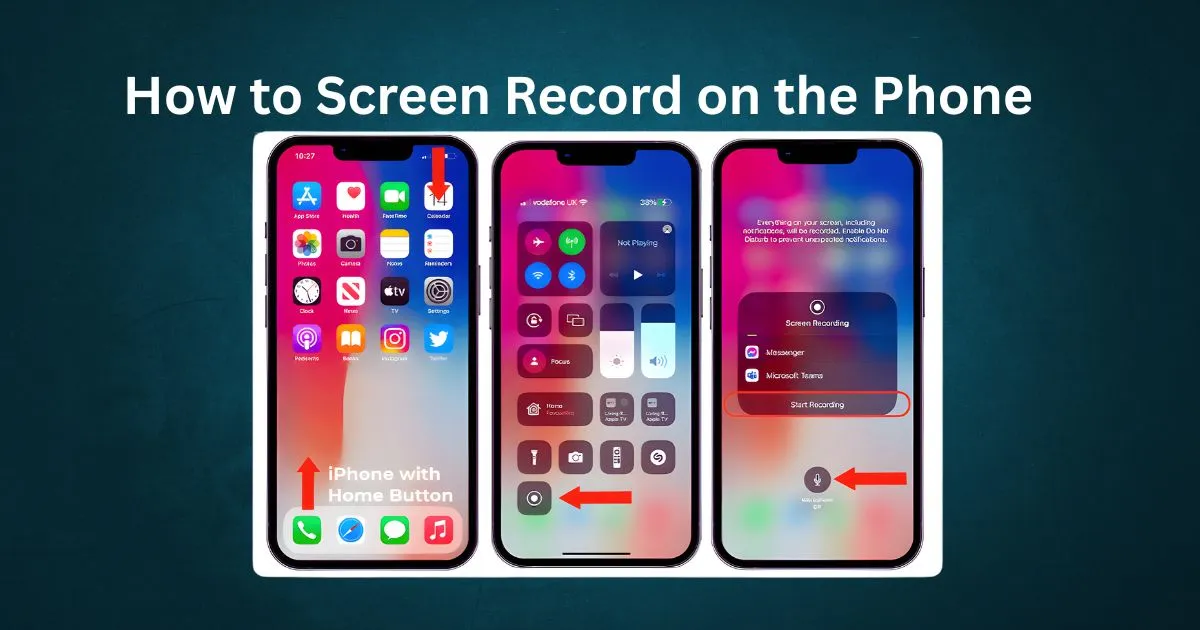
Phone Screen recording has become an essential part of everyday phone use, whether you’re creating tutorials, capturing gameplay, or saving online content.
Many users now search for how to screen record on the phone because each device offers a slightly different method. Simply open your Quick Settings or Control Center, tap “Screen Recorder,” choose sound options, and press Start.
Almost every Android and iPhone model now includes a built-in recorder. Still, some phones require third-party apps due to missing features. This guide explains everything clearly. So, let’s dig into this article.
What Is Screen Recording on a Phone
Screen recording is the process of capturing your smartphone’s screen activities as a video. It allows you to record apps, menus, conversations, gameplay, and more, depending on your phone’s capabilities.
It’s a built-in or app-based feature that records everything displayed on your screen in real-time as a video. Unlike screenshots, screen recording captures movement and sound, making it useful for tutorials or demonstrations. Almost all modern Android and iPhone devices support this feature.
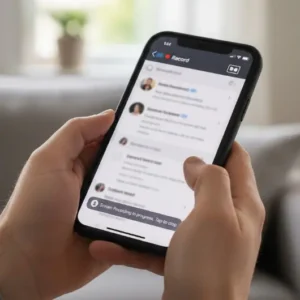
How to Screen Record on Android – Step by Step Guideline
Screen recording on Android is simple and built into most modern devices. Here’s the exact step-by-step process anyone can follow.
Steps to Screen Record on Android:
- Swipe down twice to open the full Quick Settings panel.
- Look for the Screen Recorder icon.
- Tap it and select audio settings (mic or system sound).
- Press Start and wait for the countdown.
- When finished, tap Stop from the notification bar.
- Find your video in the Gallery or Photos app.
Is It Possible to Screen Record on Android Without Built-In Recorder
Some Android phones don’t include a built-in recording feature, especially older models. In such cases, using a third-party app is the best option and works just as effectively.
Can you screen record on Android without a built-in recorder? Yes. You can use apps like AZ Screen Recorder, Mobizen, or ADV Screen Recorder to capture your screen.
These apps offer additional features such as internal audio, floating controls, facecam options, and video editing tools. They work on almost all devices, regardless of manufacturer.
If your Quick Settings lacks the Screen Recorder option, downloading one of these apps is the fastest solution. They are safe, free, and widely used by gamers and content creators.
How to Screen Record on iPhone
Screen recording on iPhone is smooth and built into all iOS devices. Before starting, ensure the tool is added to your Control Center.
Steps to Screen Record on iPhone:
- Open Settings → Control Center → Add Screen Recording.
- Swipe down from the top-right (or swipe up on older models).
- Long-press the record button to enable Microphone Audio if needed.
- Tap Start Recording and wait for the countdown.
- Tap the red timer bar to stop the recording.
- Your recording saves automatically in the Photos app.
Top 3 Best Screen Recording Apps for Phone
Screen recording apps are helpful when built-in tools lack advanced features. These options provide better controls, editing, and smoother results, making them perfect for anyone searching how to screen record on phone more professionally.
AZ Screen Recorder
AZ Screen Recorder is one of the most popular Android screen recording apps. It offers high-quality video without watermarks or time limits. It supports internal audio, making it ideal for gameplay. The app also includes editing tools, overlays, and live streaming options.
Mobizen Screen Recorder
Mobizen is widely used by beginners due to its simple interface. It allows users to record in Full HD with external sound options. Mobizen also includes facecam features, making it great for reaction or tutorial videos.
TechSmith Capture (iPhone)
TechSmith Capture is perfect for users who want more than the basic iPhone recorder. It supports ReplayKit-enabled apps for smoother gameplay recordings. You can also transfer videos easily to Camtasia for advanced editing.
Phone Screen Recording Problems & Fixes
Screen recording doesn’t always work perfectly. Some users experience audio issues, missing features, or failed recordings. One major issue is no sound, which usually happens when microphone or internal audio settings are disabled.
Enabling audio in the screen recorder settings typically fixes this. Another common problem is poor video quality, mainly caused by low resolution or storage issues. Increasing resolution and clearing storage helps significantly.
If your screen recorder is not working, restarting the phone or checking app permissions often solves the issue. Certain apps also block screen recording due to security restrictions, so the recorder may stop automatically. For laggy or choppy videos, closing background apps and enabling high frame rates can improve smoothness.
Frequently Asked Questions
1. How do I screen record on any phone easily?
Open Quick Settings (Android) or Control Center (iPhone), tap Screen Recorder, choose sound options, and start recording.
2. Why can’t I find the screen recorder on my Android?
Your device may not support it. You can add it manually to Quick Settings or use third-party apps.
3. Can I screen record with internal sound only?
Yes, many Android models support internal audio. iPhones support app audio but may restrict some apps.
4. Why does my screen recording stop automatically?
This may happen due to low storage, overheating, or app restrictions.
5. Are third-party screen recording apps safe?
Most are safe when downloaded from Google Play or the App Store. Avoid unknown APK sources.
Final Thought
Knowing how to screen record on the phone makes daily smartphone tasks easier and more efficient. Whether you’re teaching, gaming, or troubleshooting, the built-in tools are usually enough.
With the right methods and apps, you can capture smooth and high-quality videos anytime. Always check your audio settings and privacy preferences before recording for the best results.
