

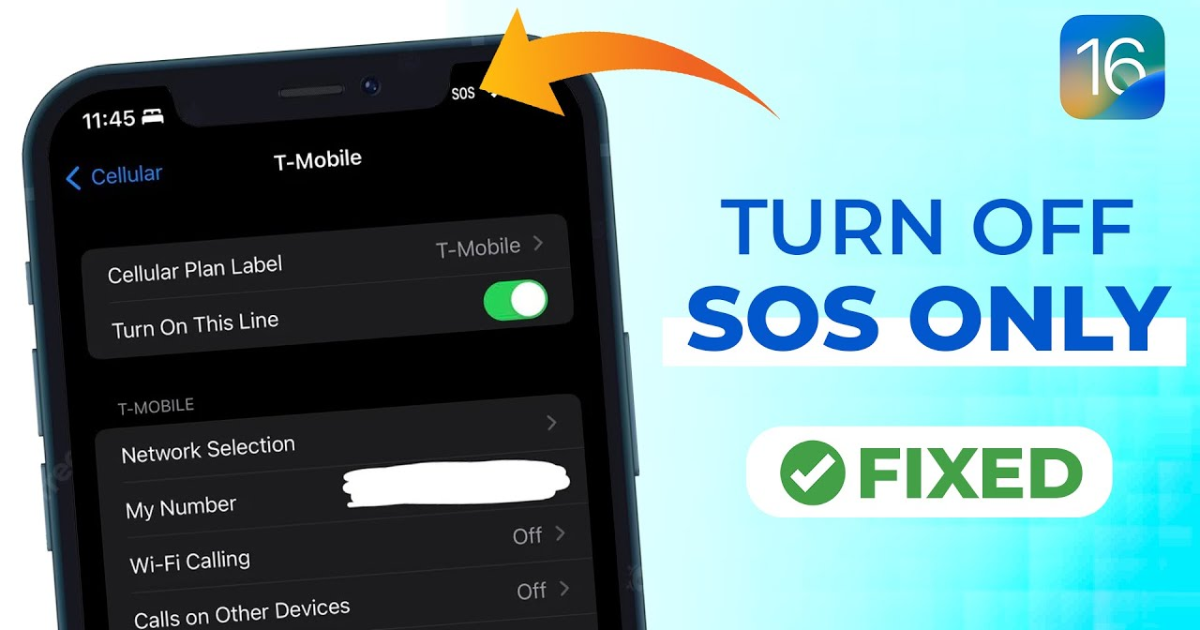
Introduction to SOS Mode and why it can be frustrating
Picture this: You’re out and about, trying to make an important call or send a text. Suddenly, your phone flashes a dreaded message—SOS Mode activated! Panic sets in as you realize you’re cut off from the world. It’s frustrating, isn’t it?
You might wonder what SOS Mode even means and why your device decided to switch gears without warning. The good news is that it’s not as complicated as it seems. With a little understanding and some straightforward steps, you can get back on track in no time. Let’s dive into how to resolve this issue so you can stay connected when it matters most.
Understanding SOS Mode: What does it mean?
SOS Mode is a safety feature designed to alert users when their phone isn’t connected to a mobile network. You might see this message if your device struggles to find service or loses its signal entirely.
When in SOS Mode, your phone usually indicates that you can only make emergency calls. This means you’ll be unable to access regular features like messaging and browsing until the issue is resolved.
Understanding why it occurs can help minimize frustration. It often happens in remote areas, during network outages, or because of SIM card issues. Sometimes software glitches may also play a role.
Being aware of these factors helps demystify SOS Mode. Knowing what triggers it empowers users to troubleshoot effectively and take the right steps toward restoring full functionality.
Common reasons for a phone getting stuck in SOS Mode
Several factors can lead your phone to get stuck in SOS Mode. One common reason is a weak or unstable cellular signal. When your device struggles to find a network, it may default to this mode for emergency calls only.
Software glitches are another culprit. Sometimes, apps or system updates can interfere with normal operations, causing unexpected behavior like entering SOS Mode.
Your SIM card could also be the issue. If it’s not seated properly or has become damaged, connectivity problems might arise, leading the phone into SOS-only mode.
Lastly, carrier settings may need updating. Providers occasionally release updates that enhance network performance and fix bugs; without these adjustments, you might face issues accessing regular service.
Step-by-step guide on how to get your phone out of SOS Mode
To get your phone out of SOS Mode, start with a simple check. Look at your cellular settings. Make sure Airplane Mode isn’t turned on. If it is, turn it off to restore connectivity.
Next, restart your device. This often resolves minor glitches that could be causing the issue. Press and hold the power button until you see the option to reboot.
If restarting doesn’t work, try toggling mobile data off and then back on again in your settings menu. Sometimes this refresh can make all the difference.
Another step involves removing and reinserting your SIM card if you’re comfortable doing so. Ensure it’s seated properly in its slot for optimal performance.
Lastly, consider checking for software updates. Keeping your system current can prevent many issues related to signal and connectivity.
Troubleshooting tips and tricks
If your phone is stuck in SOS Mode, there are a few quick troubleshooting tips to try.
First, check if Airplane Mode is on. Sometimes toggling this setting off and back on can restore regular functionality.
Next, look for any physical damage to the SIM card or tray. Removing and reinserting the SIM may help establish a better connection.
You should also inspect your device for any software glitches. A simple reset might be all it needs.
If these steps don’t work, consider moving to an open area. Poor signal strength can trigger SOS Mode unexpectedly.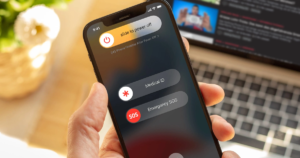
Lastly, ensure that your billing status with your service provider is up-to-date. An overdue account could lead to restricted services like calls or texts.
Checking your cellular settings
If your phone is stuck in SOS Mode, the first thing to check is your cellular settings. Sometimes a simple misconfiguration can lead to connectivity issues.
Start by navigating to the settings menu on your device. Look for options related to cellular or mobile data. Ensure that Airplane Mode isn’t accidentally enabled; this mode disables all wireless communications.
Next, verify that you’re connected to the correct network. If you’re in an area with multiple carriers, it might be worth switching networks manually. This simple step can help restore service quickly.
Also, make sure that data roaming is turned on if you are traveling outside of your usual coverage area. Not having this feature activated could keep you locked out of normal operation.
After adjusting these settings, give your phone a moment and see if it exits SOS Mode automatically.
Restarting your device
Restarting your device can often be the simplest solution to various phone issues, including getting stuck in SOS Mode. It’s quick and easy.
To start, press and hold the power button until you see the option to power off. This might take a few seconds depending on your device model.
Once you choose to turn it off, wait for about 10 seconds before turning it back on. This brief pause allows any temporary glitches or errors to reset themselves.
After restarting, check if your phone is still in SOS Mode. Often, this simple step clears up minor software hiccups that may have caused the problem in the first place.
If you’re still facing issues, don’t worry—there are more steps ahead that can help resolve this frustrating situation.
How to prevent your phone from getting stuck in SOS Mode in the future
To keep your phone from slipping into SOS Mode again, start with regular software updates. These updates often contain bug fixes and improvements that enhance device performance.
Next, pay attention to your cellular settings. Ensure that your network selection is set to automatic so your device can seamlessly connect to available networks.
Maintaining a stable signal is crucial too. Try not to use your phone in areas known for weak coverage or interference.
Consider turning on “Airplane Mode” when you’re in such locations to avoid unnecessary stress on the connection process.
Lastly, regularly restarting your device can help refresh its functionality and connectivity status. A simple reboot might just do the trick in preventing future occurrences of SOS Mode alerts.
Important software updates
Keeping your phone’s software up to date is crucial. Manufacturers regularly release updates that improve performance and fix bugs. These updates can directly impact how your device connects to cellular networks.
When a new update is available, it often includes enhancements for connectivity features. This means a smoother experience overall and potentially fewer issues with SOS Mode.
To check for updates, navigate to your settings menu. Look for the “Software Update” section—this varies slightly between devices but usually isn’t hard to find.
Enabling automatic updates can save you time and ensure you’re always on the latest version. Regularly updating helps maintain optimal functionality of your device, reducing the chances of encountering pesky SOS Mode issues in the future.
Maintaining a stable signal
Maintaining a stable signal is crucial for preventing your phone from slipping into SOS Mode. Weak or fluctuating signals can trigger this frustrating state, leaving you disconnected when you need it most.
First, consider your environment. Thick walls and electronic interference can weaken the signal. If you’re in a crowded area or an underground space, move to a location with better reception.
Next, check for physical obstructions around you. Trees, buildings, and even weather conditions like storms can impact your connection quality.
Another tip is to regularly monitor your network settings. Ensure that you’re connected to the right carrier network and not roaming unintentionally. This simple adjustment could keep your device functioning smoothly without interruptions.
Lastly, if poor reception is common in your area, think about investing in signal boosters or Wi-Fi calling options available through many service providers. These solutions enhance connectivity significantly.
Alternative solutions if all else fails
If you’ve tried everything and your phone remains stuck in SOS Mode, don’t lose hope. There are still a couple of avenues to explore.
First, reach out to your service provider. They can help diagnose network issues or account problems that might be causing the issue. Sometimes, they may uncover temporary outages or updates that require your attention.
If that doesn’t yield results, consider seeking professional assistance. A certified technician can take a closer look at hardware-related problems or software glitches.
Don’t hesitate to visit an authorized service center for expert advice tailored to your specific device model. Their experience could save you time and frustration as you get back on track with communication capabilities restored.
Explore these alternatives without panic; solutions often lie just outside what we initially perceive as limitations.
Contacting your service provider
If your phone remains stuck in SOS mode despite trying various fixes, reaching out to your service provider can be a smart move. They have the tools and knowledge necessary to diagnose issues linked to network connectivity.
When you contact them, be prepared to explain what you’ve experienced. Mention any troubleshooting steps you’ve already taken. This will help them assist you more efficiently.
Your provider may also check for outages in your area or account-related problems that could lead to this mode being triggered unexpectedly.
Some carriers offer app-based support options too, making it easier than ever to get professional help without leaving home. Don’t hesitate; getting expert advice can save you time and frustration down the line.
Seeking professional help
If you’ve tried everything to get your phone out of SOS Mode but nothing seems to work, it might be time to seek professional help. A technician can offer insights that go beyond basic troubleshooting.
Visit an authorized service center where experts are familiar with various models and brands. They can diagnose hardware issues or software glitches that may not be immediately apparent.
Before heading to the shop, back up your data if possible. This precaution ensures that important files aren’t lost during repairs.
Explaining the issue clearly helps technicians understand what you’ve experienced. Share any steps you’ve taken so far; this information can save time and streamline the diagnostic process.
Sometimes, a little expert assistance is all you need to restore normal functionality and peace of mind regarding your device.
Conclusion:
Getting your phone out of SOS Mode doesn’t have to be a daunting task. With the right knowledge and steps, you can navigate this situation with ease. Remember, it’s important to understand what SOS Mode means and why it occurs.
By following simple troubleshooting tips like checking your cellular settings or restarting your device, you can often resolve the issue quickly. Keeping up with software updates and ensuring a stable signal will help prevent this from happening in the future.
If you’re still facing challenges after trying these methods, don’t hesitate to reach out for help—whether that’s contacting your service provider or seeking professional assistance. The key takeaway here is that there are solutions available. Don’t panic; getting back to normal operation is within reach!
